
How to Read a Laptop Battery's Real-World Performance | Rated Hours, Degradation, and Replacement Calls
How to Read a Laptop Battery's Real-World Performance | Rated Hours, Degradation, and Replacement Calls
That 'up to X hours' on the spec sheet doesn't tell the whole story. Whether you're shopping for a new laptop or trying to figure out if your current one is running out of steam, there are three angles worth understanding — and this guide walks through all of them.
That "up to X hours" on the spec sheet doesn't tell the whole story. Whether you're shopping for a new laptop or trying to gauge how much juice your current machine actually has left, there are three angles that matter.
What you really need to know: what measurement standard produced that rated number, how long your battery actually lasts under the way you work, and how much your current battery has degraded. This guide untangles the difference between JEITA and MobileMark, walks you through running Windows Battery Report to check degradation, and gets you to the point where you can make a confident call — keep using it as-is, tweak your settings, replace the battery, or buy a new machine.
What Actually Tells You a Laptop Battery's Real Capability?
The Three Evaluation Axes: Rated Life / Real-World Usage / Current Degradation
No single number tells you everything about a laptop battery. The three things worth separating out are the rated battery life, how long it actually lasts in your workflow, and how degraded your current battery is right now. Once you think about them independently, the catalog's "maximum X hours" stops being so misleading.
Rated battery life is useful for pre-purchase comparisons. Domestic Japanese catalogs tend to use JEITA measurement standards, so models tested under the same national spec are at least on a comparable footing. That said, some manufacturers — Apple included — use their own testing conditions and disclosure methods, so it's not a perfectly level playing field across all brands. It's worth checking which measurement standard each manufacturer discloses before comparing. The measurement method matters more than you'd expect: a Lenovo resource covered by PC Watch illustrates how the same machine can show dramatically different numbers depending on the standard used. Always read the rated figure alongside the test conditions.
Real-world usage is where things diverge fast. Screen brightness, constant Wi-Fi and Bluetooth, browser tabs, Zoom or Teams calls, photo editing, video rendering — all of these push consumption up. Even with an identical 50Wh battery, a day of light document work versus a day running multiple Adobe apps feels like completely different hardware. Battery capacity (Wh or mWh) is simply how much energy the battery can hold — 50Wh is 50,000mWh — but how long that lasts depends entirely on how fast your machine burns through it.
The third axis is degradation — and this isn't about comparing options before you buy. It's a health check on the specific machine you're using right now. Lithium-ion batteries wear with charge cycles and heat. NEC describes a pattern where performance starts declining around 500 cycles and the battery reaches roughly 50% of its rated capacity around 800 cycles. The reason lifespan estimates range anywhere from two to five years is that degradation speed is so heavily shaped by how the battery is used. When it starts feeling like the battery "just drops suddenly" or you're anxious about making it through a day out — that's usually not in your head. Capacity retention has likely dropped.
A Quick Benchmark Comparison
Once you understand what each measurement is for, the variety of standards stops being confusing. JEITA is for catalog comparisons. MobileMark 25 and PCMark-family tests are for real-world usage estimates. Battery Report is for checking how degraded your specific machine is. Keep those roles separate and you'll never mix them up.
| Metric | What it tells you | Best used for | Strengths | Limitations |
|---|---|---|---|---|
| JEITA | Rated battery life on the spec sheet | Pre-purchase model comparisons | Standardized conditions, easy to compare | Tends to read longer than real-world use |
| MobileMark 25 / PCMark Modern Office | Real-world usage trends | Interpreting review benchmarks | Closer to how usage actually feels | Results vary with test conditions |
| Battery Report | Current degradation state | Diagnosing your current machine | Built into Windows, no extra software needed | Not useful for pre-purchase comparisons |
JEITA's strength is consistency. When you line up a LAVIE's rated hours against an ASUS Zenbook's, you're at least comparing numbers from the same testing philosophy. The catch is that treating those numbers as your actual working hours sets you up for disappointment. Working laptops tend to run at higher brightness, with cloud sync running in the background, browsers and meeting apps all open at once — that's a different world from the test conditions.
MobileMark 25 and PCMark 10's Modern Office test (used by many review outlets) help bridge that gap. Because they include office-oriented workloads, they give you a better sense of how a machine actually holds up when real work is happening — not just the best-case catalog figure. The flip side is that brightness settings and background activity can skew results, which makes cross-site comparisons tricky. The better approach: look at how much a machine drops from its rated figure in real testing, and how it stacks up against similar machines tested by the same outlet.
Battery Report is a different tool entirely. It's not a benchmark — it's a way to see how much capacity your battery has lost since it was new. On Windows, run powercfg /batteryreport and compare DESIGN CAPACITY against FULL CHARGE CAPACITY to get your current retention rate. Above 90% and you're in good shape. At 70–80% you'll notice the difference on longer days out. Below 50%, replacement is a realistic conversation. This is a standard Windows feature, no extra tools required.
💡 Tip
If you mostly work at a desk plugged in, capping your charge around 80% makes more sense than always running to 100%. ASUS's MyASUS, Lenovo Vantage, Dell Power Manager, and HP Battery Health Manager all support charge limit settings, reducing the strain of sitting at high charge for long periods.
Windows でのバッテリーの取り扱い - Microsoft サポート
support.microsoft.comWhat You'll Be Able to Do After Reading This
This isn't just a glossary. By the end, you'll know how to read JEITA and MobileMark numbers critically — which means you'll be able to tell the difference between a laptop with an impressive-looking spec and one that actually holds up under real work.
You'll also run Windows Battery Report and work through the math from DESIGN CAPACITY and FULL CHARGE CAPACITY to get a retention percentage. (A 50Wh battery shows up as roughly 50,000mWh in the report — the big number just reflects the unit conversion, not extra complexity.) Once you can read that figure, "my battery seems weaker lately" becomes either "there's still room to optimize settings" or "this thing's due for a replacement."
From there, you'll have a decision framework: keep using it, adjust charging habits, replace the battery, or replace the machine. Battery life sounds like one spec among many, but it runs directly through the whole feel of your workflow. The stress of not knowing if you'll make it through a meeting, or scanning for outlets between sessions, often weighs heavier than any CPU benchmark gap. Getting it down to numbers is the whole point.
The Basics You Need First: Wh, Charge Cycles, and Degradation Rate
What Wh and mWh Actually Mean
Wh stands for watt-hours and mWh for milliwatt-hours — both measure how much electrical energy a battery can store. This is the standard unit for laptop batteries, and it works differently from the mAh you see on phone specs. Wh accounts for voltage differences, which is why it's more useful for cross-device comparisons.
50Wh = 50,000mWh. If your Battery Report shows mWh, the number just looks bigger — the meaning is the same. A 50Wh-class laptop would show up as roughly 50,000mWh in the report.
The important thing to internalize: more Wh is generally better, but capacity doesn't directly equal runtime. Put a 50Wh MacBook Air M4 next to a 50Wh Windows laptop and they won't last the same amount of time — because the CPU architecture, screen brightness, thermal design, and background processes all affect how fast each machine burns through that energy. Think of Wh as the size of the tank; actual range depends on how fast you're driving.
For practical purposes, Wh is your starting reference point. On a day with video editing and Zoom calls, the same battery will drain noticeably faster than on a light day. Use it for initial comparison, not as a final answer.
What DESIGN CAPACITY and FULL CHARGE CAPACITY Mean
Two numbers in Battery Report do most of the work: DESIGN CAPACITY and FULL CHARGE CAPACITY. Comparing them makes it immediately clear how much your battery has shrunk.
DESIGN CAPACITY is the original spec — how much the battery was built to hold when new. Think of it as the factory baseline. FULL CHARGE CAPACITY is the current maximum — how much the battery can actually hold right now.
If DESIGN CAPACITY is 50,000mWh and FULL CHARGE CAPACITY is 40,000mWh, the battery currently holds 80% of its original capacity. Retention rate is just:
FULL CHARGE CAPACITY ÷ DESIGN CAPACITY × 100
So you get a concrete percentage of how degraded (or not) your battery is.
Rough benchmarks: 90%+ is healthy, 70–89% is the zone where you start feeling it, and below 50% is the threshold where replacement becomes a real option. NEC describes 50% of original capacity as their end-of-life benchmark. If the abstract numbers don't click, think of it this way: that "used to last most of the day, now I'm anxious by mid-afternoon" feeling usually maps directly to this degradation curve.
Battery Report is unglamorous, but once you can read it, your vague sense that "something feels off" becomes a specific, actionable number.
Cycle Count and Lifespan
A charge cycle is counted by total energy discharged, not by the number of charges. You don't have to go from 0% to 100% in one shot for it to count as a cycle. Use 50%, charge back up, use another 50% — that's one cycle. If you use 50% a day and charge every night, you're burning through roughly one cycle every two days.
Knowing this stops you from worrying unnecessarily about "top-off charging adding cycles." In terms of energy throughput, topping up frequently versus using it all down is roughly equivalent over time.
For lifespan benchmarks, NEC's figures are a clear reference: performance starts declining around 500 cycles, and the battery reaches approximately 50% of rated capacity around 800 cycles. That 50% mark is significant — NEC treats below 50% of original capacity as the end of usable life. A 50Wh battery down to 25Wh equivalent means your real-world range is cut in half, and you'll feel that sharply when you're away from a power outlet.
The wide range you see quoted (two to five years) makes sense when you consider that a ThinkPad X1 Carbon carried daily through multiple charges looks very different from a 15-inch laptop that mostly sits on a desk plugged in. From my own experience, battery longevity tracks "how much heat it's been exposed to and how many cycles it's completed" far more than simple age.
ℹ️ Note
Thinking about cycles in terms of "total energy throughput" rather than "number of charges" helps clarify things. Regularly charging between 20% and 80% isn't inherently bad just because you're doing it frequently.
Lithium-Ion Battery Characteristics
The vast majority of modern laptops use lithium-ion batteries. They offer much higher energy density than older nickel-metal hydride packs, which is why today's thin, light laptops are possible. MacBook Air, ASUS Zenbook, LAVIE, ThinkPad — if it's a laptop you'd casually buy today, it almost certainly has a lithium-ion cell.
The most important thing to know about lithium-ion in everyday use: top-off charging is basically fine. The old "drain it completely before charging" advice comes from nickel-cadmium days and doesn't apply here. Modern laptops don't benefit from regular full discharges — in fact, repeatedly draining to near-zero is harder on lithium-ion than using it gently.
That said, the conditions that accelerate degradation are well-established: heat and sustained high charge states. Covering the vents while working, leaving the laptop in a hot car, or sitting at 100% charge for extended periods all add wear. For desk-bound machines, this is exactly why charge limit settings (typically around 80%) make sense — they cut the time spent at high charge states.
On a 50Wh battery, the difference between 100% and 80% charging is 10Wh. That might translate to roughly an hour of runtime difference, but if you're mostly plugged in anyway, the tradeoff — less time parked at high charge — is worth it. The people who benefit most from charge limits are exactly the ones who plug in all day at a desk.
Lithium-ion is great, but it's not indestructible. That's why the full picture requires Wh for capacity, DESIGN vs. FULL CHARGE for current health, and an understanding of cycles and heat. Once those pieces connect, Battery Report stops being a wall of English text and becomes a genuinely useful decision tool.
Buying Smart: Why You Shouldn't Take Rated Battery Life at Face Value
JEITA vs. MobileMark: Which Feels Closer to Reality?
The "up to X hours" on any spec sheet is only meaningful if you know what measurement produced it. Japanese domestic models — LAVIE, Let's note, ThinkPad domestic variants — typically use JEITA figures, which makes side-by-side comparisons within that category reasonably fair. The catch is that the JEITA number can look quite generous compared to actual daily use.
If you want a sense of how a machine performs in something closer to real working conditions, MobileMark 25 or PCMark Modern Office benchmarks are more useful. They include browser activity, document work, and communication tasks, so they're easier to map onto a day of working in a coffee shop with tabs open, or cloud-syncing in a meeting-heavy office. They're still not your exact workflow, but they're much closer to it than the maximum rated figure.
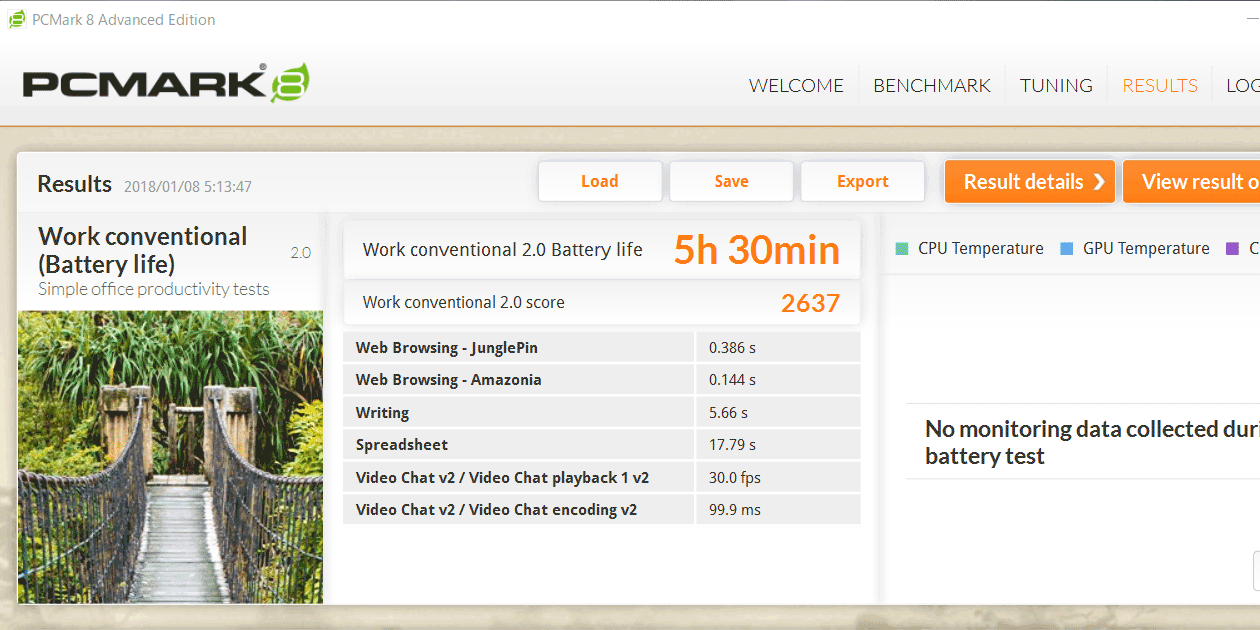
A helpful reference here is Lenovo documentation covered by PC Watch, which illustrates how JEITA 3.0, JEITA 2.0, and MobileMark 25 can produce substantially different numbers for the same machine. It's one example, not a universal rule — but it underscores why reading the measurement method name alongside any battery figure is worth the habit.
How to Read the Gap Between Rated and Real-World
The core reason rated life and real-world life diverge is that laptop power draw swings wildly based on what you're doing. A day of Word documents versus a day of Chrome tabs, Zoom calls, and Photoshop all open simultaneously — same MacBook Air, same ThinkPad, completely different drain rates.
The common mistake is reading "bigger Wh = always lasts longer." It's half right. Capacity is the tank size, but your actual range depends on how fast your CPU, GPU, and display burn through it. High-performance creator laptops and gaming-adjacent machines with discrete GPUs often have large batteries that still deplete quickly under load — because the consumption side is equally large.
The other easy miss is rated life figures with no measurement standard listed. If it just says "up to 14 hours" without specifying JEITA, MobileMark, or any other standard, you've lost the ability to compare it meaningfully to anything.
💡 Tip
Whenever you see a long battery life claim, look for the measurement standard name alongside the hours figure. That alone filters out a lot of misleading spec-sheet comparisons.
The Relationship Between Capacity (Wh) and Power Consumption
Wh tells you how much energy is stored; your actual runtime depends on how fast that energy gets used. Think of it like a water bottle — larger capacity only helps if you're not drinking it faster to compensate.
The biggest variables in power draw: CPU and GPU architecture matter most. A MacBook Air M4 with its efficiency-focused chip versus a Windows creator laptop built around a high-performance processor will handle the same 50Wh very differently. On days when I'm in Premiere Pro or DaVinci Resolve, the drain is noticeably faster than on light writing days — same machine, same battery.
Display is significant too. High brightness, high resolution, high refresh rate — stack all three and the power cost climbs. A 14-inch ultrabook in a bright outdoor space running at full brightness can feel like a completely different machine than the same laptop at indoor brightness in power-saving mode. Peripherals pile on: USB-C SSDs, audio interfaces, and USB hubs all draw from the same battery, which adds up when you're away from a charger.
Bottom line: Wh is the right place to start, but capacity alone doesn't give you the answer. A large-tank laptop with high-draw components won't necessarily outperform a smaller-but-efficient one. Once you internalize this, you'll read Wh and "up to X hours" as two separate data points — which is exactly what they are.
How to Actually Read Review Benchmarks
Review benchmark times are genuinely useful, but pulling numbers from different sources and comparing them directly is where things go sideways. What matters isn't just how many hours a reviewer got — it's what conditions they were testing under. Screen brightness, power mode, Wi-Fi on or off, type of video playing, Office-heavy or browser-heavy workload. Any of those variables can shift results on the same machine.
Cross-site comparisons are especially unreliable. One outlet runs PCMark Modern Office; another loops YouTube; a third uses a custom browsing test. Reading "A lasted 10 hours, B lasted 8 hours, therefore A is 2 hours better" as if those came from the same test is a mistake — they're measuring different things.
The more useful lens: look at how a machine behaves across load levels rather than fixating on the headline number. "MacBook Air M4 holds up well on light tasks but the gap narrows under heavy load." "This creator-focused Windows laptop drops more steeply from idle to full workload than typical." Those patterns translate to your own usage much better than raw numbers.
When a review publication discloses their exact methodology — what tasks, what brightness, what connectivity — that's when the numbers actually become interpretable. Look for not just the result, but what kind of workload produced it.
ノートパソコンのバッテリー駆動時間計測方法
当サイトにおけるバッテリー駆動時間の計測方法について説明します
komameblog.jpWhen to Use Which Measurement
For spec-sheet reading before buying: JEITA is for catalog comparisons, MobileMark 25 and PCMark Modern Office give you real-world usage ballpark figures, and Battery Report tells you how degraded your current machine is. They serve different purposes — knowing which role each plays prevents you from misapplying any of them.
| Method | Best perspective | Strengths | Limitations |
|---|---|---|---|
| JEITA | Pre-purchase cross-comparison | Standardized conditions, comparisons hold up | Reads longer than real use |
| MobileMark 25 / PCMark Modern Office | Real-world usage trends | Easier to imagine actual workloads | Sensitive to test condition differences |
| Battery Report | Degradation check on your current machine | Easy to see current capacity loss | Not applicable for pre-purchase comparisons |
When you're browsing specs across LAVIE, ThinkPad, and Zenbook candidates, JEITA gives you a consistent baseline. Once you've narrowed down to a short list, MobileMark or PCMark Modern Office results help you adjust your expectations toward real-world conditions. Then when your ASUS Zenbook or Dell XPS starts feeling weaker over time, that's when Battery Report enters the picture.
Thinking of them this way, "this laptop has a great rated life but doesn't last as long as I expected" becomes a logical observation rather than a mystery. You're not doubting the numbers — you're categorizing what each number was actually measuring.
Checking Your Current Machine: Running Windows Battery Report
Before You Start
Battery Report is a built-in Windows feature — no extra app needed. All you need is Command Prompt or Windows Terminal. It sounds intimidating if you've never touched either, but what you're actually doing is very simple.
You can leave the AC adapter plugged in. In fact, being connected to power means you won't lose the machine mid-process. The procedure is the same regardless of whether you're on an ASUS Zenbook, Dell XPS, ThinkPad, or any other Windows laptop.
One thing worth knowing upfront: the report saves as an HTML file. Nothing appears on screen after you run the command — you go find the file and open it in a browser. A lot of people run the command and then think nothing happened, so it helps to know this in advance.
Running powercfg /batteryreport
Here's the process:
- Open the Start menu and type
cmdorterminal. - Open Command Prompt or Windows Terminal.
- Type the following command and press Enter:
powercfg /batteryreportThis generates the Battery Report. If it works correctly, the terminal will display the path where the file was saved. As documented in Windows' own battery guidance, this command outputs the report as an HTML file.
If you'd rather save it somewhere specific, you can add an output path:
powercfg /batteryreport /output "C:\battery-report.html"This version is easier to find afterward — saving to the root of your C: drive or your desktop keeps the path short and memorable.
Opening the Report and Finding the File
By default, the report typically saves to your user folder. The path is displayed in the terminal right after running the command — the most reliable approach is to follow that path exactly. The filename is usually battery-report.html.
Opening it is straightforward: double-click the HTML file in File Explorer. It opens in a browser like Microsoft Edge or Chrome, and you read it like a regular webpage. It's not a PDF, so don't look for it in a print preview — just scroll through the browser window.
If you want to track changes over time, save a dated copy: battery-report-2026-03.html, for example. A few months later you'll have a before-and-after comparison. I do this occasionally for machines I mostly keep plugged in — having actual numbers is much more useful than trying to remember how it felt.
Reading the Installed Batteries Section
Once the HTML is open, the section to focus on is Installed batteries. This is where your current battery info lives. You'll see something like:
- Battery name
- Manufacturer
- CHEMISTRY
- Design capacity
- Full charge capacity
- Cycle count
For degradation purposes, the two that matter are Design capacity and Full charge capacity. Design capacity = what the battery was built to hold when new. Full charge capacity = what it can actually hold right now. The difference between those two numbers is your degradation.
Here's an example of what that section might look like:
| Field | Example value |
|---|---|
| Battery name | AS3GWYF3KC GA503 |
| Manufacturer | SMP |
| CHEMISTRY | Li-I |
| Design capacity | 50,000 mWh |
| Full charge capacity | 40,000 mWh |
| Cycle count | 320 |
In this case, the battery was designed to hold 50,000mWh but currently maxes out at 40,000mWh. The number still sounds large, but in retention terms, that's 80% of original capacity. Once you see it framed that way, "my battery seems to drain faster lately" stops being a feeling and becomes a measurement.
CHEMISTRY shows the battery type — Li-Ion is standard on modern laptops. Cycle count, when present, gives you additional context for understanding why degradation is at the level it is.
Calculating Degradation Rate and What to Do With It
The math is simple:
Retention rate (%) = FULL CHARGE CAPACITY ÷ DESIGN CAPACITY × 100 Degradation rate (%) = 100 − retention rate
Using the example above: 40,000 ÷ 50,000 × 100 = 80 Retention rate: 80%. Degradation rate: 20%.
One more example: if DESIGN CAPACITY is 50,000mWh and FULL CHARGE CAPACITY is 45,000mWh, retention is 90% — still comfortable territory. Drop to 35,000mWh and you're in the 70s, which is where real-world range starts feeling constrained.
Here's how to read these numbers in practical terms:
| Retention rate | Status | What it tends to feel like |
|---|---|---|
| 90%+ | Healthy | Battery life complaints are unlikely |
| 70–89% | Degradation is noticeable | You'll start watching the battery on longer days out |
| 50% or below | End-of-life threshold | Effectively requires AC for sustained use |
NEC puts below-50%-of-original-capacity as their end-of-life benchmark. At that point, it's not just "shorter runtime" — the battery's behavior becomes less predictable. You might find yourself hunting for power more frequently, and the drop from "plenty of charge" to "low battery warning" starts happening faster than expected.
ℹ️ Note
If you primarily use your laptop at a desk and want to slow down future degradation, charge limit features in ASUS MyASUS, Lenovo Vantage, Dell Power Manager, and HP Battery Health Manager are worth enabling. Staying around 80% instead of always charging to 100% tends to keep that retention number higher over time.
Troubleshooting
If something doesn't go smoothly, the issue usually falls into one of a few predictable categories.
No admin rights: The command might run but fail to save the file. If you hit an error, right-click Command Prompt or Windows Terminal in the Start menu and choose "Run as administrator," then try again.
Can't find the file: Copy the file path shown in the terminal output right after running the command, then paste it into the File Explorer address bar. Or avoid the problem entirely by specifying an output path like C:\battery-report.html when you run the command.
The report looks old: If you have a previous battery-report.html, you might be opening that instead of the new one. Check the file's modification date to confirm you've got the latest version. This is especially easy to mix up if you've run it multiple times.
Cycle count not showing: Common in Battery Report and nothing to worry about. As long as Design capacity and Full charge capacity are visible, you have everything you need for the degradation check. Cycle count is supplementary context, not the main event.
No battery detected: Expected behavior on desktop PCs and some unusual configurations. On a laptop, if the Installed batteries section is sparse or missing, there may be a battery recognition issue — but as a first check, just confirm that the design capacity and full charge capacity fields are populated.
Battery Report isn't flashy. But once you understand how to read it, it's more than capable of turning "my MacBook Air / ThinkPad / LAVIE seems weaker than it used to be" into a specific, verifiable finding. The gap between design capacity and current full charge capacity is exactly that answer, made visible.
Replacement vs. Upgrade: How to Decide
Threshold-Based Decision Making
Once you have the retention rate from Battery Report, the next step is translating it into action. The framework: 90%+ is fine, 70–89% is where discomfort starts, below 50% is the practical end-of-life line. NEC uses below-50%-of-original-capacity as their end-of-life definition, and that's a reasonable threshold — at that point, "still functional" and "reliably usable" diverge.
At 90%+, whether you're on a slim ultrabook like the MacBook Air M4 or a business workhorse like a ThinkPad or LAVIE, daily use shouldn't generate significant complaints. The battery is losing ground slowly, but it's still well within usable range. This is the "check the number and feel reassured" zone — replacement isn't a real conversation yet.
The 70–89% band is different. The machine isn't broken, but the friction is building. You start running low by end of day. Throw in Zoom or photo editing and the timeline shifts unpredictably. For anyone doing CPU/GPU-intensive creative work, even sitting at 80% can produce a noticeably different experience than when the machine was new.
Below 50% is a different reality. A machine that started at 50Wh is now effectively operating at around 25Wh. Light tasks might still be manageable, but heavier workloads will hit the warning threshold sooner than you expect, and you'll find yourself defaulting to working near a charger. The battery is technically not dead, but treating it as end-of-life makes practical sense.
Warning Signs That Override the Numbers
Sometimes the physical symptoms tell you what to do before the numbers do. The key ones: the battery drops dramatically even when "charged," the machine shuts down suddenly without warning, or low-battery alerts appear far too frequently. Even without an extreme retention rate reading, unstable voltage behavior can cause the display and actual remaining charge to fall out of sync. A sudden mid-session shutdown isn't just a "runtime" complaint — it's a reliability issue.
Higher priority still: swelling, unusual smells, and abnormal heat. If the palm rest or bottom cover is visibly bulging, if the trackpad is being pushed upward from below, if there's a sharp chemical smell, if the machine feels hot to the touch even without charging — this is no longer a replacement consideration. It's a safety situation.
💡 Tip
If you notice swelling, unusual odors, or abnormal heat, stop charging and unplug the AC adapter. Don't continue using the machine. Power it down, disconnect everything, and move it to a safe location.
The temptation when these symptoms appear is to "monitor it for a while" or "charge it to 100% and see." But swelling and thermal issues don't improve with monitoring. Thin-and-light laptops are particularly risky because the machine often boots and runs normally despite internal battery damage, which can delay the moment someone decides to act. When the symptoms are there, normal operation has already ended.
Battery Replacement vs. Buying a New Machine
The harder question once a battery is past its prime: replace just the battery, or replace the whole machine? The right answer depends on whether the battery is actually the only problem.
If you have no complaints about performance, replacing the battery makes strong sense. Document and browser work, a keyboard and screen you're happy with, processing speed that still feels adequate — in that situation, the machine has more life in it and a battery replacement genuinely restores the experience. A well-worn ThinkPad with a good keyboard feel, or a LAVIE you've gotten used to, can feel like a new machine after a battery swap.
If you're already experiencing weight, slowness, screen size, fan noise, or outdated port selection as real frustrations — those don't get fixed by a new battery. Fresh charge, same wait on video exports. Fresh charge, same lag on video calls. Fresh charge, same struggle connecting USB-C peripherals. At that point, the question isn't "can I still use this" but "does it fit how I actually work now?" That framing points more naturally toward replacement.
Internal batteries complicate this further. Modern thin laptops are rarely designed for easy disassembly, and battery replacement isn't the plug-and-play process it was a decade ago. The combination of a more involved replacement procedure and the pace of hardware improvement means that for thinner, newer-generation machines, there's often a cleaner case for upgrading than there would have been for a chunkier older model.
A three-axis check that usually clarifies things:
| Factor | Leans toward battery replacement | Leans toward new machine |
|---|---|---|
| What's the primary complaint? | Battery life only | Battery plus: speed, weight, screen, ports |
| Satisfaction with current hardware | Still happy with keyboard, display, and performance | Already feeling a generational gap |
| Future usage pattern | Mostly desk work, lighter tasks — easier to extend life | Mobile-heavy or high-demand workloads where total capability matters |
Using Charge Limits for Desk-Bound Machines
If you primarily use your laptop at a desk, the replacement calculation shifts. Someone who's plugged in most of the day can work with a somewhat degraded battery without much real impact — and extending the battery's remaining life through charge limit settings becomes the more relevant conversation.
The tools are there across the major manufacturers. ASUS MyASUS offers a Balance mode (capped at 80%) and a Maximum Lifespan mode (capped at 60%). HP Battery Health Manager and Samsung Galaxy Book series both use around 80% as their upper limit in protection modes. Dell Power Manager has a mode for primarily plugged-in use as well. For desk setups, this approach makes genuine sense.
On a 50Wh battery with an 80% cap, you're effectively using 40Wh of capacity — a 10Wh difference from full charge. For light work, that's roughly 30–60 minutes of runtime difference, which rarely matters when you're plugged in anyway. The upside is less time spent at high charge states, which measurably slows degradation over the long run.
The caveat: this only makes sense if AC use is the primary pattern. If you're regularly working away from power for extended periods, an 80% cap becomes a real constraint, not a maintenance tool. For machines that mostly live on a desk — corporate ThinkPads, home MacBook Airs that rarely leave the house — slowing degradation matters more than maximizing the charge available at any given moment. Numbers alone shouldn't trigger a hasty replacement decision when smarter charging habits might be the better move.
Practical Tips to Extend Battery Life
80% Charge Cap and When to Override It
For desk-heavy users, not charging to 100% every time is one of the simplest changes with real long-term impact. Lithium-ion wears faster the longer it sits at high charge states, so for AC-dominant setups — ThinkPad, Zenbook, Latitude, Galaxy Book plugged in most of the day — an 80% cap is a straightforward win.
Manufacturer software makes this easy. ASUS MyASUS has Battery Health Charging with a Balance mode (maximum 80%) and Maximum Lifespan mode (maximum 60%). Lenovo Vantage offers Conservation Mode. Dell Power Manager and HP Battery Health Manager both support charge limit settings. Samsung Galaxy Book series includes protection mode. The practical workflow: keep it capped at 80% by default, and switch to full charge on days with travel or long away-from-desk sessions. That's more realistic than trying to pick one setting for all situations.
Think of the 80% cap not as "accepting a penalty" but as a longevity mode for a machine that mostly lives near power. On a 50Wh battery, the 20% difference is 10Wh — which means roughly 30–60 minutes less runtime under light loads. If you're plugged in anyway, that's not a real tradeoff. On days with video exports or back-to-back meetings where you're away from a charger, switch to 100% — and then back when you're home. Rigid single settings are less practical than intentional flexibility.
Heat Management and Keeping Vents Clear
Heat is the other major enemy of battery longevity, alongside high charge states. Direct sunlight, leaving a laptop in a hot car, working on a soft surface like a blanket or cushion — all of these raise the thermal risk. Thin laptops in particular trap heat internally, and that affects not just the CPU and SSD but the battery cells too.
The easy thing to overlook: don't block the vents. Working on your lap or in bed is comfortable, but covering intake or exhaust vents means the fan can't do its job effectively. Even fanless designs like the MacBook Air M4 distribute heat across the chassis — blocking that surface area matters. Putting the machine flat on a desk is a simple improvement that most people don't think about.
Heat management matters most on high-load days. Exporting 4K video, batch processing RAW images, running a demanding DAW project — these create heat fast, on top of draining the battery quickly. In my own creative work, I've found that splitting up heavy rendering tasks on warm days keeps the machine calmer overall. The worst combination is high ambient temperature + heavy processing + charging simultaneously — that's the scenario worth actively avoiding.
ℹ️ Note
Laptop stands can help or hurt depending on design. Before assuming a stand improves airflow, check that it doesn't block bottom intake vents or side/rear exhaust. Angle isn't the primary goal — clearance for airflow is.
Long-Term Storage
If a laptop is going into storage for a while, charge it to around 50% and keep it somewhere cool. Storing at full charge means leaving lithium-ion at a high charge state for months, which accelerates degradation. Storing at near-zero can cause the battery to over-discharge, making it difficult to recover later. The middle — around 50% — is the right rest position.
This matters most for secondary machines or older models kept as backups. If your main machine is now a MacBook Air M4 and your old IdeaPad or LAVIE is sitting in a drawer as a spare, charging it to 50% before putting it away is considerably better than leaving it at 100%. I've noticed this myself during equipment transitions — the stored machines that got proper preparation before going dormant come back to life much more reliably.
Storage location matters too. Avoid warm spots — shelves that get afternoon sun, rooms that heat up in summer. Disconnect the AC adapter while storing rather than leaving it plugged in. The mental model: half charge, cool place, adapter unplugged is the right baseline for any machine you're not actively using.
Optimizing Brightness, Connectivity, and Peripherals
The biggest daily drain often isn't dramatic settings — it's low-key constant loads. Screen brightness is the most impactful: running at high brightness indoors, especially when it's unnecessary, chips away at runtime on even light workloads. Dialing it down slightly in a normal indoor environment makes a noticeable difference.
Wireless connections are worth reviewing. Wi-Fi and Bluetooth are convenient but consume power when active even if you're not actively using them. Staying connected to 5GHz or 6GHz bands all day, keeping multiple Bluetooth devices paired and waiting — these are small but real contributors. When you're doing offline work and know you won't need them, disconnecting saves something.
Peripherals add up, especially bus-powered external SSDs. USB-C drives, audio interfaces, and USB hubs all draw from the laptop's battery. For creative workflows, external storage is often non-negotiable — but when you're prioritizing battery range, connecting only when actively needed makes a difference. In my own field work, reducing what's hanging off the machine consistently extends how long I can go without hunting for a plug.
Power Plan and App Management
On the settings side, power plan adjustments and trimming background apps have real payoff. Windows in performance mode pushes the CPU harder even under light loads, which means higher fan activity and more power draw. Switching to a balanced or efficiency mode when on battery is an easy lever that keeps the machine from working harder than necessary.
Background apps are another underappreciated factor. Browser tabs, Teams, Zoom, Adobe Creative Cloud, cloud sync, and chat apps all running simultaneously means the machine is never truly idle — even when you're not actively working in any of them. Startup apps that auto-launch multiply this effect. On machines with many auto-start programs, the impact on both battery life and heat is compounding.
Honestly, battery care isn't about advanced techniques — it's the combination of avoiding heat, not sitting at full charge, and reducing unnecessary draw. Even a machine that doesn't need a replacement yet can get noticeably better with these habits in place. The number of laptops that still have real life left in them, once tuned properly, might surprise you.
Who Really Needs to Pay Attention: Usage Pattern Breakdowns
Daily Commuters and Students
If your laptop goes in a bag every day, the catalog's "up to X hours" matters less than how far you can realistically get through light tasks while moving around. For note-taking, browser use, PDF reading, and Office apps, MobileMark 25 or PCMark Modern Office benchmarks are a more reliable guide than JEITA's peak figure. MacBook Air M4, ThinkPad X1 Carbon, LAVIE — whichever mobile platform you're using, the accumulated reality of waking from sleep on a train, connecting to campus or office Wi-Fi, and maintaining browser tabs across sessions shifts the number significantly.
Personally, I'd apply a 20–40% discount to rated figures for this use case. Brightness tends to run a little higher when you're moving around, and the machine spends more time actively reconnecting to networks. The most common disappointment in commuter/student use is a machine that looks great on the spec sheet but hits low battery before the day ends. For consistently light workloads, a machine with a verified stable real-world benchmark often delivers better satisfaction than one with a higher-but-theoretical rated life.
Video Conferencing-Heavy Users
People running Zoom or Teams for long stretches face the largest gap between rated and real-world battery life of any common use case. Camera on, mic active, constant network traffic, a browser and PowerPoint also open for reference — that combination is heavier than it looks, and it's categorically different from document work. If you alternate between working from home and the office, you might find yourself hunting for AC before every meeting in the afternoon.
The question worth asking isn't just "how many Wh" but how well the machine handles the combination of camera processing, connectivity, and display output simultaneously. Some thin ultrabooks handle it gracefully; high-resolution displays and high-performance CPU configurations can drain more steeply than expected under exactly this kind of sustained medium load. For conference-heavy users, prioritize benchmark results that test communication-oriented workloads over those testing idle video playback or light browsing.
Desk-Bound Users
If you're plugged in most of the day at home or at the office, the battery conversation shifts from "how long does it last" to "how do I slow down degradation." Charge limit tools are the main tool here — ASUS MyASUS Battery Health Charging, HP Battery Health Manager, Samsung Galaxy Book's protection mode, all landing around 80% as the target. These reduce the time spent at high charge states, which is the primary driver of long-term degradation for always-plugged machines.
On a 50Wh battery, a 20% cap difference is 10Wh — potentially 30–60 minutes less runtime if you did need to unplug. But for a desk setup, that rarely matters compared to the benefit of not cooking the battery at 100% all day. If your machine stays on AC and you're not experiencing sudden shutdowns or instability, there's no urgent need to replace a battery just because the retention rate is below 80%. Degradation tracking is more useful than replacement panic in this scenario.
What tends to matter more in desk use than retention rate is heat and erratic charge indicator behavior. A machine that overheats at the power delivery point, or whose battery percentage becomes unpredictable, is a more immediate concern than one sitting at 75% retention while happily running all day on AC.
💡 Tip
Desk-bound laptops benefit most from combining an 80% charge cap with consistent airflow management. ThinkPad, Dell Latitude, and similar business-class machines plugged in all day are a natural fit for this approach.
Gaming and High-Performance Users
Gaming laptops and high-performance creator machines are the category most likely to feel like "this Wh number means nothing." High refresh rate display, discrete GPU running at load, power-hungry CPU — stack all three and the consumption side is massive. Legion, ROG, Alienware, high-end creator configurations — the spec sheet might show a large battery, but these are not machines designed to run comfortably on battery for extended periods.
In this use case, applying the same rated life reading approach as a mobile ultrabook doesn't work. Under game loads, video exports, RAW processing, or a heavy DAW session, the battery drops visibly and quickly — and with high consumption comes substantial heat, which compounds the battery stress. From my experience with production-oriented laptops, the battery in these machines functions more like emergency coverage — keeping you going briefly when you're between power sources — rather than a true untethered work tool.
For gaming and high-performance use, the primary question isn't "how many hours" but how consistently can it sustain peak performance while plugged in. A large Wh spec is reassuring but shouldn't be the deciding factor. The same machine that handles Office work "normally" on battery can feel like a completely different device the moment you hit a game or a render queue. That contrast — how radically usage type changes the battery picture — is the defining characteristic of this segment.
Wrap-Up: Your Battery Reality Checklist
Before You Buy
Rather than taking "up to X hours" at face value, start by identifying what measurement produced that number. As you compare MacBook Air, ThinkPad, LAVIE, Inspiron, and similar candidates, simply separating JEITA figures from MobileMark or PCMark real-world benchmarks eliminates a lot of false comparisons. Beyond that, don't judge by Wh alone — pair capacity with CPU/GPU class, display resolution, and high-refresh-rate status to get the full picture. For review benchmarks, prioritize those that disclose screen brightness, connectivity state, and workload type over those that only report final hours.
While You're Using Your Current Machine
If you want to know where your current machine actually stands, run Battery Report and calculate FULL CHARGE CAPACITY ÷ DESIGN CAPACITY × 100. Once you can read that number, "it doesn't seem to last as long" becomes something you can act on. Broadly: once you drop below 70%, outdoor use starts feeling stressful; approaching 50%, replacement or upgrade becomes a real conversation. For desk users, this is also a good moment to check whether charge limit settings in MyASUS, Lenovo Vantage, Dell Power Manager, or HP Battery Health Manager are configured — they can extend useful life before replacement becomes necessary.
When to Replace or Upgrade
Factor both numbers and symptoms into the decision. Sudden large drops, warning indicators, or any sign of swelling bumps the priority. From there, weigh degradation level against whether the machine is still worth investing in — and the answer to adjust settings and extend life, replace the battery, or replace the whole machine gets considerably clearer.
What to Do Right Now
If you want to take action today, this sequence covers it:
- Run Battery Report
- Calculate your retention rate
- Check whether an 80% charge limit is available and active
- Look up real-world benchmark results for machines you're considering (filter for tests matching your workload type)
- Compare battery replacement cost against upgrade cost
Battery life is most useful when you separate it into three questions: what standard produced the rated figure, what does real-world testing show, and where is my current battery in its lifespan. With all three in view, decisions — whether buying, adjusting settings, or replacing — get a lot more straightforward.
Related Articles
MacBook Air M4 Review: Redefining Thin and Capable
MacBook Air M4 Review: Redefining Thin and Capable
A week of real-world testing with the Apple MacBook Air M4. How much does it improve over M3? Battery life, fanless thermal limits, and whether it's worth upgrading — all covered.
How to Choose a Creator PC Under $700: Where to Prioritize and Where to Compromise
How to Choose a Creator PC Under $700: Where to Prioritize and Where to Compromise
If you're shopping for a creator-focused laptop around the $700 mark, you'll get much further by deciding upfront whether photo editing, full HD video, or streaming is your main focus — rather than hunting for one machine that does everything adequately.
How to Choose a Laptop: Use-Case Criteria and Priorities (2025-2026)
How to Choose a Laptop: Use-Case Criteria and Priorities (2025-2026)
Rather than scanning a spec sheet from top to bottom, your laptop search goes smoother when you decide what you'll actually do with it first. The right specs shift considerably depending on whether you mostly do office work or school tasks at a café, connect an external monitor at a desk, edit travel photos or 4K footage, or game at night.
7 Best Laptops for College Students | How to Choose One That Lasts All 4 Years
7 Best Laptops for College Students | How to Choose One That Lasts All 4 Years
Buying a laptop based purely on price is one of the most common mistakes college students make — the regret usually kicks in around year two. This guide breaks down the specs you actually need for liberal arts, STEM, and creative programs, and helps you figure out whether Mac or Windows is the better fit for your situation.