
7 Best Laptops for College Students | How to Choose One That Lasts All 4 Years
7 Best Laptops for College Students | How to Choose One That Lasts All 4 Years
Buying a laptop based purely on price is one of the most common mistakes college students make — the regret usually kicks in around year two. This guide breaks down the specs you actually need for liberal arts, STEM, and creative programs, and helps you figure out whether Mac or Windows is the better fit for your situation.
Buying a laptop on price alone is one of the most reliable ways to end up frustrated by sophomore year. This guide is written for students who want a machine that holds up from orientation through job hunting — four full years — covering the right specs for liberal arts, STEM, and creative programs, plus a clear-eyed take on Mac vs. Windows.
The baseline I keep coming back to: follow your university's spec requirements first, then aim for 16GB RAM, 512GB SSD, a 13–14 inch screen, under 1.5kg, and a rated battery life of around 12 hours. Machines in the 1.0kg range barely register in your bag, and a 14-inch 16:10 display lets you keep a Word doc and reference material open side by side without constantly shifting focus — small things that add up over four years of daily use.
The seven laptops I'll compare all sit in the roughly $700–$1,100 range (¥100,000–¥150,000) where the realistic options cluster. By the end, you should be able to narrow the field to two or three candidates using the checklist provided. For most incoming students, getting the university requirement right and then prioritizing weight, battery, and warranty coverage is enough to avoid a bad call.
How to Choose a College Laptop | 5 Things to Check First
Start with Your University's Recommended Specs
The single most important filter when shopping for a college laptop is your university or department's recommended specifications. Nail everything else — fast CPU, light chassis, design you love — but skip this step and you'll run into software that won't launch, peripherals that don't cooperate, or compatibility headaches that cost you time. STEM, architecture, CS, and media production programs in particular often require specs well above what a generic "student laptop" guide would suggest.
Since most students use the same machine from freshman year through thesis writing and job applications, treat the university requirement as a floor, not a ceiling. Liberal arts students can usually get by with a machine built around reports, browsers, Zoom, and Office. STEM students add programming, data analysis, and department-specific software to that mix. Creative programs bring in video editing and Adobe apps, which push the requirements significantly higher. Same label — "college laptop" — but very different headroom needed.
A survey by HP Japan found that 96% of university students said a PC was essential, and personal ownership was at 100%. A separate survey by Fujitsu's FMV brand showed students using their laptops at home (87%) and on campus (72%) — pointing clearly to a machine that's carried everywhere, not parked on a desk. Think of a college laptop not as a stationary tool but as daily learning infrastructure you carry to class, through coursework, and into presentations — that framing helps you pick something you'll actually want to use for four years.
The decision order is straightforward: university requirement first, then OS, then CPU, RAM, SSD, screen size and weight, battery, ports, and warranty. Flip that order — start with "it's light" or "it's cheap" — and you're more likely to discover a deal-breaking gap later.
OS: Not a Religious War, but Not Irrelevant Either
Choosing between Mac and Windows based purely on preference is fine in principle — as long as you've already verified that your department's software and classroom environment work with your choice. If there's no university mandate, either platform can handle a college workload. But when you factor in university-wide software ecosystems and peripheral compatibility, Windows is still the safer first laptop for a lot of students.
Windows has a clear edge in compatibility with accounting and finance software, some department-specific research tools, and lab equipment commonly found in STEM settings. Lenovo ThinkBook 14, mouse X4, dynabook G-series, FMV LIFEBOOK UH, and Surface Laptop are all proven choices in university environments. Many Windows laptops also ship with full-size HDMI and USB-A ports, which matters when you're presenting in a seminar room or swapping USB drives.
That said, the MacBook Air M4 is genuinely compelling. The 13-inch M4 configuration features 16GB RAM standard, weighs about 1.24kg (~2.7 lbs), and starts at around ¥149,800 (~$1,000 USD) with Apple's education pricing — a strong package for liberal arts students through light creative work. If you're already in the Apple ecosystem and iPhone integration matters to you, it fits in naturally.
The key question to ask about Macs isn't "is it popular?" — it's whether the apps you'll actually need run on it without issues. Same goes for Snapdragon-powered Surface Laptop models: technically impressive, but ARM architecture compatibility adds a variable worth thinking through. OS choice looks like a debate about loyalty, but it's really just about not getting stuck in class.
Performance Baseline: CPU, RAM, and SSD
Looking ahead to 2026 and beyond, the practical minimum for a college laptop is 16GB RAM and 512GB SSD. That's the sweet spot that keeps things comfortable through four years of real use. 8GB technically works for report-heavy workflows, but the moment you're juggling multiple browser tabs alongside Zoom, Office, a PDF, and cloud sync in the background, the headroom difference becomes obvious.
For CPU: liberal arts students do well with Core i5, Core Ultra 5, or Ryzen 5-class chips. STEM students benefit from a bit more overhead. If your work involves video editing, design, or 3D, Core i7 or Ryzen 7 — and potentially a discrete GPU — come into play. The important thing: don't max out the CPU while cutting RAM or storage. In college daily life, smooth multitasking beats raw peak performance for overall satisfaction.
Pricing lines up with this logic. The sweet spot is roughly ¥100,000–¥150,000 (~$670–$1,000 USD), which aligns with what Bic Camera and other major retailers list as practical student budgets. Going below ¥100,000 (~$670) usually means compromising on 16GB, 512GB, and a current-gen CPU simultaneously — which is exactly where the 2-year frustration starts. Push into the ¥120,000–¥150,000 (~$800–$1,000) range and the options become significantly more realistic.
Creative programs warrant their own bracket. If you're doing serious video, 3D, or CAD, you're looking at discrete GPU options like RTX 3050 or above, and pricing climbs toward ¥150,000–¥200,000+ (~$1,000–$1,350+). Weight increases and battery life drops accordingly. The tradeoff between performance and portability gets blunter as you push up the spec sheet.
Screen Size and Weight
For students who carry their laptop to class every day, 13–14 inches is the practical sweet spot. HP Japan's survey showed that 61% of students use 13.3–15.6 inch machines, which matches the reality of moving between classrooms, the library, cafes, and home. The 14-inch form factor in particular balances screen real estate against portability well — enough room to keep a Word doc and reference material open side by side without feeling cramped.
Weight is where the most meaningful cut happens: 1.5kg (about 3.3 lbs) is the threshold that actually matters day-to-day. Personally, I've carried both a 1.3kg machine and a 1.8kg machine on the same commute, and the difference in shoulder fatigue by the end of the day is real. Add textbooks, a notebook, a water bottle, and a charger, and a 500g difference in your laptop compounds quickly. If you're carrying it every day, the 1.5kg wall is worth taking seriously.
Concretely: mouse X4 comes in at about 1.09kg (~2.4 lbs) — roughly the weight of two textbooks, light enough to leave in your bag without thinking about it. The MacBook Air M4 13-inch is around 1.24kg (~2.7 lbs), balancing lightness with build quality. If weight is your top priority, FMV LIFEBOOK UH-series machines get down to around 698g or even 634g (~1.4 lbs) — thin enough that you'll notice them missing from your bag before you notice them in it.
On the other end, 15-inch machines and RTX-equipped gaming laptops offer more screen and more power, but the portability cost is tangible. If most of your work happens at home, that tradeoff can work. Given the usage data — 72% of students on campus, 87% at home — the 13–14 inch range is the sensible anchor.
Battery, Ports, and Warranty
For battery, 10–12+ hours rated is the comfortable zone. Lenovo's own battery guidance treats 12+ hours rated as a reasonable benchmark, and I'd agree. In a typical college day — back-to-back classes, a free period with a report to write, an hour in the library before heading home — not having to chase outlets makes a real difference to your mental load. A machine like mouse X4 in the ~12-hour rated class handles a 3-hour cafe session of light work without stress.
Ports are the part of a spec sheet that gets skimmed and then regretted. HDMI, USB-A, and USB-C are all relevant in a college setting — connecting to projectors in seminar rooms, taking USB drives from classmates, hooking up a printer or mouse, charging your phone. Missing one means adapters. USB-C looks identical across cables and ports but varies enormously in capability, so if you plan to use it for display output or charging, check whether it actually supports those functions — not just whether the port exists.
💡 Tip
If you want a single cable for presentations, a Windows laptop with built-in HDMI is the path of least friction. Thin USB-C-only machines look clean but typically require carrying a hub or adapter for the classroom equipment you'll encounter.
Warranty deserves more attention than most students give it. Accidental damage coverage isn't a luxury for a laptop you're carrying daily — it's closer to a necessity. Thin machines in particular see more stress from bag compression and the occasional drop scare. dynabook offers 3-, 4-, and 5-year extended plans with optional accidental damage coverage; Surface devices have Microsoft Complete protection plans. When you're evaluating a laptop as a 4-year daily carry, warranty peace of mind often matters more than the last CPU benchmark point.
How Much Do Specs Differ Between Liberal Arts, STEM, and Creative Programs?
Liberal Arts: The Comfortable Baseline
Liberal arts workloads center on reports, Office, browsers, PDFs, and Zoom. What matters here isn't peak performance — it's a solid base that stays smooth. CPU-wise, Core i5 / Core Ultra 5 / Ryzen 5-class chips handle the liberal arts stack comfortably: class materials open while Word, a browser, and Teams or Zoom run simultaneously without complaints.
RAM: 8GB technically clears the bar, but honestly, if you're planning to use this machine for four years, 16GB is the right call. The moment browser tabs multiply or you've got several PDFs open alongside an active document, 8GB systems start to feel pinched. Storage: starting with 256GB is possible, but lecture slides, images, video, and apps pile up faster than expected — 512GB as the baseline keeps you from rationing space.
Pricing-wise, around ¥100,000 (~$670 USD) and up is the right zone. NEC's LAVIE student spec guides suggest liberal arts programs can start with relatively modest configs — though chasing 8GB and 256GB for the savings typically leads to friction during thesis writing or the job hunt. Liberal arts doesn't require heavy processing; what it requires is a machine you can open every day without irritation.
For specific picks: if portability is the priority, the mouse X4 at 14 inches and ~1.09kg is a natural match. If you want quiet polish and don't mind checking Mac compatibility with your program, MacBook Air M4 is genuinely attractive. Both make sense viewed through the "runs daily coursework smoothly" lens rather than the "can it handle heavy production" lens.
大学生が使うパソコンの平均的な値段とは?学科ごとのおすすめスペックも紹介!|NEC LAVIE公式サイト
www.nec-lavie.jpSTEM: Build in Some Headroom
STEM workloads go beyond the liberal arts baseline in ways that matter. Programming, data analysis, statistical processing, lighter CAD, and experimental data management all create sustained CPU and RAM load — not just brief peaks. The target here: Core i5+ / Core Ultra 5+ / Ryzen 5+, 16GB RAM, 512GB SSD as a solid foundation.
Storage is a particular blind spot for STEM students. Source code alone looks lightweight, but stack a development environment, virtual machines, training datasets, analysis files, and maybe a container or two, and 512GB fills faster than expected. For STEM, treat that 512GB not as excess but as the minimum comfortable line.
Realistic pricing: ¥120,000–¥160,000 (~$800–$1,100 USD). Guides from Dospara and Bic Camera both recommend going one tier higher than liberal arts for STEM — cutting corners here tends to surface problems later, when development environments get heavier and the performance gap becomes a daily frustration.
The ThinkBook 14 is a natural fit for STEM: 14-inch screen, practical port selection, solid real-world performance. The slight extra weight over an ultra-light machine is worth it when you're running multiple applications in parallel. STEM students pay not just for software that runs, but for software that doesn't make you wait.
【2026年】大学生におすすめのパソコンをご紹介!学部別に必要な性能や選び方を解説|パソコン通販のドスパラ【公式】
www.dospara.co.jpCreative Programs: GPU and 32GB Enter the Picture
Creative programs push the requirements another tier higher. Illustration, photo editing, music production, video editing, and 3D work mean 16GB and 512GB are your starting point — not your destination. Light photo editing and basic cuts manage fine at 16GB, but serious production work puts 32GB RAM on the table. Storage-wise, 512GB–1TB keeps you from constantly shuffling project files.
GPU matters too. Stacking effects in a video timeline, rotating 3D models, rendering, running GPU-accelerated AI filters — integrated graphics become a bottleneck for all of these. That's where RTX-class discrete GPUs come in. Pricing scales to ¥150,000–¥200,000+ (~$1,000–$1,350+) as a result, and weight climbs with it. The tradeoff between power and portability is explicit in this tier.
Personally, I do DTM (music production) and video work regularly. What actually breaks my flow isn't the export time itself — it's the micro-stalls when RAM gets maxed out: rewinding a timeline, replaying a preview, reloading stacked assets, each one costing a beat of focus. Moving from 16GB to 32GB cuts those micro-stalls significantly. For serious production work, the subjective difference is larger than the number suggests.
Display quality also enters the equation here. Designers and video editors benefit from wide color gamut panels and high resolution in ways that CPU benchmarks don't capture. Think of it as a package: GPU, RAM, storage, and screen quality all together — not just one spec in isolation. The split: MacBook Air M4 handles lighter creative work with its mobility intact; RTX-class creator laptops are where you go for 3D and professional video.
ℹ️ Note
For creative programs trying to budget carefully, it's usually better to prioritize RAM and GPU before chasing a higher-tier CPU. That's where the mid-task friction actually lives.
Spec Comparison by Major
Here's a consolidated look at the targets by program type:
| Program | Primary Use | CPU Target | RAM | SSD | GPU | Price Range |
|---|---|---|---|---|---|---|
| Liberal Arts | Reports, Office, browser, Zoom | Core i5 / Core Ultra 5 / Ryzen 5-class | 16GB | 512GB | Typically not needed | ~¥100,000+ (~$670+) |
| STEM | Programming, data analysis, lighter CAD | Core i5+ / Core Ultra 5+ / Ryzen 5+ | 16GB | 512GB | Consider if doing CAD/3D | ¥120,000–¥160,000 (~$800–$1,100) |
| Creative | Video editing, design, illustration, 3D | Core i7+ / Ryzen 7+ | 16GB base, 32GB+ for serious work | 512GB–1TB | RTX-class preferred | ¥150,000–¥200,000+ (~$1,000–$1,350+) |
The key takeaway: this isn't about underestimating liberal arts — the baseline has already shifted toward 16GB / 512GB across the board. Liberal arts students stop there; STEM students build some overhead on top; creative students add GPU and 32GB. That lens makes it easier to land on the right tier without under- or over-buying.
Mac or Windows for College? A Practical Take
Why "Either Works" Is Actually True
OS choice is one of the most agonized decisions for incoming students, but the honest baseline is this: if your university or department hasn't specified an OS, neither Mac nor Windows is likely to fail you in a serious way. The core of college work — reports, browsers, Zoom, PDF reading, presentations — runs fine on both platforms.
The reason the debate drags on is that students look for a winner rather than a fit. It's not about which is objectively better; it's about where each platform feels natural for your specific situation. If iPhone and AirPods integration, visual consistency, and trackpad quality matter to you, Mac has real appeal. If you want your setup to match the classroom, the lab, and whatever peripherals your department uses, Windows delivers more certainty.
My own take: Mac's strengths don't always come through in spec sheets. What makes it feel good is the collection of small interactions that just work quietly — opening the lid and being in immediately, sleep and wake that feel instantaneous, trackpad gestures that never feel like a negotiation. That kind of daily-use refinement compounds over a semester. It's real, even if it's hard to quantify.
When Windows Is the Better Call
In terms of broad compatibility and default safety, Windows has a meaningful edge — especially for students who don't yet know exactly what their department will throw at them. Being on the same platform as most of your classmates, professors, and help desk staff isn't a small thing when something goes wrong at midnight before a deadline.
The clearest Windows advantage is in specialized software. Accounting and finance applications used in economics and business programs, experimental measurement tools in STEM labs, some certification exam prep software — these often assume Windows, and the classroom instructions, screenshots, and professor walk-throughs are built around it. When the whole ecosystem points at Windows, using Windows is just simpler.
Peripheral compatibility is another factor that's easy to overlook. Projectors, older USB peripherals, campus printers, research lab measurement equipment — universities are a mix of old and new, and Windows laptops that ship with USB-A and HDMI ports handle that variety without adapters. The ThinkBook 14 is a good example of a machine designed to "just plug in and work" across that range.
Straight talk: when you're genuinely unsure, Windows has the higher average score. If your major might shift and your course load might broaden, the wider compatibility acts as a buffer.
MacBook Air M4: Strengths and Honest Caveats
If you're going Mac, the current standout is the MacBook Air 13-inch M4. The configuration highlighted by ASCII (Japanese tech media) puts 16GB RAM standard, approximately 1.24kg (~2.7 lbs), and Apple education pricing starting at around ¥149,800 (~$1,000 USD) — a genuinely competitive package for a college machine. The weight holds up on a real commute, and the standard 16GB is a meaningful advantage for a four-year laptop.
Performance-wise, benchmarks from Mybest show approximately 27.7% CPU improvement over M3, which means it handles photo editing and lighter video work without breaking a sweat, not just everyday tasks. It runs cool and quiet under most conditions — the overall experience has a calm quality to it.
What often gets overlooked about the MacBook Air is how quiet it is in practice. Lecture halls and libraries reward laptops that don't announce themselves. The Air rarely spools fans, so even running Zoom, a browser, and a PDF simultaneously, it tends to disappear into ambient noise. That's a comfort advantage that doesn't show up in any spec comparison but matters across four years of classroom use. For a deeper take on the experience, the MacBook Air M4 review is worth a read (related article:).
That said, there are real limits to acknowledge. Accounting software, some department-specific apps, and programs your university explicitly requires — check these before buying. Peripherals designed for Windows-first environments may also create friction. The MacBook Air isn't universally safe — it's an excellent fit for the right student, but compatibility with your actual coursework needs to be confirmed first.
Copilot+ PC (ARM): What to Watch Out For
Another option worth understanding is Copilot+ PCs — the most visible example being the Surface Laptop 7th Gen with Snapdragon X. The combination of long battery life and quiet operation is genuinely suited to student use, and the modern mobile form factor is appealing.
The important caveat: don't lump these in with standard Windows laptops. Because the CPU is ARM64-based, some x86-only applications may not run as expected or at all. Everyday apps — browsers, Office, Zoom — work fine. But department-mandated software, older specialized tools, or peripheral setup utilities can behave differently.
The short version: "it's Windows" doesn't automatically mean "it runs everything a standard Windows laptop runs." Mainstream Intel and AMD Windows laptops and Snapdragon X Copilot+ PCs belong in the same general category but have different compatibility considerations. For programs with strict or specialized software requirements, approach with some caution.
💡 Tip
Think of Copilot+ PCs not as "a normal Windows laptop" but as "a new class of Windows machine optimized for mobile use." The everyday experience is appealing, but the compatibility surface is different — especially once accounting, lab, or specialized apps enter the picture.
7 Best Laptops for College Students
When narrowing down to seven machines, the better frame isn't "find the one that does everything" — it's finding the one that fits your major and how you actually carry it. The models below cover the ultralight daily commuter, the value-practical Windows option, domestic ultrabooks, and high-performance machines for STEM and creative programs. Pricing moves with configuration and retailer, so treat price ranges as directional; the 4-year usability framing draws from Dospara's student PC guide and aligns with the ranges visible on price comparison sites.
MacBook Air 13-inch M4
Best for: Students who care about iPhone ecosystem integration, those who prefer a quiet machine, and anyone wanting a single device for liberal arts through light photo and video work. If Apple education pricing applies, the value proposition is strong.
Price range: Around ¥164,800 (~$1,100 USD) at standard pricing; approximately ¥149,800 (~$1,000 USD) with Apple education discount. Screen: 13-inch class. Weight: approximately 1.24kg (~2.7 lbs). RAM/SSD: 16GB RAM standard is the headline — SSD capacity depends on configuration selected. Battery: Long-life class that handles a full day of lectures and library sessions.
What works: overall polish. Picking it up, you notice the balance of thinness and rigidity immediately — it holds up to daily bag use without feeling cheap. Fan noise is essentially a non-issue in classroom settings. The standard 16GB on a student laptop is a genuine plus for longevity.
What to watch: as noted earlier, verifying compatibility with department-required software is a prerequisite. Accounting, lab, and older specialized apps can create friction on Mac. It's not universally safe — it clicks beautifully for the right student, but "check compatibility before buying" isn't a minor footnote here.
Lenovo ThinkBook 14 Gen Series
Best for: Students who want a Windows machine with low failure risk for their first laptop, those who need something that covers coursework, reports, and job hunting broadly, and anyone who values compatibility with campus equipment and faculty systems. The balanced all-rounder.
Price range: Highly variable across Lenovo's direct store and retail channels — treat the ¥100,000–¥150,000 (~$670–$1,000 USD) range as a directional guide, but always compare specific SKUs at the point of purchase. Screen: 14.0 inches. Weight: Varies by configuration — treat it as a 14-inch practical mobile, not an ultralight. RAM/SSD: Configuration-selectable; for college use, 16GB RAM and 512GB SSD is the right target. Battery: ~4.5–6 hours estimated for 45Wh configurations, ~6–8 hours for 60Wh — useful range for a campus day with a power stop or two.
What works: port practicality. HDMI, USB-A, USB-C in configurations that let you plug into campus equipment without carrying an adapter kit. My own experience with 14-inch machines: the screen real estate lets you keep a Word doc and a PDF or a browser and a slide deck open simultaneously without scrolling awkwardly. ThinkBook's business-leaning design handles the coursework grind well.
What to watch: spec differences between Gen numbers and configurations are significant. The ThinkBook 14 name alone doesn't tell you much — pin down the specific CPU, RAM, and battery capacity before deciding.
mouse X4 Series
Best for: Students who want a practical Windows machine without sacrificing portability, those who value the configuration flexibility of a Japanese BTO brand, and budget-conscious students looking for a lightweight mobile. A solid option for liberal arts and STEM alike.
Price range: Varies, but the series has been available starting around ¥80,000-range (~$535 USD) in some configurations. Screen: 14-inch. Weight: approximately 1.09kg (~2.4 lbs) officially. RAM/SSD: Customizable; target 16GB RAM and 512GB SSD for college use. Battery: Some configurations are rated at approximately 12 hours — light workloads like browsing, document editing, and casual video in a 3-hour cafe session are well within range.
What works: that 1.09kg weight. It feels roughly like two textbooks, and in a commuter backpack it barely registers. For a 14-inch Windows machine, the lightness is exceptional for daily carry. Note that warranty terms and Office inclusion vary by SKU and retailer — confirm those details at the point of purchase. Port selection is also practical for a Windows machine, which helps with day-to-day usability.
What to watch: Office bundling and warranty conditions vary by configuration — you can't generalize from the series name alone. The configuration flexibility is a feature, but it means the buying experience rewards doing a bit of research. It's also a deliberately utilitarian machine — if brand visibility or premium aesthetics matter to you, it might read as understated.
dynabook G/VZ Series
Best for: Students who want the lightest possible Windows laptop, those who prioritize Japanese brand support and extended warranty options, and high-frequency commuters. Especially appealing for students who move between campus buildings throughout the day, or who are interested in 2-in-1 convertible use.
Price range: Varies between Dynabook Direct and retail channels. Screen: Approximately 13.3–14 inches. Weight: Previous models have confirmed specs around 888g or 908g (~2.0 lbs) — genuinely ultralight. RAM/SSD: Direct store offers configuration options; 16GB RAM and 512GB SSD is the right anchor for students. Battery: Series models have been rated at up to 22–24 hours — a standout claim in this category.
What works: combining ultralight weight with long battery life. Sub-1kg machines make a real difference over a full day of campus movement. And there's a meaningful gap between "1.3kg light" and "0.9kg light" when it accumulates across a semester. The VZ convertible configurations add stylus and touchscreen support — useful for handwritten notes and annotating slides.
What to watch: this is not a budget-compete machine. dynabook earns its premium through weight, portability, and domestic support — not raw spec-per-yen. On a pure value comparison, ThinkBook or BTO options often look stronger. But factor in four years of daily commuting, and the intangible benefit of a lighter bag starts to feel concrete.
FMV UH/WU Series
Best for: Students who prioritize weight above everything else, those who want a domestic brand's reliability and build quality, and anyone looking to combine long battery life with durability. Particularly compelling for "I want to shave every gram possible" types.
Price range: Varies between Fujitsu WEB MART and retail channels. Screen: 13.3-inch and 14.0-inch configurations. Weight: Models reach as low as approximately 698g or 634g (~1.4 lbs) — numbers that make you do a double-take at the 13-inch size. RAM/SSD: Configuration-dependent; 16GB RAM and 512GB SSD is the right target for students. Battery: Some models are rated at up to approximately 30 hours — exceptional even by current standards.
What works: the moment you pick it up. Not just the number — the actual sensation of holding something 13-inch class at that weight produces a genuine reaction. Fujitsu also leans into durability alongside the lightness, which makes sense for a laptop that's going in and out of a bag every day. If you're bouncing between classrooms, the library, and home, both the weight and battery actually earn their keep.
What to watch: ultralight specialization comes with premium pricing. If value is your main concern, other candidates offer more options. GPU performance is also not the focus here — FMV UH/WU is purpose-built for "make daily studying comfortable and carry-anywhere practical."
Surface Laptop 7th Gen
Best for: Students who care about build quality and aesthetics alongside function, those who want touchscreen convenience, and anyone looking for a refined modern Windows experience. For lecture notes, reports, browsers, and online courses, this is a genuinely pleasant machine to use.
Price range: Varies significantly by configuration and channel. Screen: 13.8-inch and 15-inch; the 13.8-inch fits college use more naturally. RAM/SSD: 16GB / 32GB / 64GB RAM options; 256GB / 512GB / 1TB storage. Weight: Varies by configuration — treat it as a premium 13.8-inch mobile form factor. Battery: Rated at up to 20–22 hours for local video playback, 12–14 hours web browsing under Microsoft's test conditions — solidly long-runtime.
What works: polish that stands out even among Windows machines. The keyboard and trackpad feel cohesive and satisfying, and everyday tasks like report writing flow well. Surface has a particular aesthetic clarity — it's not trying to look like a Mac, but it has the same quality of "you want to open it every day."
What to watch: as discussed earlier, Snapdragon X ARM-based models require the same compatibility due diligence as the MacBook Air. For Office and browser-centric use it's appealing, but department-mandated software adds variables you won't encounter with a standard Intel/AMD Windows machine. The Surface itself isn't flawed — it just has more checkboxes to work through before buying.
RTX-Equipped Creator / Gaming Laptops
Best for: Students in architecture, film, design, 3D, game production, or serious Adobe-level work. STEM students whose coursework involves GPU computation or 3D CAD should also consider this category. This is effectively a separate tier from the others.
Price range: Entry-to-mid RTX configurations sit primarily in the ¥150,000–¥200,000+ (~$1,000–$1,350+) range. Screen: 14–16 inches, with cooling and performance taking priority over portability. Weight: Approximately 1.8–3.0kg (~4–6.6 lbs). RAM/SSD: 16GB–32GB RAM, 512GB–1TB SSD as baseline. Battery: Treat rated values skeptically — under heavy load, runtime often drops to a few hours or less. GPU: RTX 3050 / 4050 / 4060 class covers the realistic range.
What works: software that demands GPU acceleration gets real results. Video export, 3D rendering, viewport performance, GPU-accelerated AI tools — the gap between integrated graphics and a discrete RTX is obvious. If your actual work pushes those boundaries, the cost of skipping GPU is measured in hours of waiting.
What to watch: heavy, shorter battery, more expensive — the tradeoffs are clear. Carrying one from first to last period every day is a physical commitment. This category is for students with clear specialized use cases — for liberal arts with report-heavy workflows, it's significant overkill. For film, architecture, and 3D, it often becomes a necessary cost of the program.
⚠️ Warning
Model suffix differences, Office bundle status, and battery ratings vary significantly between retailers and SKUs. Use the series name to narrow your search, then verify the actual configuration. For Windows machines in particular, the same series can have meaningfully different character depending on whether the configuration emphasizes portability or raw performance.
7-Machine Comparison | Weight, Battery, Price, and Best Use Case at a Glance
Reading the Table
When comparing all seven models side by side, the most useful columns are: Model / OS / Price Range / Screen Size / Weight / CPU Class / RAM / SSD / Battery (rated / tested) / Best Major or Use Case. For college students specifically, seeing weight, battery, and storage headroom together — rather than individually — cuts comparison time dramatically.
Here's the picture with available confirmed data:
| Model | OS | Price Range | Screen | Weight | CPU | RAM | SSD | Battery (Rated) | Battery (Tested) | Best For |
|---|---|---|---|---|---|---|---|---|---|---|
| MacBook Air M4 | macOS | ¥164,800 (~$1,100) standard / ¥149,800 (~$1,000) education | 13-inch class | ~1.24kg (~2.7 lbs) | Apple M4 | 16GB standard | Config. dependent | Long-life class | Not published | Liberal arts, CS, light design/video |
| Lenovo ThinkBook 14 | Windows | Varies; ~¥100,000–¥150,000 (~$670–$1,000) directional | 14.0 inch | Varies | Core i / Ryzen series | Config. selectable | Config. selectable | Varies | Not published | Liberal arts, STEM, broad university software compatibility |
| mouse X4 | Windows | Varies; ~¥80,000+ (~$535+) range seen | 14-inch | ~1.09kg (~2.4 lbs) | Core i5/i7 / Ryzen 5 class | Config. selectable | Config. selectable | ~12 hours rated | Actual weight confirmed ~1.13kg in one review | Liberal arts, STEM, portability priority |
| dynabook G / VZ | Windows | Varies | 13.3–14-inch | ~888g / ~908g class (~2.0 lbs) confirmed | Core Ultra 5/7 class | Config. selectable | Config. selectable | Up to 22–24 hours rated | Not published | Liberal arts, STEM, ultralight priority, 2-in-1 use |
| FMV LIFEBOOK UH / WU | Windows | Varies | 13.3–14.0-inch | ~698g / ~634g class (~1.4 lbs) | Intel Core class | Config. selectable | Config. selectable | Up to ~30 hours rated | Not published | Liberal arts, STEM, extreme weight priority, daily carry |
| Surface Laptop 7th Gen | Windows 11 | Varies | 13.8-inch / 15-inch | Varies | Snapdragon X Elite / Core Ultra class | 16GB / 32GB / 64GB | 256GB / 512GB / 1TB | Local video: up to 20–22 hrs; web: up to 12–14 hrs rated | Not published | Liberal arts, CS, touch-first users, refined Windows experience |
| RTX Creator / Gaming Laptop | Windows | ¥150,000–¥200,000+ (~$1,000–$1,350+) | 14–16 inches | 1.8–3.0kg (~4–6.6 lbs) | Core i7+ / Ryzen 7+ with RTX 3050/4050/4060 | 16GB–32GB | 512GB–1TB | Varies; short under load | Tends short under high load | Architecture, film, design, 3D, game production |
Why the table splits battery into "rated" and "tested": Manufacturer-stated figures are a useful starting point for comparison, but actual runtime depends heavily on test conditions. In the table, rated values are the official comparison axis; tested values from independent sources are supplementary reference. Mixing them in the same column makes the comparison misleading.
Pricing works the same way: MacBook Air M4 is one of the few machines where both standard and education pricing are publicly visible, which makes it easier to include in a direct comparison. Windows machines show far more configuration variation. Honestly, looking at the same series at 8GB/256GB vs. 16GB/512GB is essentially comparing two different products — which is why the table prioritizes OS, weight, RAM, and SSD together rather than price alone.
💡 Tip
When reading a comparison table, check OS first, then weight, then whether 16GB RAM and 512GB SSD are present — that sequence narrows the field faster than starting with price.
Lenovo's battery rating explainer is useful for understanding how to read those figures in context: rated values include specific test conditions, so comparing hours directly across brands requires some calibration. Third-party tests like Mybest's measured results — approximately 12 hours 26 minutes and 12 hours 16 minutes in video playback — give you a sense of how well "~12 hours rated" translates to real use. The right way to use the table: treat rated as the official comparison axis, and keep tested values as a sanity check.
Stepping back from the table, ~1.2kg / ~12 hours rated / 16GB / 512GB emerges as the natural baseline that holds up across college workloads — coursework, browsers, PDFs, online classes, and light editing all run without friction at that level.
My own practical impression: mouse X4 at ~1.09kg is genuinely light on a campus commute. Add a charger and it's still not a burden alongside a few textbooks. RTX-class machines at 1.8kg+ are a different experience — the spec sheet may show a 600g difference but in a bag by the end of the day, it registers as significantly more. Daily carry turns small weight differences into real fatigue.
By this point in the comparison, the question isn't which CPU benchmark wins — it's MacBook Air M4 vs. Surface Laptop vs. ThinkBook 14, dynabook G/VZ, or FMV UH/WU. That decision gets made on OS fit, port availability (USB-C, USB-A, HDMI, SD), and warranty depth — not the last few percentage points of CPU performance. Once the core specs align, it comes down to which machine fits your actual daily workflow most naturally.
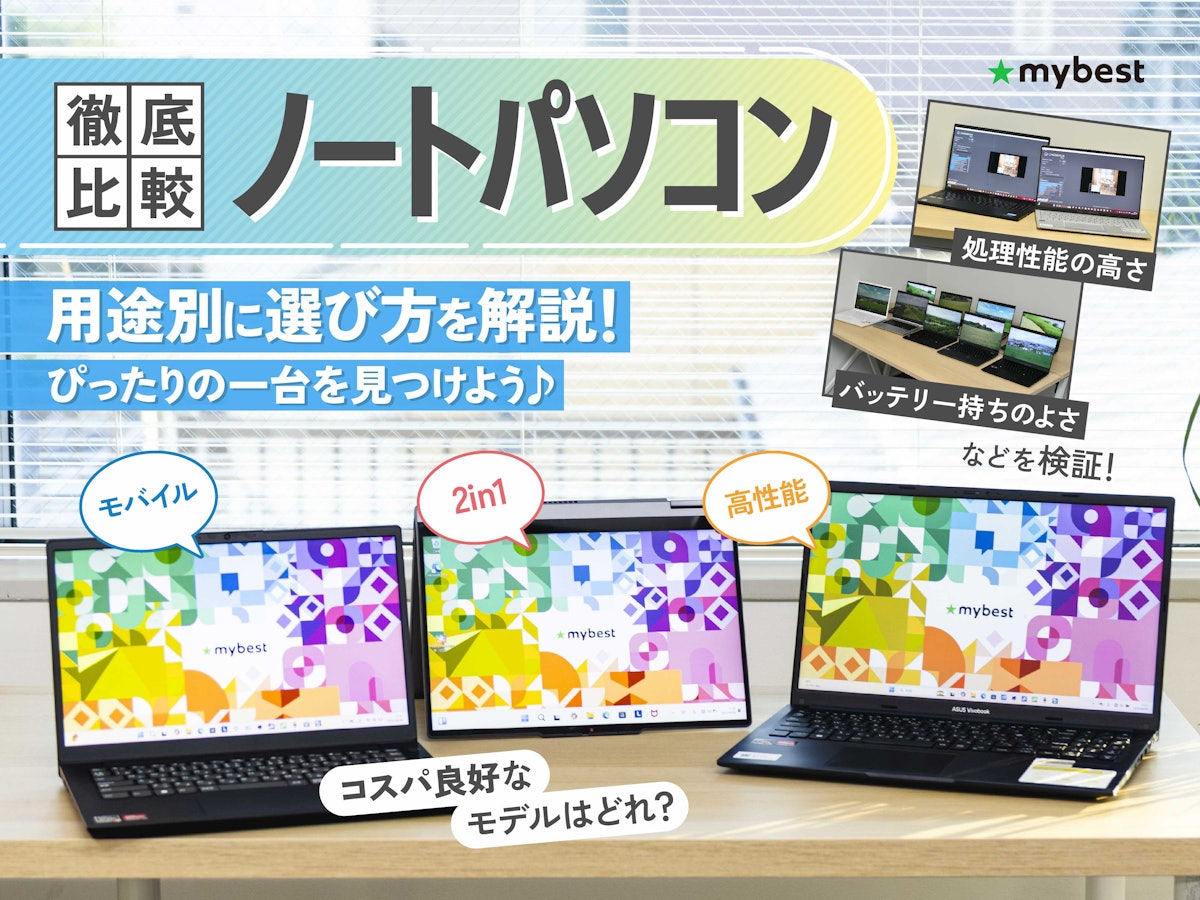
ノートパソコンおすすめ人気ランキング【2026年3月最新~バッテリー・スペック・重量・コスパを徹底比較~仕事用・ゲーム・動画編集・学生向けの選び方】
ノートパソコンは、出先や部屋を移動しながらでも使える持ち運びやすさが魅力です。ひとくちにノートパソコンといっても、初心者でも使いやすいモバイルPCや、タブレットとしても使える2in1タイプ、動画編集やゲームに適した高性能な製品など、その種類
my-best.comBuying Smart | Warranty, Student Discounts, Office, and Ports
Student Discount, Direct vs. Retail
The same laptop can differ in meaningful ways depending on where you buy it — not just in price, but in configuration and coverage. Comparing by price alone can leave you surprised by warranty terms or spec gaps later.
Student discounts work best at manufacturer direct stores. Apple's education store has MacBook Air M4 at the student pricing already mentioned. Lenovo has a student discount storefront. Microsoft sells Surface devices with education offers. The advantage of buying direct isn't just the discount — it's that extended warranty and accidental damage coverage are easier to add at the same time.
One thing students often miss: standard warranty for mechanical failures and accidental damage coverage for drops and spills are separate products. For a laptop carried to class and cafes every day, the latter matters more than most people expect at purchase time. dynabook offers 3-, 4-, and 5-year extended plans plus premium accident coverage through direct sales; domestic Japanese brands generally make these options more visible. If warranty depth is a priority, the warranty section of the product page tells you more than the spec sheet.
Retail models often come with Office bundled, which is appealing for students who want to use Word and Excel immediately. But retail SKUs sometimes have fixed configurations that differ from direct store options — memory may be locked at a lower tier, or storage choices may be narrower. ThinkBook 14, dynabook, and FMV LIFEBOOK UH/WU are examples of lines where the retail version and the direct store version can feel like different products despite sharing a name. Honestly, an "Office included" model at 8GB RAM that looks like a deal can become frustrating by year three — sometimes it's smarter to redirect that budget toward 16GB or better warranty coverage.
Dospara's student PC buying guide also calls out warranty and accidental damage as key considerations for students — a machine you're carrying every day deserves to be evaluated as a 4-year carry, not just a point-of-sale transaction.
Office: Check Your University First
Don't assume bundled Office means you need bundled Office. Three things worth separating: inclusion, edition, and whether your university already covers it.
On inclusion: Windows laptops at retail often have Office bundled prominently, but series like Lenovo ThinkBook 14 and mouse X4 vary by SKU and channel. dynabook VZ-series direct store makes Office-included options relatively visible; Surface varies. The reliable approach is to check whether that specific configuration, on that specific listing, includes Office — not to generalize from the series name.
On edition: the common student use case involves Word, Excel, and PowerPoint, but Microsoft 365 Personal (subscription) and Office Home & Student (perpetual) behave very differently. Microsoft 365 stays current but accumulates cost over time. Perpetual versions are predictable but can create confusion around what's actually included with the license. Read the details.
More important for college students: check whether your university already provides Microsoft 365 Education. Many universities offer Office access through institutional accounts tied to your university email. If that's the case, paying a premium for an Office-bundled laptop means buying something you already have. Redirecting that cost toward 16GB RAM, 512GB SSD, or a better warranty is almost always the more satisfying use of the budget.
ℹ️ Note
For Office: check whether it's included, whether it's subscription or perpetual, and whether your university already provides a license — those three questions together prevent paying twice for the same thing.
Ports and Hubs: What to Check Before Buying
The most common mid-semester laptop frustration isn't performance — it's not being able to connect. You might write reports comfortably, but hit a wall when you need to present from a projector you can't plug into.
The ports worth checking: HDMI, USB-A, USB-C, headphone jack, SD card slot. ThinkBook 14 and dynabook VZ-series are examples of machines that typically include HDMI and USB-A, reducing adapter dependency. MacBook Air M4 and some thin Windows laptops run USB-C-primary configurations — clean and modern, but they require carrying a hub or adapter for campus equipment environments.
HDMI matters most for seminar presentations and external displays. For campus use, the primary need is direct connection to the room's monitor or projector, not 4K frame rates. USB-A is still relevant — USB drives, wireless mouse receivers, and classroom equipment haven't fully moved on. USB-C requires the most careful reading: same port shape can mean charging only, video output capable, or Thunderbolt — three meaningfully different things. If you plan to connect an external monitor via USB-C, confirm DisplayPort Alt Mode support specifically.
Headphone jacks remain useful for online courses and video editing. SD card slots matter if your program involves photography or video. FMV LIFEBOOK UH/WU and dynabook-series tend to include practical port selections. For machines with minimal ports, plan for a USB-C hub as part of the package — check that the hub covers HDMI output, enough USB-A ports, and PD passthrough before buying.
USB-C in particular rewards doing some reading before you buy — the cable and port selection guide "Complete Guide to USB-C Cables: Same Shape, Very Different Performance" covers the gotchas well (related article:).
Charger and "Real-World Weight" Including AC Adapter
Rated weight can mislead you. In college life, you're never carrying just the laptop — it's charger, cable, possibly a hub and a power bank too. That full kit is what actually goes in your bag, and the real-world carry weight is what your shoulder feels.
mouse X4 at ~1.09kg is impressively light for a 14-inch Windows machine. But once you add an AC adapter, the feel changes — still manageable by the two-textbook standard, still fast in a backpack commute. An RTX-equipped creator laptop at 1.8kg+ is a different story: a large dedicated AC brick on top of that and the bag weight crosses into territory that registers every day. If the specialized use case demands it, that weight is justified — but it's worth feeling it before committing.
From this angle, how many chargers you need to carry is a real consideration. A USB-C-compatible machine lets you consolidate smartphone, tablet, and laptop onto a single 65W+ fast charger, which keeps your bag compact. A machine that requires a proprietary round-pin AC adapter alongside a separate phone charger may not be heavier individually but adds volume and cognitive load.
For supplemental power: the Anker Nano Power Bank 30W is listed at ¥5,990 (~$40 USD) on Anker Japan's official site — a USB-C integrated-cable model that fits naturally in a bag. At 30W it works well as a top-up for smartphones and tablets, and as a backup power source for a lighter laptop. It's worth being clear-eyed though: 30W is extension-mode output, not a replacement for a 65W laptop charger. The more you want to eliminate cables and weight, the more evaluating whether your charger setup can consolidate becomes part of the portability equation — not just the laptop weight itself. The Anker Nano Power Bank 30W review covers real-world runtime if you want a concrete baseline (related article:).
Bottom Line | Three Types to Choose From
When in doubt, lean toward a configuration that gives you a little more room than you think you'll need. College laptops don't show their weaknesses on day one — they show them in year two when coursework gets heavier. Liberal arts students: prioritize weight and day-to-day ease. STEM students: size up for the software you'll run. Mac-leaning students: verify compatibility first, then enjoy the polish. Start with your university's recommended specs, narrow to three candidates, and compare official specs side by side. That process eliminates most of the risk.
Related Articles
MacBook Air M4 Review: Redefining Thin and Capable
MacBook Air M4 Review: Redefining Thin and Capable
A week of real-world testing with the Apple MacBook Air M4. How much does it improve over M3? Battery life, fanless thermal limits, and whether it's worth upgrading — all covered.
How to Choose a Creator PC Under $700: Where to Prioritize and Where to Compromise
How to Choose a Creator PC Under $700: Where to Prioritize and Where to Compromise
If you're shopping for a creator-focused laptop around the $700 mark, you'll get much further by deciding upfront whether photo editing, full HD video, or streaming is your main focus — rather than hunting for one machine that does everything adequately.
How to Choose a Laptop: Use-Case Criteria and Priorities (2025-2026)
How to Choose a Laptop: Use-Case Criteria and Priorities (2025-2026)
Rather than scanning a spec sheet from top to bottom, your laptop search goes smoother when you decide what you'll actually do with it first. The right specs shift considerably depending on whether you mostly do office work or school tasks at a café, connect an external monitor at a desk, edit travel photos or 4K footage, or game at night.
Creator Laptops in the $650–$1,300 Range: Minimum Specs by Use Case
Creator Laptops in the $650–$1,300 Range: Minimum Specs by Use Case
Creator laptops in the $650–$1,300 range can't do everything well — but narrow down your use case and you can absolutely build a capable rig. This guide is for anyone shopping for photo editing, full-HD video editing, or web/design work who wants to know where the real floor is.