
Creator Laptops in the $650–$1,300 Range: Minimum Specs by Use Case
Creator Laptops in the $650–$1,300 Range: Minimum Specs by Use Case
Creator laptops in the $650–$1,300 range can't do everything well — but narrow down your use case and you can absolutely build a capable rig. This guide is for anyone shopping for photo editing, full-HD video editing, or web/design work who wants to know where the real floor is.
Creator laptops in the $650–$1,300 range won't do everything comfortably — but focus on one use case and you can absolutely put together something that handles real work. This guide is for photographers, video editors, and web/design creatives who want to know the actual minimum specs before they start shopping.
The rough breakdown: at the lower end (around $650–$950), integrated-GPU laptops with wide-color-gamut displays make the most sense for photo editing and web work. Push into the $950–$1,300 zone and RTX 3050–4060 class GPUs make full-HD video editing genuinely viable. Using a 14", ~2.6 lb, sRGB 100%, 16GB machine for RAW culling at a café feels completely different from running Premiere FHD edits on a 16", RTX 3050, 32GB rig at a coworking space — and that contrast makes it obvious where the "this is fine / this is a stretch" line sits.
What's easy to overlook is whether the color gamut is actually published in the spec sheet. Choosing by CPU and RAM alone leads to regret in this category — so let's break down what you should actually be targeting for each use case.
What Can You Actually Do with a Creator Laptop at This Price?
The Lower Half (~$650–$950)
At this price, you're working with a trimmed-down budget by creator laptop standards. Guides from manufacturers like NEC and Lenovo generally treat $1,000–$1,350+ as the comfortable baseline for full creative workloads. That said, writing off this range entirely is premature. For work that doesn't lean heavily on GPU — like photo editing or web production — the lower tier holds up surprisingly well.
The sweet spot here is a setup built around a Core i5 or Ryzen 5, 16GB of RAM, and integrated graphics. At this price, display quality actually matters more than GPU muscle. A panel with sRGB 100% coverage is enough to do real RAW processing, build UIs in Figma, or knock out banner and landing page designs. For photo and web work, "does the color look right?" matters way more than "how flashy is the GPU?" — get that backwards and your colors will drift between your screen and print or web output.
Where it gets difficult is video. An integrated-GPU machine can handle simple cuts and text overlays in FHD footage, but pile on effects or multiple layers and you'll feel it fast. The timeline won't freeze, but every time you try to scrub or preview you'll hit a slight stutter. This price band is for handling lighter creative work smoothly — not brute-forcing heavy processing.
クリエイター向けパソコンに必要なスペックを徹底解説!選び方のポイントも紹介|NEC LAVIE公式サイト
www.nec-lavie.jpThe Upper Half (~$950–$1,300)
Things open up considerably once you push into the upper range. The big change: RTX 3050–4060 class dedicated GPUs and 32GB of RAM become realistic options. That shifts full-HD video editing from a stretch to an actual workflow. Running Premiere while checking footage in a browser and tweaking thumbnails in Photoshop becomes something you can do without constantly managing windows.
Gaming-adjacent machines also enter the picture at this tier. Models like Lenovo LOQ or ASUS TUF compete well on price-to-performance against dedicated creator laptops like the DAIV lineup. The catch: gaming-focused designs tend to prioritize refresh rate over color accuracy, so some units in this range have weak gamuts despite impressive spec sheets. For image and color work, display quality can drag down an otherwise strong machine — raw numbers alone won't tell you that.
On pricing (in Japan, where these models are sold): the ThinkPad E16 Gen 2 AMD in a 32GB config runs around ¥134,970–¥149,820 (~$900–$1,000 USD), and the DAIV Z4-I7I01SR-A sits at ¥189,800 (~$1,270 USD). The former skews "practical workhorse — CPU and RAM first," the latter leans "production-oriented upper tier." This range is exactly where that fork happens, and sale pricing or direct-from-manufacturer configs can shift things meaningfully within the same product line.
What's Within Reach
Even in this budget, the right use case makes a real difference. Photo editing is the most reliable fit — Core i5/Ryzen 5 or better with 16GB is a genuine working baseline. Lightroom and Photoshop handle moderate workflows fine. Put the catalog on your system drive and 512GB starts feeling tight fast — 1TB is the more comfortable call once your library grows.
RAM: 16GB gets you started, but if you're processing a RAW queue while lightly retouching in Photoshop, 32GB is where the "stops interrupting me" feeling kicks in. It's less about raw speed and more about the smoothness of the tool.
Display: sRGB 100% IPS or OLED is your baseline. Even for web-only output, color accuracy stabilizes your judgment on exposure and white balance. For portability, 13–14" is the move; for screen real estate and ergonomics, 15–16" fits better. The ThinkPad E16 Gen 2 AMD 32GB config at ~¥134,970–¥149,820 (~$900–$1,000) shows that this tier can absolutely support CPU-and-RAM-first builds for real work.
Video: FHD with light effects is the realistic ceiling. An integrated GPU machine handles short clips, cuts, and basic color grading. Step up to an RTX 3050 or better and preview stability improves noticeably — export wait times drop, and parallel apps stop fighting each other. YouTube content, interview footage, social media cuts — that's where this range earns its keep.
Web and design work also fits well here. Figma, Photoshop, a browser, and a few chat windows play fine on 16GB. Push to 32GB and heavy artboards, fat asset libraries, or Photoshop in the mix stop causing tab-juggling headaches. A wide-gamut panel with integrated graphics is the smart play for this use case.
Where it falls apart: 4K editing, 3D rendering, and print-grade color management. Long 4K timelines and heavy effects will leave you waiting on previews and exports. 3DCG hammers the GPU regardless of scene complexity. And while sRGB is fine for web, anyone doing tight print color matching needs hardware that goes beyond what this price supports.
The core challenge at this price is that desirable features don't stack neatly. Want both a wide-gamut display and a dedicated GPU? You're pushed toward the upper tier almost automatically. The lower end tends to offer either good CPU/RAM with a mediocre panel, or a nice display with no GPU to speak of.
One more annoyance: plenty of models don't publish color gamut specs at all. You'll see the CPU name and RAM capacity in big text, but sRGB or DCI-P3 coverage buried or omitted entirely. For creative work, that ambiguity alone is enough to remove a machine from the shortlist.
And don't overlook expandability and battery life — they're easy to shortchange at this price. Port selection is often minimal, RAM may be soldered, and performance-forward builds tend to trade battery runtime. Going lighter for photo work is attractive right up until you add GPU demand and realize the machine runs hot and drains fast. At this price, what you prioritize and what you give up shows directly in how the machine feels.
The difference between tiers shows up most clearly in preview playback under load. An integrated GPU machine handling FHD 60fps footage can manage basic cuts — but add color correction, transitions, and text, and playback starts dropping frames. Not broken, just sluggish enough to interrupt your flow.
Move up to RTX 3050 territory and that same timeline has more headroom. The GPU buys you a beat before it struggles. Honestly, that difference matters more to me than export time — it's the people who frequently check their edit mid-session who feel it most. If you're turning out multiple videos a month, that headroom is real.
The same gap shows up in photo work. 16GB is smooth for a single app, but open Photoshop alongside several browser tabs and you'll notice the breathing get heavier on mode switches. 32GB isn't dramatic — it just means the tool stays out of your way when you're moving between apps.
💡 Tip
Photo-first? Prioritize CPU, 16GB, and a wide-gamut panel. Video-first? Dedicated GPU and 32GB move up a tier. In this price range, getting that priority order right is the difference between satisfied and frustrated.
For the bigger picture on pricing and use-case frameworks, NEC's creator PC breakdown gives a solid overview, and Lenovo's creator laptop guide covers how to think about budget vs. config across the range. Both share the same temperature: mid-tier serious work needs $1,000+, but lighter creative workloads work fine below that.
If you're still weighing which specs to prioritize at this budget, the creator PC spec and tradeoff guide pairs well here — it makes the CPU vs. RAM vs. storage vs. color gamut tradeoffs concrete and easy to compare.
The Short Answer: Recommended Minimum Specs by Use Case
If you're stuck, work backwards from "what's the heaviest thing I do?" The lower end (~$650–$950) is where photo editing and web production configs live; the upper end (~$950–$1,300) is where dedicated-GPU setups for FHD video editing become realistic. Even NEC's CPU vs. GPU breakdown makes clear that over-indexing on one at the expense of the other leads to a machine that wastes half its own specs.
Photo Editing (RAW Processing + Light Compositing): Core i5 / Ryzen 5+, 16GB RAM (32GB if you can), SSD 1TB (1TB+ recommended if running a Lightroom catalog), integrated GPU is fine, sRGB 100% IPS/OLED, 13–14" mobile or 15–16" for desk use
For photo editing, the floor is Core i5 or Ryzen 5+, 16GB RAM, 1TB SSD, integrated GPU, wide-gamut display. RAW processing leans heavily on CPU and SSD speed — studio9's Lightroom/Photoshop PC guide treats Core i5+ (Intel) and Ryzen 5+ (AMD) as the practical working threshold. Running your Lightroom catalog on the system drive chews through storage faster than you'd expect, so even for photography, 1TB beats 512GB meaningfully.
RAM: 16GB is a fine starting point, but if you're processing a RAW queue while doing light retouching in Photoshop, 32GB is where the "doesn't interrupt me" feeling kicks in. With 16GB you can push through, but there's more catching of breath. With 32GB, that friction goes away. It's not a flashy performance difference — it's a smoothness-of-tool difference.
Display: sRGB 100% IPS or OLED. Even for web-only output, a calibrated panel stabilizes your judgment on exposure and white balance in ways that matter. 13–14" for portability, 15–16" if you want more screen real estate and keyboard room. Configs like the ThinkPad E16 Gen 2 AMD 32GB at ~¥134,970–¥149,820 (~$900–$1,000 USD) show that this tier absolutely supports CPU-and-RAM-first practical builds.
![【2022年】カメラマンが教える、快適な写真編集向けパソコン環境とは?![Lightroom, Photoshop]](https://photo-studio9.com/wp-content/uploads/2017/06/th06-1.png)
【2022年】カメラマンが教える、快適な写真編集向けパソコン環境とは?![Lightroom, Photoshop]
デジタル写真を高いレベルで扱うにはそれなりに高機能なスペックのパソコンが必要です。この「それなり」というのが意外と難しいところ。写真を快適に扱うために適したパソコンのスペックって何??という方向けに、
photo-studio9.comFull-HD Video Editing (Premiere / DaVinci): Core i7/Ryzen 7 H/HS, 32GB RAM recommended (16GB minimum), 1TB+ SSD, RTX 3050–4060 class GPU, 15.6–16", cooling and ports matter
For video-centric work, the floor jumps a tier. You're looking at Core i7 or Ryzen 7 H/HS, 32GB RAM recommended, 1TB+ SSD, RTX 3050–4050 class GPU, 15.6–16". In Premiere Pro or DaVinci Resolve, once you're factoring in effects, color grading, text, and exports — not just cuts — a dedicated GPU makes a noticeable difference over integrated graphics. Strong CPU alone isn't enough, and strong GPU alone doesn't cover it. Balance is the game.
Honestly, 16GB minimum will technically run FHD editing, but once you layer multiple tracks and corrections, the 32GB gap becomes obvious. Preview stalling frequency, stability when running a browser alongside your editor, the ability to do other work during an export — all of that is smoother with 32GB. For video work, RAM and GPU are where to spend first if you're upgrading from a baseline config.
This use case pushes prices up, and realistically ~$950–$1,300 is the main battlefield. The DAIV Z4-I7I01SR-A at ¥189,800 (~$1,270 USD) lands squarely in the zone where "built for production" starts to feel like an honest description rather than marketing. 15.6–16" is better for cooling, keyboard layout, and port selection — and if you're running external SSDs, SD cards, and a second monitor, the port density matters. Gaming-adjacent machines are worth considering, but for this use case, color accuracy and stability outrank refresh rate.
Web/Color-Sensitive Design (Figma / Illustrator): Core i5/Ryzen 5+, 16GB RAM (32GB for headroom), 512GB–1TB SSD, integrated GPU is fine, sRGB 100% required (Adobe RGB/DCI-P3 95%+ for print work), 13–15". External monitor setup also works well.
For Figma and Illustrator-heavy work, the floor is Core i5 or Ryzen 5+, 16GB RAM, 512GB–1TB SSD, integrated GPU, sRGB 100% required. GPU priority is lower here — display quality has a much more direct impact on your output. Gadgetlog's creator PC comparison breaks it down the same way: sRGB 100% is the web design baseline, and wider gamuts (Adobe RGB, DCI-P3) matter more when print is in the mix.
For web design, 512GB SSD is workable, but managing assets across multiple projects makes 1TB more comfortable. 16GB handles Figma, Illustrator, a browser, chat, and image exports without drama. That said, heavy artboards, large image assets, and adding Photoshop to the mix is where 32GB starts paying off — not because anything breaks, but because switching between windows stops hiccupping.
13–15" covers the range well. 13–14" is the pick if you're moving around; 15" gives you more tool panel space. For web work, a light wide-gamut mobile machine at the desk with an external monitor is a completely rational setup. This use case fits the ~$650–$950 range cleanly — and at the lower end, a CPU + 16GB + wide-gamut combo is honestly enough to do real production work.
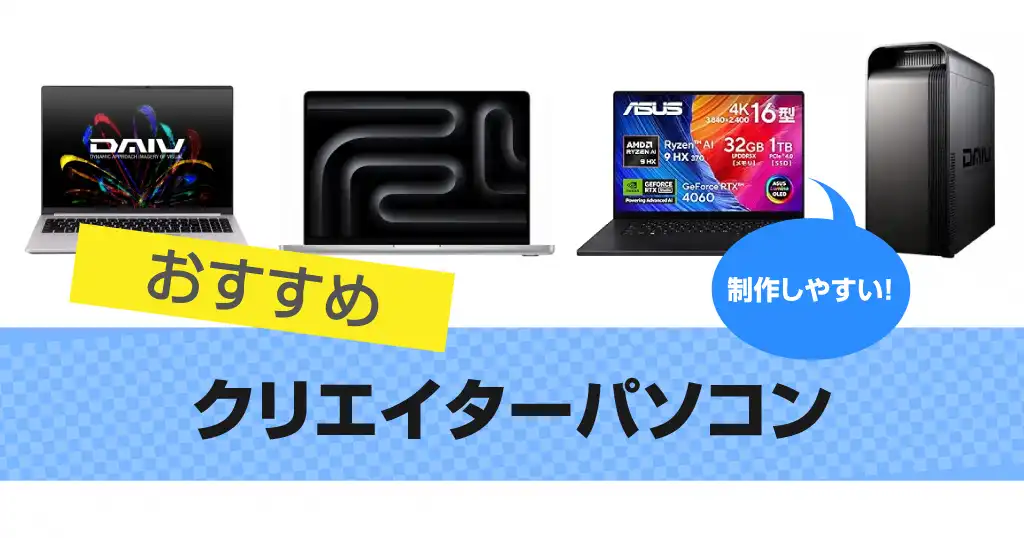
クリエイターパソコンおすすめ14選|メーカーで人気機種を比較【2026年版】 - オススメPCドットコム
クリエイターPCで人気のおすすめモデルをご紹介です。クリエイティブに作品を制作するにはグラフィックカードを搭載している機種ならGPUなしに比べて快適に表示ができます。イラストを描いたりRAW現像、動画編集など使いやすいPCなら制作活動もはか
osusumepc.comHow Not to Get It Wrong, Part 1: CPU, GPU, and RAM Priority
Reading CPU Specs
In a creator laptop, the CPU is the foundation everything runs on. Photo imports, RAW processing, layer operations, exports, compression, switching between apps — the CPU touches all of it. NEC's CPU vs. GPU breakdown describes it as "the command center for the whole system," which is a clean way to think about it.
At this price, the baseline is Core i5 or Ryzen 5 or better. For photo editing and web work, a weak CPU means small delays on every operation — thumbnail generation, applying develop parameters, batch exports all depend on CPU endurance. For photos especially, CPU and RAM combo matters more than the GPU model number.
The key concept here is bottlenecking. A strong CPU can't compensate for inadequate RAM or GPU. A great GPU does nothing if the CPU or RAM can't keep up. When reading spec sheets, "the weakest link limits the whole system" is the framing that prevents regret.
CPUとGPUの役割や性能の違いを比較!用途別の重視すべきパーツも解説|NEC LAVIE公式サイト
www.nec-lavie.jpWhen the GPU Actually Matters
The GPU contributes to some photo editing display and correction tasks, but the place where it really shows up is video editing: preview playback and effects processing. Apps like Premiere Pro and DaVinci Resolve — where you're stacking clips, adding color grades and transitions across a timeline — are where dedicated GPU muscle becomes clearly visible. Lenovo's own CPU vs. GPU framing makes the same point: the priority shifts based on what you're actually making.
For photo-centric work, CPU and RAM come first. Lightroom and Photoshop as your main tools? You don't need a dedicated GPU to get real work done. For video, dedicated GPU pays off clearly in preview smoothness, how little the timeline hiccups on effects, and how the system holds up during an export. Honestly: if you're a video person who underweights GPU, you'll feel that decision later.
That said, bottlenecks still apply. An RTX 4050 won't save you if RAM is at 8GB — multi-app use will cramp out fast. In practice, running After Effects and Premiere simultaneously on 16GB will hit swap and suddenly slow down. Get to 32GB and the same GPU can actually do its job — previews stop stuttering and the system finally lets the GPU shine.
Deciding on RAM
RAM isn't flashy like CPU or GPU, but it's the direct measure of how much multitasking headroom you have. How stable the system is with multiple apps open, whether you can keep editing while a browser stays open, whether you can do other things during an export — all RAM.
16GB is the floor. Photo editing, web work, and light video editing can run on it, but "comfortable" is a stretch. Running Lightroom on RAW files while Photoshop is open, keeping Figma and a browser side by side, managing media in a separate app while editing in Premiere — 16GB fills up at exactly those moments.
The common mistake: chasing a GPU model number and cutting RAM. A powerful GPU with a RAM shortage means SSD swap kicks in during app switches or preview renders — and even a strong spec sheet won't save that experience.
Storage: Speed and Capacity
Storage isn't just about capacity — speed feeds directly into how work feels. OS startup and app launch, yes, but also photo import, cache writes, and video asset expansion. For laptop shopping, assume SSD is the baseline, not HDD.
Capacity: web and light design work can start at 512GB, but photo editing wants 1TB. Running a Lightroom catalog on the system drive burns storage faster than expected — add OS, apps, and cache and 512GB gets tight quickly. Thousands of photos on 512GB is technically doable, but it starts feeling cramped as project volume grows. If you're building a long-term photo library, 1TB is the comfortable call.
For video, you're stacking raw footage, cache, and export files on top of everything else. Even with solid CPU, GPU, and RAM, a nearly-full SSD slows down the whole workflow. Storage is a bottleneck that hides in plain sight. Lightroom and Premiere users in particular will feel their SSD headroom directly in their day-to-day pace.
How Not to Get It Wrong, Part 2: Display Quality Matters More Than the Spec Sheet Suggests
sRGB, Adobe RGB, and DCI-P3 Explained
On a creator laptop, checking how accurately the display renders color before you look at CPU or GPU specs will save you more grief than almost anything else. Color gamut connects directly to retouching and design decisions — a strong CPU won't help you if you can't trust what you're seeing. Brightness and saturation calls become unreliable when the display gamut is narrow.
sRGB is the baseline for screen-first production — web uploads, social media, UI design. The target is sRGB 100%. For photo selection, banner design, and Figma UI work, this level stabilizes your color judgment. As mentioned earlier in this guide, at this price point display quality often matters more than GPU specs.
Adobe RGB offers an expanded gamut for print-oriented color work; DCI-P3 does the same for video. For print-finish photography or serious video color grading, the target becomes Adobe RGB or DCI-P3 at 95%+. Gadgetlog's creator PC comparison breaks it down the same way: sRGB for web work, wide gamut for photo and video.
A practical setup worth considering: a 14" sRGB 100% laptop for on-the-go culling and selection, connected to a wide-gamut external monitor at your desk for final color work. You rough in the edits while mobile and refine under proper color conditions at home — fewer do-overs due to color drift. Understated difference on paper, significant in actual workflow.
IPS vs. OLED
Panel type in brief: IPS is the balanced workhorse; OLED is the eye-catching option. Neither is strictly better — the right choice depends on what you're making.
IPS panels render color predictably and hold up well over long work sessions. For photo organizing, web design, and reference-heavy production work, IPS is reliable. A high-gamut IPS pairs naturally with practical-leaning machines like ThinkPad or DAIV — unshowy, but "gets real work done."
OLED delivers deep blacks and strong contrast, which looks great for video playback and footage review. Colors pop, and the first impression is strong. You can find OLED + Core i7 configs around ¥110,000+ (~$740 USD) that lead hard on visual impact. In a store demo, OLED wins every time.
But for production work, looking impressive and being easy to judge are not the same thing. OLED's vividness can get ahead of the actual source material — things look better than they are, which isn't what you want when making color decisions. IPS, by comparison, is a stable reference. For photo editing and web design, high-gamut IPS remains the solid choice. For video and display-quality-first work, OLED has real appeal. That's the honest production-side take.
FHD vs. Higher Resolution
Resolution isn't just about sharpness — for creative work, it's about how much room you have to work in. FHD is workable, but if you're running a timeline, layers, properties, and a media browser simultaneously, it'll feel cramped early.
FHD balances well with battery life and is a realistic pick at this price. For photo culling, web work, and light design, it handles the job. For extended retouching or video editing, panels fill up quickly and you'll spend more time managing UI than working. Technically functional, not necessarily enjoyable.
That's where 2.5K, 3K, or 4K earns its place. Longer timelines, more tool panels, the ability to zoom into a photo while keeping context — all measurably easier. The tradeoff is power consumption: higher resolution usually means shorter battery life away from an outlet. Think of it as a tradeoff between workability and runtime, not just a sharpness upgrade — or you'll run out of battery in the middle of a session.
Screen size ties into this too. NEC's creator PC spec guide frames it as 13–14" for mobile, 15–18" for performance and work efficiency — which matches the practical experience closely. At 15.6–16", Premiere timelines and Photoshop panel layouts have real breathing room and workflow pace improves noticeably. For daily carry, 13–14" is the more realistic choice. My personal preference: a 14" wide-gamut machine for outside, external monitor for desk work.
ℹ️ Note
Screen size looks like a footnote in a spec list, but in creative work it shapes everything. Think of 14" as "a work tool you can take anywhere" and 15.6–16" as "a machine that lets you finish things where you're sitting."
How to Spot Models That Hide Color Gamut Info
The biggest trap in this price range is laptops that market themselves as "creator-ready" without publishing color specs. Great CPU, solid RAM, but the display section is vague — and that's exactly where color judgment falls apart. Honestly: if the color gamut isn't disclosed, the panel quality probably isn't a selling point.
The test is simple: look for "sRGB 100%," "Adobe RGB 95%+," or "DCI-P3 95%+" in the manufacturer's official spec table. If the display section only says "Full HD," "high definition," or "wide viewing angle" and nothing more, that's a flag. Gaming-leaning laptops in particular tend to lead with 144Hz refresh rate, and color gamut on those units can be weak. For design and video work, color accuracy outranks refresh rate.
Another easy miss: same product line, different panels. A model like the ThinkPad E16 comes in enough configurations that display specs can vary even within the same series. You need to read the actual display spec line in the configuration details, not just the model name — otherwise you're flying blind. MacBook Air M4-style products make this easy by having consistent display quality across the line, but Windows laptops frequently have meaningful gaps within the same product name.
Display specs get buried in long spec tables. But for creative work, "is what I'm seeing accurate?" is the foundation of everything else. CPU and GPU can be worked around with workflow adjustments. A weak built-in display shows up every single session. Get this wrong and it compounds quietly over time.
Three Types Worth Considering at This Price
Type A: Integrated GPU + Wide-Gamut Mobile
At the lower end, this type has the best odds of "actually working." The pattern: a 14"-ish lightweight body, Core i5/Ryzen 5 or better, 16GB RAM, integrated GPU, wide-gamut display. For work where color accuracy and portability matter — photo editing, Figma, banner design, landing page production — this is a smart choice.
Machines in this class tend to land around 2.6 lbs (~1.2kg), which puts them in "throw it in your bag every morning without thinking about it" territory rather than "brace yourself" territory. Cull your RAWs and do light editing at a café, finish the color work on your desk monitor — that's the workflow this type enables. Battery life is generally reasonable, and the thermal behavior is mild enough for quiet spaces. Of the three types, this one has the most natural fit for mobile work.
As a concrete example: the ThinkPad E16 Gen 2 AMD in a 32GB config runs around ¥134,970–¥149,820 (~$900–$1,000 USD) through official channels. The 16" form factor isn't quite ultra-lightweight mobile, but the integrated GPU as daily driver philosophy fits squarely in Type A territory.
Strengths:
- Easier on the budget — lower-end configs are realistic starting points
- Better chance of a quality panel — wide gamut makes photo and web color work viable
- Light and battery-friendly — designed for people who actually take it places
- Quieter and cooler — comfortable in quiet environments
Limitations:
- Heavy video editing and 3D are genuinely out
- 16GB gets tight with many apps open simultaneously
- Panel quality varies a lot within similar-looking price points — there are good and bad picks at similar prices
For FHD video editing done properly, this type steps up fast. The center of gravity is 15.6–16" machines with H or HX class CPUs and RTX 3050–4060 GPUs. Compared to Type A, there's clear headroom for cuts, text, light effects, and running multiple apps together in Premiere Pro.
The advantage here is that the GPU handles the heavy lifting that video editing accumulates — timeline responsiveness, preview stability, and export-focused workflow pace. If you're doing video professionally and this is in your budget, this is where I'd start comparing.
The tradeoff is mobility. At ~4.8 lbs (~2.2kg), this is less "portable laptop" and more "moves when necessary." Fine as a home primary machine with occasional desk-to-desk moves, but not something you'd carry daily. Heat and fan noise are part of the package — better suited for a workspace or coworking setup than a quiet café.
Pricing climbs here; the sweet spot is roughly ¥150,000–¥200,000 (~$1,000–$1,340 USD). Gaming-adjacent machines are worth including in comparisons, but color accuracy and stability should rank above refresh rate for this use case.
Strengths:
- Strong at FHD video editing
- Holds up well running multiple apps at once
- 16–32GB configs are easy to find — room to lean into heavier workloads
- Better port selection — connects to what you need
Limitations:
- Heavy — daily carry is a real consideration
- Heat and fan noise are part of life
- High-refresh-rate-first models sometimes have weak color gamuts
- Battery life takes a hit under load
Type C: Creator-Brand Lightweight
This type sits cleanly between A and B — not by compromising, but by balancing deliberately. Creator-branded laptops tend to design the whole package for production workflows — color gamut, chassis, keyboard, ports, support — rather than competing on raw specs alone. The appeal is the overall balance, not a single standout number.
The DAIV Z4-I7I01SR-A at ¥189,800 (~$1,270 USD) is a good anchor here. At that price, you start to feel "built for work" rather than just "fast." At around 3.5 lbs (~1.6kg), it's lighter than a 16" gaming machine but not as svelte as an ultra-portable — the practical feel is "machine I'd actually take on a business trip." For anyone whose workflow involves trains and client visits, this middle ground lands well.
It's not as affordable as Type A, and it's not as raw-powerful as Type B. But for people who need to cover photos, video, and design reasonably well from one machine, that middle-ground quality is actually the point. Wide-gamut claims, build quality, chassis rigidity, and support all tend to be more clearly presented in this category — the "tool you can rely on" feeling is easier to find here.
Strengths:
- Color gamut, performance, and portability balance more cleanly
- Works across photo, video, and design without specializing in one
- Build quality and support feel like real tools
- ~3.5 lbs is realistic for business travel
Limitations:
- Price gravitates toward the upper half of this range
- Not as light as A, not as powerful as B — not the pick if you want a strong lean in one direction
- Gaming machines at the same price often win on raw GPU specs
💡 Tip
By feel: ~2.6 lb Type A is "take it everywhere every day," ~4.8 lb Type B is "lives at the desk," ~3.5 lb Type C is "can handle a business trip." That weight difference shapes how you use the machine more than most spec comparisons do.
Comparison Table
Here's how the three types break down side by side:
| Category | Type A: Integrated GPU + Wide Gamut | Type B: Dedicated GPU / Gaming-Adjacent | Type C: Creator Brand Lightweight |
|---|---|---|---|
| Price range | ¥100,000–¥150,000 (~$670–$1,000) | ¥150,000–¥200,000 (~$1,000–$1,340) | ¥160,000–¥200,000 (~$1,070–$1,340) |
| Weight | ~1.2kg (~2.6 lbs) | ~2.2kg (~4.8 lbs) | ~1.6kg (~3.5 lbs) |
| Screen size / resolution | 13–14" centered, FHD–WQXGA | 15.6–16" centered, mostly FHD | ~14"–16", FHD–high-res |
| Color gamut tendency | Wide-gamut models available | Refresh-rate-first; some units have weak gamuts | sRGB 100% and wide gamut commonly advertised |
| GPU | Integrated | RTX 3050–4060 class | Iris Xe to RTX 4050/4060 range |
| RAM | 16GB standard, 32GB on upper configs | 16–32GB | 16–32GB |
| SSD | 512GB–1TB | 512GB–1TB | 512GB–1TB |
| Ports | Adequate | Relatively well-equipped | Balanced for practical use |
| Best for | Photo editing, web production, light video | FHD video editing, multi-app heavy use | Balanced photo/video/design work |
| Weakness | Struggles with heavy video or 3D | Weight, heat, battery | Price skews toward upper range |
Budget-first: Type A. Video-first: Type B. One machine for everything: Type C. That's the honest breakdown. At this price, trying to cover every use case leads to compromises across the board — matching the machine to the work you do most is how you avoid regret.
Portability, Battery, and Expandability: What to Check Before You Commit
How to Think About Weight
Buying a laptop on specs alone is a reliable path to "I never actually take it anywhere." For creative work especially, how often you move and how far changes what "the right weight" means significantly.
As a rough feel guide: under 1kg is ultra-portable, 1.2–1.6kg is "high-performance but still take-able," over 1.8kg is desk-first. A sub-970g mobile machine means "bring it without thinking." Around 1.2kg still feels genuinely mobile. Once you hit 1.6kg and add a charger, SSD, and mouse, the bag starts to have a personality. The DAIV Z4-I7I01SR-A at ~1.6kg is right at that "functional-vs-portable" inflection point.
Optimizing for an External Monitor Setup
At this price, designing your setup around an external monitor rather than expecting the laptop to do everything solo usually leads to higher satisfaction. A 13–14" wide-gamut mobile machine handles on-the-go selection and rough work; a larger monitor at the desk handles final color calls. For photo and web work, this split is clean and rational.
What makes or breaks that setup: HDMI output and USB-C video output. But don't just check "has HDMI" — look for USB-C PD charging and USB-C Alt Mode video output. Both together means a tidy desk: one cable for power, one for the external monitor, no mandatory hub. Ideally you want a machine where you can connect an external monitor without a hub at all.
Honestly, get this wrong and even a great laptop creates daily friction. A wide-gamut 14" machine that requires a hub for every external monitor connection gradually discourages you from using the desk setup. Flip it: a machine where USB-C charging and video output just work means you can go from mobile to desktop mode instantly — and you'll actually use it that way for years.
⚠️ Warning
If you're choosing a lightweight mobile machine, factor in "how will I use this when I'm back at my desk?" alongside "how big is the screen?" A wide-gamut panel on the laptop matched with a wide-gamut external monitor means your mobile editing and your desk finishing work stay color-consistent — less rework caused by display drift.
Upgrade and Expansion Realism
What you can do after purchase matters as much as day-one specs. RAM and SSD are the most common "I should have gotten more" regrets after a few years. Budget configs often start lean, so knowing what's upgradeable later changes the long-term picture.
SSD: for creative work, 512GB gets cramped fast. OS, apps, cache, and active project files add up before you expect them to. Photo-centric use with a Lightroom catalog on the system drive wants 1TB minimum, and if you're staging source footage locally 1TB–2TB is the realistic range. 512GB technically works but you'll be reorganizing project folders constantly.
Same story with RAM: starting at 16GB is fine, but whether you can add more later is the anxiety reducer. A machine with an open SO-DIMM slot gives you a budget-friendly entry point with a clear upgrade path. Soldered RAM means your purchase decision is also your lifetime ceiling. SSD expandability — an open M.2 slot or at least easy swap access — matters too, especially as storage needs grow.
One more note: used laptops are hard to recommend for this use case. Battery degradation is unpredictable for a machine you're taking places. Warranty coverage is usually thin or absent, which matters for a work tool. And critically for creative work, the same model name doesn't guarantee the same display panel — a used unit might have a different gamut than the one you tested. Lenovo and NEC's creator laptop guides both lean toward new machines for this reason — the panel lottery is too risky when color accuracy is the point.
The honest summary: CPU and GPU are easy to compare. RAM upgradeability, SSD room to grow, and clean USB-C power/video output are easy to overlook. But those are the things you live with for years — not the benchmark score.
Who This Price Range Is Right For — and Who It Isn't
Good Fit
A creator laptop in this range really clicks for people whose primary work lives in photo editing, web production, or FHD video. If your workflow is culling and rough-editing RAWs on the go and finishing color at home, this price band plays to its strengths naturally. A light wide-gamut mobile machine travels without drama and shows you accurate color — that's a solid combination for anyone working while moving.
Web and banner production where sRGB is the workflow standard also fits well. Building UIs, landing pages, and social creatives in Figma or Illustrator doesn't need wide gamut first — it needs sRGB that doesn't break. In this use case, the value isn't a spec competition — it's finding the right balance of CPU, RAM, and display quality. Get that right and satisfaction is high.
For video, if your main output is FHD and 4K is occasional, the upper end of this range is genuinely viable. Basic cuts, color adjustments, and text overlays in a ~$950–$1,300 config handle professional workflow at a reasonable pace. Constant 4K with heavy effects and multi-layer timelines is where the wait times compound — if that's your everyday, the math changes.
Start from "how heavy is my typical processing load?" — and scale RAM and GPU investment from there.
Harder to Justify
For anyone doing daily 4K video editing, this range is a tough sell. Multi-cam footage, long exports, heavy effects — you're not blocked, but the timeline friction and preview stalling will add up and grind the day down.
Serious 3D production should look at higher tiers from the start. Viewport performance, render times, and multi-app use all need CPU, GPU, and cooling headroom that this price doesn't reliably provide.
Print color proofing is also a poor fit — unless your work is exclusively web/sRGB. Tight print color management requires calibrated wide-gamut display environments and hardware that goes beyond "well, if you pick carefully." The "can work if you're strategic" mindset of this price range doesn't apply.
My personal line in the sand: if 4K60p multi-cam editing or After Effects compositing is a regular part of your day, this range will cost you more in lost time than the price gap to a $2,000+ machine. Wait time compounds.
Specifically, once you're in RTX 4060 class with 32–64GB RAM and real cooling headroom, editing and compositing pace shifts meaningfully. It's not about the benchmark number — it's about fewer preview holds, fewer export pauses, fewer moments where opening another app causes a stall. The value of that tier is time, not spec sheet bragging rights.
For photo-centric, web-centric, and FHD-centric work — thoughtful config selection at this price is the path to high satisfaction. Run the Lightroom catalog on system storage? Get 1TB. Starting on 16GB and upgrading when you feel the limit? Completely valid. The split is clear: heavy daily processing needs a higher tier; focused creative work with some mobility also needed? This range is where to shop.
Wrap-Up: What to Prioritize at This Budget
Final Checklist by Use Case
The key move is deciding what you're giving up before you pick what you're getting. Photo and web work: lead with a quality display. Video work: lead with dedicated GPU. Planning to use this for years: lead with RAM headroom. Keep that order intact and shortlisting gets dramatically faster.
- What's your primary use case — photo, web, or video?
- Is the CPU at Core i5 / Ryzen 5 or better?
- Is RAM 16GB or more, and can you realistically get 32GB?
- Is the SSD larger than 256GB?
- Does the spec sheet explicitly state sRGB 100% or equivalent?
- Are you considering a GPU-less config for video-first work? (Don't.)
- Have you checked weight and USB-C charging usability against how you'll actually carry it?
For immediate comparison: lower-end configs map to Type A; upper-end opens up B and C. Sorting by "color gamut disclosed vs. not" and "32GB available or not" surfaces the real difference between machines that look similar on paper. Blunt take: skip the gamut-undisclosed options, choose 32GB where you can, and the day-to-day experience of not losing your flow becomes a lot more consistent.
Once you're down to 2–3 finalists, pull up the official spec sheet for panel spec, upgrade options, and port layout before committing. To rethink the selection framework, the creator PC spec and tradeoff guide is the companion piece. If lightness and build quality are your deciding factors, the MacBook Air M4 review is worth reading alongside it.
Related Articles
MacBook Air M4 Review: Redefining Thin and Capable
MacBook Air M4 Review: Redefining Thin and Capable
A week of real-world testing with the Apple MacBook Air M4. How much does it improve over M3? Battery life, fanless thermal limits, and whether it's worth upgrading — all covered.
How to Choose a Creator PC Under $700: Where to Prioritize and Where to Compromise
How to Choose a Creator PC Under $700: Where to Prioritize and Where to Compromise
If you're shopping for a creator-focused laptop around the $700 mark, you'll get much further by deciding upfront whether photo editing, full HD video, or streaming is your main focus — rather than hunting for one machine that does everything adequately.
How to Choose a Laptop: Use-Case Criteria and Priorities (2025-2026)
How to Choose a Laptop: Use-Case Criteria and Priorities (2025-2026)
Rather than scanning a spec sheet from top to bottom, your laptop search goes smoother when you decide what you'll actually do with it first. The right specs shift considerably depending on whether you mostly do office work or school tasks at a café, connect an external monitor at a desk, edit travel photos or 4K footage, or game at night.
7 Best Laptops for College Students | How to Choose One That Lasts All 4 Years
7 Best Laptops for College Students | How to Choose One That Lasts All 4 Years
Buying a laptop based purely on price is one of the most common mistakes college students make — the regret usually kicks in around year two. This guide breaks down the specs you actually need for liberal arts, STEM, and creative programs, and helps you figure out whether Mac or Windows is the better fit for your situation.