
How to Choose a Laptop: Use-Case Criteria and Priorities (2025-2026)
How to Choose a Laptop: Use-Case Criteria and Priorities (2025-2026)
Rather than scanning a spec sheet from top to bottom, your laptop search goes smoother when you decide what you'll actually do with it first. The right specs shift considerably depending on whether you mostly do office work or school tasks at a café, connect an external monitor at a desk, edit travel photos or 4K footage, or game at night.
Rather than scanning a spec sheet from top to bottom, figuring out what you'll actually use it for first is what keeps you from making a bad purchase. Whether you're doing office work or schoolwork at a café, running dual monitors at a desk, editing travel photos or 4K footage, or gaming at night — the specs that matter change significantly.
This guide is for everyone from first-time buyers to people stuck deciding on an upgrade. It walks through CPU, RAM, SSD, and GPU, then screen, weight, and battery in that order — all framed around 2025–2026 standards. You'll find the dividing line between people who need 16GB and those who should go to 32GB, whether Copilot+ PC matters for you right now, and how to read battery ratings realistically. The goal is a set of decision criteria that help you avoid both overspending and underbuying.
Start Here: What to Decide Before Anything Else
Taking Stock of How You Work: Track Weekly Hours and Locations
The first question worth answering is which tasks eat the most of your time on a laptop. Buying without clarity here leads to two common regrets: prioritizing portability so hard that you end up underpowered, or going so powerful that you're just carrying around weight and expense. The fastest shortcut I've found is to sort your use into five buckets — light use, school/office, business mobile, creative, and gaming.
Even more useful than listing everything is narrowing down to your top two. If school and office work is primary with light tasks on the side, a standard config with integrated graphics is all you need. But if business mobile and creative work are both in your top two, you'll need to think one tier up on CPU class and RAM. For general office and school use, a Core i5/Ryzen 5 with 16GB RAM tends to be the benchmark; for photo and video editing, 32GB RAM or a dedicated GPU starts to matter.
A helpful exercise: write down how many hours per week you work and where. Your desk at home, a classroom, the office, a café, a train, a plane — just listing it out makes your priorities visible. Weeks with frequent commutes or business trips push the value of sub-1.2kg portability and all-day battery life way up. Weeks at home shift the math toward screen readability around 14 inches, comfortable external monitor setups, and headroom in CPU and RAM. Honestly, even the same person's "ideal laptop" shifts week to week. The average of those shifts is what defines the machine that actually fits you.
If you're still fuzzy on how to read specs, resources like NEC LAVIE's official laptop buying guide or price comparison sites that organize things around CPU, RAM, SSD, and GPU can help you connect specs to real-world use before going further.
【初心者向け!】ノートパソコンの選び方・購入のポイントを徹底解説|NEC LAVIE公式サイト
www.nec-lavie.jpBudget Allocation: Put 60–70% Toward CPU, RAM, and SSD First
When you're not sure how to divide your budget, CPU, RAM, and SSD deserve priority. Most laptops don't let you swap these out later, and going weak here creates years of frustration. On the other hand, spending on fancy aesthetics or excessive thinness tends to produce daily friction that sneaks up on you.
For light use, a Core i3/Ryzen 3 with 8–16GB RAM and a 256–512GB SSD can work. For school, office, or general work, a Core i5/Ryzen 5 with 16GB RAM and a 512GB SSD hits the right balance — because running browser tabs, Office, video calls, PDFs, and cloud sync simultaneously pushes 8GB to its limits pretty quickly. For creative work, step up to Core i7/Ryzen 7 or better, lean toward 32GB RAM, and start thinking about 1TB storage. Photoshop and Premiere can get bottlenecked by RAM before CPU, and skimping there makes the whole experience feel sluggish before you even get to export or preview.
For gaming or heavy video editing, the GPU also becomes a core budget item. "Has RTX" isn't enough — cooling design matters too, because without it, clocks drop under load and you won't see the performance you paid for. Dedicated GPUs come with weight and heat tradeoffs that can clash with frequent travel or commuting, while home-centric users who can tolerate the weight often end up happier going for performance.
💡 Tip
Heavy commuters and travelers should lean toward weight and battery; home-centric users toward screen and performance. That framing cuts a lot of budget allocation uncertainty.
Battery is also easy to overlook in budget planning — skip it and you'll be carrying a charger everywhere. Real-world runtime tends to land around 50–70% of the rated figure, a rough guide that sources like PC Watch back up: a model rated at 20 hours might deliver around 10 in actual use. From my own experience, on days I work outside, the question isn't "how many hours does it last?" but "can I get through the day without worrying about finding an outlet?" If you're home most of the time with AC power nearby, that budget can go toward screen quality or processing power instead.
Confirming Your OS First
Once use-case and budget are clear, locking in the OS early saves time. It quickly narrows both the candidate hardware and the software you can run. The broad strokes: Windows for versatility, Mac for creative work and Apple ecosystem integration, Chromebook for browser-centric work at low cost — that framing covers most situations without much error. NEC LAVIE's OS overview page is a clean starting point for grasping the differences.
If you're buying a Windows machine, Windows 11 compatibility is the baseline for any new purchase. Windows 10 support ends October 14, 2025, a deadline that's widely documented. Given how broad Windows compatibility is across business software, school-required apps, and peripherals, most people in doubt should default to Windows first.
Mac is a strong fit for video production, design, and music creation. The tight integration with iPhone, AirPods, and AirDrop makes it easy to build a smooth workflow. That said, if your workplace or school runs Windows-only software, Mac may not even be on the table. Chromebook makes sense if you're genuinely focused on web browsing, document creation, and learning — but it struggles with offline-heavy workflows and broader app support.
One more thing worth understanding: the new generation of AI-enabled machines. Copilot+ PC requirements include an NPU rated at 40+ TOPS, 16GB or more of RAM, and 256GB or more of SSD. It's not essential for everyone right now, but it's increasingly hard to ignore if you're looking at a mobile laptop you plan to use for several years — especially if "business mobile" is your primary use case.
ノートパソコンのOSとは?種類ごとのメリット・デメリットや選び方を解説!|NEC LAVIE公式サイト
www.nec-lavie.jpCore Specs: What to Look At First
Reading CPU Generations and Tiers
The CPU is the brain of the laptop — it sets the rhythm for app launches, spreadsheet calculations, browser rendering, and video call processing. Where beginners often get tripped up is that CPU performance depends not just on how new it is, but on which tier it belongs to. Rather than memorizing model number hierarchies, it's more reliable to think of it this way: Core i3/Ryzen 3 for light use, Core i5/Ryzen 5 for mainstream school and office work, Core i7/Ryzen 7 and above for heavier tasks.
For reports, web browsing, Zoom or Teams, and Office work, a Core i5/Ryzen 5 is a reasonable starting point. Add photo editing or light video work and the higher CPU tiers start to pay off. If you're getting into Premiere Pro, 3D work, or gaming, GPU also becomes a major factor alongside CPU — integrated graphics handle a lot of everyday scenarios, but dedicated GPUs make a clear difference in video editing and gaming.
With Copilot+ PC in the picture, the NPU enters the equation alongside CPU and GPU. Copilot+ PC requirements include an NPU rated at 40+ TOPS, 16GB+ RAM, and 256GB+ SSD — a new lens for buying decisions if AI features are part of your daily workflow. For a mobile laptop you're planning to use for multiple years, knowing whether a CPU belongs to an NPU-equipped generation is increasingly useful context.
Screen choice is also quietly connected to CPU selection. High-resolution displays and multi-monitor setups increase rendering load, so your CPU and GPU headroom directly affects comfort. A 13–14-inch Full HD display strikes a reasonable balance, while higher resolution or color-accurate panels pay off significantly in creative work.
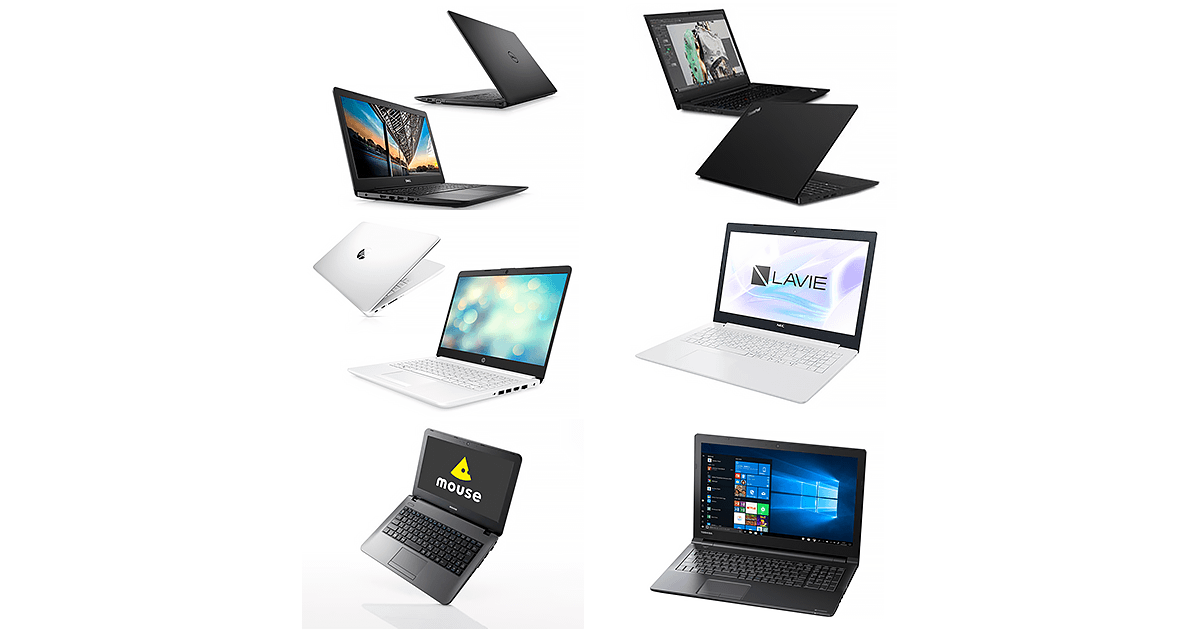
失敗しない! ノートパソコンの選び方 - 価格.com
処理能力を司るCPU、動作速度に関わるメモリー、データを記録するストレージ、画面の見やすさを決めるディスプレイサイズなどをわかりやすく解説。そのほか、持ち歩き用、家でのネット・メール用、動画編集・ゲーム用など、用途に適した選び方のポイントも
kakaku.comRAM and SSD: The "Minimum Floor" That Drives Perceived Speed
RAM is often compared to a desk surface, but in laptop terms it's really about how much multitasking you can do without friction. The CPU handles the thinking; RAM handles how much you can have open at once. 8GB will start up fine, but if you're running a video call while using Excel, keeping 20-odd browser tabs open, and switching between a PDF and a downloaded file — you'll start feeling lag. 8GB tends to behave well in normal conditions and then suddenly struggle when things get busy. At 16GB, that choking feeling mostly disappears, and switching between apps during a meeting becomes natural.
So for most things beyond light-use-only machines, the current baseline is 16GB RAM. School, office, remote work, business use — 16GB is the best-balanced choice. For creative work, 32GB enters the picture. In Photoshop or Premiere Pro, RAM affects how the workflow feels, not just whether something runs. With complex layered files or long video timelines, 16GB can handle it but leaves little headroom; 32GB tends to produce a noticeably smoother experience.
SSD affects both storage capacity and the perceived speed of boots and load times — this is where people with an HDD-era mindset tend to misjudge things. 256GB is workable if you're mostly writing documents, but it fills up fast once you add Office, photos, video, and cloud sync folders. 512GB gives better peace of mind for typical use; if you're handling images or video, 1TB keeps you from constantly managing an external drive.
ℹ️ Note
Priority order when in doubt: upgrading from 8GB to 16GB RAM comes first. Then expanding SSD from 256GB to 512GB. That sequence produces the most noticeable difference in how the machine feels day-to-day.
Screen and portability also make more sense when evaluated alongside these baseline specs. IPS is the reliable choice for readability; OLED models are increasingly common and the richer colors are appealing — but for most people, it's more practical to start with whether the size is comfortable, whether the resolution is sufficient, and whether extended use stays comfortable, before worrying about panel type. For portability, under 1.2kg is the sweet spot for daily carry; under 1.3kg still qualifies as reasonably lightweight for mobile use. On battery, the JEITA 2.0 and 3.0 ratings use different testing conditions, so don't take rated hours at face value — factor in your real usage patterns.
Ports and Wireless: The Foundation for External Monitors and Docks
A laptop's usability isn't just about what's inside — what you can connect and how makes a huge difference. If you're plugging in an external monitor, USB hub, SD card, mouse, or external storage at home or the office, ports matter enormously. It's easy to overlook, but weak connectivity turns a capable machine into a cramped one.
Start with USB Type-C. Even though the connector shape is consistent, a Type-C port might only support charging, or it might support video output and docking — the meaning varies. Higher-end machines may offer Thunderbolt or USB4, which are capable specs — but "capable on paper" doesn't always mean implemented fully. Verify the actual supported features (video output, PD charging, PCIe, etc.) on the manufacturer's port spec page before buying. If the Type-C ports don't cover your actual connection needs, you'll end up relying on adapters. HDMI directly on the chassis makes meeting room projector connections easy; a built-in SD card slot quietly saves time when importing photos or footage.
For wireless, Wi-Fi 6/6E is the current mainstream, and Bluetooth generation is worth noting too. Wi-Fi 7 may spread over time, but implementation varies between devices and routers — treating Wi-Fi 6/6E as the safe and solid choice, with Wi-Fi 7 as a future-facing option, is the realistic framing. Wireless doesn't get the headline attention of CPU or RAM, but it quietly affects cloud work, video calls, and file sync comfort. Check specific Wi-Fi and Bluetooth generations against the manufacturer's spec sheet before purchasing.
Personally, my preferred setup is laptop-only at a café, then one cable to a monitor and power at home. For that workflow, the quality of USB-C implementation and how easily it handles video output makes more difference to satisfaction than anything on the spec sheet. NEC LAVIE's buying guide covers ports and connectivity as basic items to check — they carry practical differences that spec numbers alone won't reveal.
Recommended Specs by Use Case: Quick Reference
Separating minimum from comfortable thresholds makes these comparisons much easier. Minimum means "it'll run." Comfortable means "it won't bog down, and it'll hold up for a few years." When budget is tight, dropping one step below the comfortable threshold tends to be the least-painful compromise.
Here's the overview across major use cases:
| Use Case | Minimum CPU Tier | Comfortable CPU Tier | RAM | SSD | Dedicated GPU | Screen | Weight | Battery |
|---|---|---|---|---|---|---|---|---|
| Light use | Core i3 / Ryzen 3 | Core i5 / Ryzen 5 | 8–16GB | 256–512GB | Integrated OK | Full HD | Any | 8+ hrs rated |
| Programming | Core i5 / Ryzen 5 | Core i7 / Ryzen 7+ | 16GB | 512GB | Integrated OK | ~14 in | 1.2–1.5kg | 8+ hrs rated |
| Photo editing | Core i5 / Ryzen 5 | Core i7 / Ryzen 7+ | 16–32GB | 512GB–1TB | Depends on workflow | High-res, color accurate | Performance first | 8+ hrs rated |
| Video editing | Core i7 / Ryzen 7+ | Core i7 / Ryzen 7+ | 32GB recommended | ~1TB | Dedicated recommended | High-res, wide workspace | Heavier OK | 8+ hrs rated |
| Gaming | Core i5 / Ryzen 5 | Core i7 / Ryzen 7+ | 16–32GB+ | 512GB–1TB | Dedicated essentially required | High refresh rate | Heavier OK | 8+ hrs rated |
Battery: rather than taking rated hours at face value, real-world usage tends to run around 50–70% of the JEITA Ver.2.0 figure. Even a model rated at 20 hours may not feel "absolutely safe all day" for field work, so build in some margin if you work on the go.
💡 Tip
If you need to trim budget, keeping 16GB RAM and a 512GB SSD while stepping down one CPU tier tends to protect satisfaction better than the reverse.
Light Use
For browsing, YouTube, document viewing, online shopping, and budgeting apps, the minimum is a Core i3/Ryzen 3, 8GB RAM, 256GB SSD, no dedicated GPU. That's the floor for anyone prioritizing low cost above all else.
That said, if you tend to keep a lot of tabs open or occasionally have video calls, the comfortable tier — Core i5/Ryzen 5, 16GB RAM, 512GB SSD, no GPU — is noticeably easier to live with. Even on a "light use" machine, browser performance drops and cloud sync events expose the difference.
The most common friction point: watching video while researching across multiple tabs. It runs fine most of the time, then suddenly gets sluggish. That's the signature pattern of an 8GB machine, and it's where the class shows its limits.
Students and Office Workers
For writing reports, using Office apps, viewing PDFs, joining video calls, accessing school systems, and working with spreadsheets, the minimum is a Core i5/Ryzen 5, 16GB RAM, 512GB SSD, no dedicated GPU. That's the sensible baseline for most students and office workers right now.
The comfortable tier follows the same direction — same CPU class or above, 16GB RAM, 512GB SSD firmly in place. It's tempting to assume 8GB is fine if you're doing "just Office," but once video calls, browser tabs, and document editing all run at the same time, 8GB starts to feel tight.
Around 14 inches is the sweet spot for screen size, and if you're carrying it around, lighter is meaningfully better. Whether you're moving between university lecture halls or meeting rooms at the office, the weight you carry every day has a cumulative impact that specs can't capture.
The typical pain point: switching between Excel, Teams, a browser, and a PDF during a meeting. RAM tends to be the bottleneck here before CPU becomes the issue.
Sales and Business Travel
For sales roles and frequent travel, portability, battery life, and connectivity matter more than raw performance. The minimum is a Core i5/Ryzen 5, 16GB RAM, 512GB SSD, no dedicated GPU — enough to handle document edits, video calls, and client presentations.
The comfortable tier stays on Core i5/Ryzen 5 or above, targeting a 13–14-inch form factor, ideally under 1.2kg, with a rated battery life of 10+ hours. Under 1.3kg is a common benchmark in business mobile comparisons, and in practice the weight difference shows in day-to-day carry.
When you're editing slides on the Shinkansen or joining a call from a hotel room, "can I get through the day without power?" becomes more pressing than processing power. Don't trust the rated figure literally — build in a buffer, and your peace of mind on travel days will improve.
The likely pain point: last-minute PowerPoint edits at a client site while also reviewing multiple PDFs. You won't need a dedicated GPU for any of that, but trimming RAM below 16GB turns a work tool into an unreliable one.
Programming
Programming looks light from the outside but isn't — you'll have an editor, browser, local server, terminal, chat app, and possibly virtual environments running simultaneously. The minimum is a Core i5/Ryzen 5, 16GB RAM, 512GB SSD, no GPU.
The comfortable tier is Core i7/Ryzen 7 or above, 16GB RAM, 512GB+ SSD, no GPU required. Build times, indexing, and Docker-style workloads are where the higher CPU tier pays off. Unlike gaming, a dedicated GPU is not the primary thing to look for here.
Around 14 inches handles both standalone use and serving as a companion to an external monitor well. Home docking with a monitor plus standalone use on the go is a natural fit for this use case.
The typical friction: using IDE autocomplete while browser docs are open and a dev environment is running in the background. RAM often hits the ceiling before CPU does — 8GB is genuinely tight for this.
Photo Editing
Specs scale with how deeply you use editing software. The minimum is a Core i5/Ryzen 5, 16GB RAM, 512GB SSD, GPU not strictly required. For JPEG-focused sorting and light correction, this is a reasonable starting point.
The comfortable tier is Core i7/Ryzen 7 or above, leaning toward 32GB RAM, 1TB SSD, dedicated GPU depending on workflow. In Adobe apps, RAM capacity has an outsized effect on how editing feels. Performance research from sources like Puget Systems consistently shows RAM headroom affecting responsiveness in heavier editing tasks.
In practice with Lightroom: single-image edits feel fine, but batch exports, large selection operations, and RAW imports are where wait times pile up. This is a use case where the gap between "it works" and "it flows" is stark.
The typical pain point: loading a batch of high-megapixel RAW files, then returning to the grid after heavy adjustments. Both RAM and SSD headroom translate directly into editing comfort.
Video Editing
This is where spec differences show up most clearly across use cases. The minimum is a Core i7/Ryzen 7+, 32GB RAM recommended, 1TB SSD, dedicated GPU recommended. Even for mostly Full HD work with cuts, titles, audio, and export, this is roughly what you need.
The comfortable tier follows the same direction — Core i7/Ryzen 7+ as the base, solid 32GB RAM and a dedicated GPU. Video files are large and apps cache heavily; 16GB can work but leaves little room to breathe.
A larger, high-resolution screen helps, and weight is less of a concern than cooling and sustained performance. Think of a video editing laptop as "a portable desktop replacement" rather than a mobile machine, and the tradeoffs make sense.
The typical pain point: timeline playback and export. Choosing a GPU-less config means the wait times themselves become the frustration, not the editing process.
Gaming
Gaming is the one use case where a dedicated GPU is essentially a given. The minimum is a Core i5/Ryzen 5, 16GB RAM, 512GB SSD, dedicated GPU required. With anything beyond browser games and very light titles, integrated graphics aren't a realistic option.
The comfortable tier is Core i7/Ryzen 7+, 32GB+ RAM, 1TB SSD, dedicated GPU. Modern games are large, and 512GB fills up quickly once you have a few installed. If you're gaming while streaming, in a voice call, and recording, 32GB RAM starts to make sense.
Gaming laptops tend to be heavier and used primarily on AC power. Windows is far and away the stronger platform here; MacBook and Chromebook aren't serious options for gaming.
The surprise pain point: storage, not the games themselves. Install a handful of titles and the remaining space shrinks fast — updates and recordings make it worse. You'll hit the storage ceiling before most other limits.
Decision Criteria: Getting CPU, RAM, and GPU Right
CPU Tier Fit and the "Under/Overkill" Traps
The worst way to pick a CPU is choosing by name alone. "Core i7, so I'm good" or "Ryzen 7, so it handles anything" is half-right at best. The better question is: which tier eliminates the waits that actually bother you?
Roughly speaking: Core i3/Ryzen 3 for light use, Core i5/Ryzen 5 as the widest-coverage middle tier, Core i7/Ryzen 7 for heavy creative work and parallel tasks. For Office, video calls, browsing, and report writing, i5/Ryzen 5 is usually the right baseline — "just right" for most people. Core i3/Ryzen 3 still handles document writing and learning tasks, but with lots of browser tabs plus Zoom or Teams running, you'll feel the limits over a few years of use.
Core i7/Ryzen 7 pays off in scenarios where the CPU carries load for a while: video export, batch photo processing, development builds, running multiple virtual environments simultaneously. The difference isn't whether the task completes — it's how often you're left waiting. Creative work is less about "can it do this" and more about "does it stall me less."
Something easy to miss: Core Ultra, Ryzen AI, and Apple Silicon don't map cleanly onto the i5/i7 or Ryzen 5/7 tiers. Core Ultra and Ryzen AI include NPU hardware for AI workloads plus efficiency-focused designs — a different category than raw CPU tier comparisons. For Copilot+ PC, the published requirements are 40+ TOPS NPU, 16GB+ RAM, and 256GB+ SSD. If you're planning to actively use AI features, that framework is more useful than CPU tier alone.
Apple Silicon is better evaluated by "how well does it handle the actual work I want to do" than by trying to find an equivalent Core i5 or i7 counterpart. For Mac users considering Adobe or video apps, RAM capacity and how you use the software produce more of the real-world difference than processor naming.
The under-buy trap: stopping at Core i3/Ryzen 3 for a machine you plan to use long-term. The overkill trap: spending heavily on Core i7/Ryzen 7 for school and office work and then trimming RAM or SSD to compensate. Honestly, for general use, securing 16GB RAM and a solid SSD produces more consistent satisfaction than moving up a CPU tier. A rough price point that comes up often for "decently capable" is around the ¥150,000 (~$1,000 USD) range, but prices move, so treat that as a guide to allocation logic rather than a fixed number.
Where 16GB vs 32GB RAM Actually Matters
RAM is where more buying mistakes happen than with CPU. The short answer: 16GB is the baseline for general use, and 32GB isn't a luxury — for certain workflows, it's a meaningful practical upgrade.
16GB handles Office, browser work, online classes, meetings, light image editing, and introductory programming comfortably. Even heavy browser-tab users can work without stress at 16GB if they're staying in school and office territory. Copilot+ PC's minimum spec includes 16GB+, so it's also the right anchor for post-2025 purchases.
32GB is worth considering for Photoshop, Premiere Pro, After Effects, virtual machines, Docker, and keeping many tabs open across multiple apps simultaneously. Performance research on Photoshop workloads consistently shows that RAM headroom influences responsiveness in production work. The difference shows up most clearly with large layered files, RAW batch processing, and switching between multiple open documents.
Premiere Pro follows the same pattern: 16GB handles real Full HD editing work. But when you move to 4K timelines with effects, titles, and multiple layers, 32GB doesn't make things "work that didn't before" — it makes wait times noticeably shorter. The seconds before playback, preview generation delays, and post-export lag all add up. If you're counting that as work time, 32GB's value is proportionally higher.
ℹ️ Note
Think of RAM not as "do I have enough?" but as "how many apps am I keeping open at once?" If you close apps as you go, 16GB works. If you want everything open without breaking your flow, 32GB is the answer.
On the flip side: if your main activities are social media, watching video, writing documents, spreadsheets, and video calls, spending significantly more to get 32GB over 16GB produces minimal difference. That money goes further improving the CPU tier, expanding SSD, or finding a lighter machine with better battery. My own priority order: avoid 8GB first, treat 16GB as the standard, then move to 32GB once your use case makes it clear.
Integrated vs Dedicated GPU: Knowing When You Actually Need It
GPU is often misunderstood. In laptops, it's not "more is always better" — it's about whether your work actually involves graphics processing. Office, school, browsing, video watching, video calls, and light photo touch-ups all run fine on integrated graphics. Most programmers don't need a dedicated GPU either. Modern integrated graphics have improved significantly and handle light image processing and Full HD video without trouble.
Dedicated GPUs — especially the RTX line — become relevant for 3D production, running AI locally, serious video editing, and gaming. Even in Premiere Pro, simple cuts can be done with integrated graphics, but once GPU-accelerated effects, color grading, multiple layers, and long-form footage enter the picture, the difference is real and can't be compensated for by a faster CPU alone. You'll feel it in timeline responsiveness, preview smoothness, and export wait times.
Gaming draws an even cleaner line. Beyond light browser games and older lightweight titles, if you know what games you want to play, just start with RTX as a given. "It launches" on integrated graphics is not the same as "playable." Unlike video editing, frame rate is literally the feel of the experience — GPU weakness becomes immediate frustration.
Photo editing sits in the middle. For Lightroom and Photoshop work, CPU and RAM take priority over GPU. There are GPU-accelerated tasks, but they're not always the bottleneck. Spending on RTX while cutting RAM is a common mistake that produces impressive-looking specs but a not-so-impressive editing experience.
The takeaway: integrated graphics covers standard laptop use as a general work tool, and dedicated GPU becomes necessary when the work itself involves graphics processing — professionally or for entertainment. When choosing among CPU, RAM, and GPU, match the CPU to your use tier first, make sure RAM isn't the bottleneck, then decide on GPU. Leading with GPU tends to produce machines that look powerful on paper but feel unbalanced in real use.
Screen Size, Weight, and Battery: How to Read These Without Regret
13–14 vs 15–16 Inch: The Portability vs Productivity Tradeoff
For most people, a thin and light in the 13–14-inch range is the safest choice. The popularity of thin macOS machines and business staples like the ThinkPad X1 Carbon in this size range makes sense once you live with one.
13-inch is the lighter option and suits heavy travelers well. But for wide Excel spreadsheets, side-by-side browser and document work, or long timeline editing, it can feel a bit tight. That's where 14 inches strikes the better balance — only an inch more, but it meaningfully adds working area without sacrificing portability. For a lot of people, 14-inch is the default answer for a work laptop.
15–16-inch machines are portable but their character is more stationary. The screen real estate is genuinely better for spreadsheets, video editing, and multi-window work — but that comfort comes with increased size and weight. They're a strong choice if you mainly work at a desk and occasionally take the machine somewhere, but as a daily commute companion they make themselves known.
Even for creative work, 15–16-inch isn't always the answer. If you sketch and review on the go, then do serious work with an external monitor, 14-inch tends to produce higher overall satisfaction. If you need wide workspace without relying on an external display, 15–16 inch earns its keep. Think of it as: 13–14-inch is the portable work tool; 15–16-inch is the productivity-first, desk-first machine.
What 1.0 / 1.2 / 1.5 kg Actually Feels Like Every Day
Weight affects daily mood more than the spec sheet number suggests. Honestly, holding a machine in a store for a few minutes doesn't prepare you for the commute difference — and that gap is much bigger than it seems.
Around 1kg is the "it's always in my bag" tier. You stop noticing you're carrying it. For sales roles, frequent travel, daily commutes to campus, or café work, this lightness is a genuine competitive advantage.
The 1.2kg range is where most business mobile machines land — and for good reason. It's light enough to carry comfortably while still allowing for reasonable port selection, build quality, and thermal management. This is the weight class most people find easiest to commit to. Under 1.3kg shows up as a common benchmark in business laptop comparisons, and the reasoning tracks with everyday experience.
Past 1.5kg, you start to feel it as luggage. The laptop itself might be tolerable, but add a charger, mouse, and papers and the shoulder load climbs fast. You might not notice in the morning but definitely will by the end of the day. 15–16-inch machines tend to land here, trading carry comfort for desk-side capability.
💡 Tip
Weight reads differently depending on how you use it: around 1kg for daily carry, 1.2kg as the business workhorse, over 1.5kg as a portable desktop. That framing keeps expectations clear.
Unlike CPU or RAM, you can't upgrade portability after the fact. There's real value in choosing a heavier, more powerful machine — but if you're taking it out frequently, weight is not a footnote in the spec sheet. It's one of the main factors in how your day actually feels.
Reading JEITA Battery Ratings and Translating Them to Real Life
Battery life is one of the easiest spec categories to misread. Lenovo frames it well: expect roughly 50–70% of the JEITA Ver.2.0 rated figure in actual use. That tracks with my experience, and PC Watch has noted similarly that a 20-hour-rated model might realistically deliver around 10 hours in everyday conditions.
The gap exists because real laptop use is heavier than what the spec test assumes. Browser tabs open, Slack and Teams running, video calls, switching between documents and reference material — all of it quietly adds up. A 20-hour-rated machine that drops to ~30% battery by end of work isn't unusual when that's your day. "The rated figure, cut roughly in half" is a more grounded starting point than the catalog number.
With JEITA 2.0, the practical move is to translate rated hours into real-world hours before comparing machines. A rated 8-hour machine leaves thin margin for mobile use. If you work outside regularly, look for rated figures of 8 hours or more — ideally 10+ — to end up with actual comfortable runtime.
On JEITA 3.0: the specific testing conditions and precise differences from Ver.2.0 weren't fully confirmed in my research, so I won't overstate the details here. The more useful habit regardless of version: prioritize thinking in real-world terms rather than spec-test terms. Long battery life on the box sounds reassuring, but when you add in video calls, browser work, cloud sync, and moderate screen brightness through a full workday, the number shrinks. The question isn't "what's the max?" — it's "how much is left after my actual day?"
Windows, Mac, Chromebook, and Copilot+ PC: How to Choose
Windows: Versatility and Gaming Strength
When OS choice feels unclear, Windows is usually the right place to start. As NEC LAVIE's OS comparison outlines, it covers business software, peripherals, school systems, and workplace environments more broadly than anything else — Windows has the strongest versatility. Office apps, school management systems, company tools, USB peripherals, meeting software — they mostly just work without workarounds.
I use Windows machines for work alongside other platforms, and the honest truth is that the confidence of "plug it in and it works" is real and practically valuable. From audio interfaces to external monitors to specialized business hardware, the compatibility headaches are rarer, which quietly supports daily productivity. If you're treating a laptop as a tool, that "no-friction reliability" is worth something.
For gaming, Windows dominance is obvious. The number of supported titles, the range of dedicated GPU options, the peripheral ecosystem — if gaming is genuinely in your plan, Windows is the default platform. Coverage spans from casual browser games and light titles on integrated graphics to high-load gaming on RTX-equipped machines, at a range of price points no other platform matches.
The downside of Windows is the paradox of choice — CPU generations, display quality, keyboard feel, thermals, GPU options all vary enormously. Satisfaction often depends less on the OS and more on which tier of Windows machine you end up buying. Still, for first-time buyers with use cases spanning school, office, development, light editing, and gaming, Windows is the hardest platform to go wrong with.
Mac: Creative Strength and Power Efficiency
Mac tends to come up as a candidate for video, photo, and music production. It's not just about compatibility with Adobe apps — it's also about the Apple ecosystem: iPhone, iPad, AirDrop, Universal Clipboard. Workflows connect cleanly. Shoot on your phone, hand off to Mac, and start editing without friction.
Battery efficiency is another common reason to choose Mac — and it shows more in feel than in numbers. Mixing photo culling, browsing, and writing for long sessions, an Air-class machine loses charge at a noticeably gentle rate. On a long travel day, you'll often think "I can probably skip the charger today" — a calm that's genuinely useful. The rated figures still deserve a dose of skepticism, but for mobile creative work the match is strong.
Thin and light Mac models tend to appeal to people who value quietness, sustained battery, and creative workflow comfort over everything else.
That said, if your job depends on Windows-only software or your workplace specifies a particular app environment, Mac may simply not be an option. Gaming coverage is far narrower than Windows. Mac is less "versatile machine for everyone" and more a strong choice for people who want Apple ecosystem integration and creative-first workflows — that framing keeps expectations realistic.
Chromebook: Where the Tradeoffs Are
Chromebook simplifies the laptop decision in a useful way. The positioning is clear: low cost, for people who can genuinely commit to browser-centric use. Web research, video watching, Google Docs reports, online classes, email, light office work — many people find it sufficient for this range.
The appeal of Chrome OS is doing one thing well rather than trying to cover everything. As a kids' learning device, a secondary machine, or a shared home device, it makes sense. The instant-browser experience is genuinely pleasant, and the price point opens doors for people who want "more than a tablet with a keyboard without spending much."
The honest limitation: if you approach it expecting broad desktop app support like Windows or Mac, it'll feel constrained. Offline-heavy tasks and specialized software are weak points. Video editing, professional tools, demanding creative work, and PC gaming are essentially off the table.
Chromebook isn't "a cheap laptop" — it's a different category for people who are genuinely fine with browser-centric use. When that fits, the value-for-money is strong. When you expect it to replace a general-purpose PC, the mismatch will show quickly.
Copilot+ PC: Who Needs It, Who Doesn't
Copilot+ PC has well-defined requirements: 40+ TOPS NPU, 16GB+ RAM, 256GB+ SSD. Compatible CPUs have expanded beyond the initial Snapdragon X to include Intel Core Ultra Series 2 and AMD Ryzen AI — this is no longer a niche early-adopter format.
The argument for buying Copilot+ PC now is that it gives you a foundation for running AI processing on-device rather than relying entirely on the cloud. From image generation to summarization to voice and camera assistance, having the NPU hardware already in place gives you headroom for features that improve over time. It's a natural fit for people who actively engage with AI tools in their daily workflow — meeting assistance, document summarization, lightweight generation tasks.
But the clear cases where it's not necessary are also real. If your day runs on browsing, Office, video calls, and media, and you have no specific plans to use AI features, a conventional Windows laptop is entirely sufficient. The Copilot+ PC spec is compelling, but overall laptop satisfaction still comes down to the total balance of CPU, RAM, screen quality, weight, and battery. Buying based on the AI branding alone produces its own kind of mismatch.
ℹ️ Note
Copilot+ PC isn't "the new standard for everyone" — it's a meaningful step for people who integrate AI into their daily work, and a lower priority for those who don't.
My read: Copilot+ PC is less "essential new normal" and more an early investment for people who want AI baked into their workflow. For those prioritizing peripheral compatibility and software ecosystem breadth, conventional Windows machines still have plenty of scenarios where they're the easier pick. As with OS selection, the question that keeps you on course is not "is this new?" but "what does it actually give back for the way I work?"

Copilot+ PCとは?できること、要件、従来のPCとの違いまで分かりやすく解説 | マネーフォワード クラウド
Copilot+ PCは、AI機能をクラウド上ではなくPC本体で高速かつ安全に実行するために設計された、新しい規格のWindows PCです。従来のPCとは一線を画す、AIを中心とした新しい体験を提供します。 この記事では、Copilot+
biz.moneyforward.comBefore You Buy: The Checklist
10 Things to Verify on a Product or Retailer Page
The trick here is to lock in your comparison criteria before looking at anything, not to read a spec sheet cold. When you look at too many options at once, CPU model names and sale prices pull you off course. I start by committing to a maximum of two use cases — "university reports and job searching," "building sales decks and joining calls from hotels," "photo editing and light video trimming." Stacking three or four use cases tends to push you toward machines that are more powerful than you need.
From there, here are the 10 things worth checking side by side on any retailer or manufacturer product page:
- Use case
Pin down your top two. Whether you're focused on Office work, browser-based tasks, or some image editing makes a significant difference in the CPU tier and RAM you need. Once that's clear, it also becomes easier to see whether something like a MacBook Air suits you, or whether a business machine like a ThinkPad or similar is the better fit, or whether a Chromebook's constraints are actually fine for you.
- Budget
Factor in the whole picture — mouse, USB-C hub, external SSD, extended warranty — not just the laptop. Slim machines in particular often have fewer ports, which means peripheral expenses add up later.
- OS and Windows 11 support
Windows 10 support ends October 14, 2025. If you're buying a Windows machine, make sure it runs Windows 11. Business software and school-specified apps can narrow your OS choice before you even look at hardware.
- Microsoft Office
Whether you need local Office installed versus web-based Office is often overlooked. Bundled Office models look convenient but add cost for people who don't need them. If you're dealing with job application documents or company file compatibility, don't leave this ambiguous.
- Ports
Do you need USB-A? Can you work with USB-C charging only? Do you want HDMI built in? Think through your real connection scenarios — meeting room projectors, school displays, SD card transfers. Slim machines tend to cut ports first, and you'll feel the absence.
- RAM upgradability
Not just the base RAM amount — can you add more later? 16GB is enough for most people, but for long-term use, upgrade paths affect how long the machine stays useful. Browser tabs and background apps tend to accumulate over time.
- SSD capacity
Required storage varies significantly by use. 256–512GB works for general use; 512GB or more is much more comfortable if work or creative projects are involved. Video footage and RAW photo files can fill a small SSD surprisingly fast.
- Weight
If you're carrying it regularly, don't go by feel alone. Under 1.2kg is comfortable for daily carry; under 1.3kg is a common benchmark for business mobile use. A few hundred grams feels different over a full day with everything else in your bag.
- Warranty
For work or school use, extended warranty and repair terms are worth looking at alongside specs. Laptops are harder to replace quickly than phones, and the cost of downtime matters.
- Support
Phone, chat, business support lines, on-site repair options — these reveal the "how long will it be out of commission?" picture when something goes wrong. For business use, minimizing the time you're without it matters more than the repair quality itself.
For frequent travelers, also layer in battery life here. A rated figure of 10+ hours is the practical target, with the understanding that real-world use runs at roughly 50–70% of that. A mix of café work, commute sessions, and video calls will drain faster than the rating implies. Check actual battery reviews alongside the spec, not just the headline number.
Limiting yourself to three candidate machines sharpens comparisons significantly. Try picking three that represent different directions — a MacBook Air-class machine, a lightweight ThinkPad or similar business-oriented model, and a mainstream consumer machine from HP or Dynabook — then compare on weight, ports, warranty, and real-world battery reviews to make a final call.
What to Check in Reviews: Heat, Noise, and Thermal Throttling
Product pages don't show you how the machine behaves over time under real use. Heat, noise, and thermal throttling are where machines that look similar on spec sheets actually diverge.
For heat, the most useful thing to check isn't the peak benchmark temperature — it's whether the keyboard surface or palm rest gets uncomfortable during normal use. For light tasks like document editing or photo sorting, it may not matter much. But for video export, batch photo processing, or running a video call while editing — how the machine dissipates heat directly affects comfort. If you regularly use the laptop on your lap, this difference is hard to ignore.
Noise isn't just about decibel level. When the fan kicks in and at what frequency determines how disruptive it is in quiet spaces. A machine that only spins up under load is tolerable. One that ramps up frequently during browser work or Office use will get noticed in a silent classroom or meeting room. High-pitch fan noise is more fatiguing per decibel than lower frequencies — the number on a test is less telling than how it feels when it happens.
Thermal throttling is easy to miss. A machine with a high-end CPU or GPU can still drop clock speeds when heat builds up, meaning short-burst benchmark results don't reflect sustained performance. For thin high-performance machines and RTX-equipped laptops in particular, the question isn't just "how fast does it peak?" — it's "does that speed hold up during a long export or batch process?" For creative work, sustained performance directly determines how long your sessions take.
💡 Tip
Heat and noise are linked. A machine that manages thermals well doesn't have to force the fan to work as hard, which tends to produce calmer acoustics overall.
When reading reviews, skip the headline spec praise and look for how the machine behaves during a meeting, through an export, or while charging. Charging adds heat, and fan behavior while plugged in in a quiet room is a reliable stress test. Machines that get inconsistent reviews at this stage tend to show the same patterns in daily use. Even for Copilot+ PC-class machines, quiet operation and thermal management are practical quality factors independent of AI feature support.
Warranty and Support: The Safety Net for a Work Tool
Warranty and support aren't headline specs, but they're what holds up satisfaction in a work tool when things go wrong. For deadlines, class schedules, sales appointments, and business trips, the priority level rises sharply. It's not the day the laptop breaks that hurts — it's the days you're without it.
Whether standard warranty is enough depends heavily on how you use the machine. A secondary home machine, probably fine. A daily carry primary machine, extended warranty or higher-tier support becomes clearly worthwhile. Business-oriented lines like ThinkPad, Let's note, and HP EliteBook earn their reputation not just from build quality, but from the fact that support and service options are built into the product design.
On the support side, what matters isn't just how many channels exist — it's how predictable the repair process is. Drop-off repairs that take weeks, or on-site options that get you back up faster — these determine how long you're actually offline. For business use, a machine with a slightly slower CPU that comes with reliable, fast support is often a better real-world choice than a faster machine with opaque repair logistics.
This connects back to hands-on evaluation in stores too. Rather than reading weight off a spec sheet, put it in your bag and walk around with the demo unit if possible — the experience immediately becomes more concrete. A few hundred grams can feel meaningful by the end of a day, and seeing how support options are presented in-person rounds out the picture. Specs, real-world battery, ports, warranty, and support together are what let you say with confidence: "this machine works for my actual life."
Use-Case Mini Guides
College Students: Balancing Weight and Report Productivity
For college students, how easy it is to carry and use across your actual day matters more than raw specs. If you're writing reports, editing slides, browsing for research, and watching lecture recordings, the CPU doesn't need to be heavy-duty. What tends to matter more: a weight you won't resent putting in your bag every day, and enough RAM that Word, PowerPoint, and a browser can all run at once without choking.
Between classes, add in crowded buses and trains. In that context, around 1.2kg starts to feel genuinely different from 1.5kg. The difference in spec sheets looks small, but carry it with textbooks, a water bottle, and a charger and the shoulder load compounds. My experience: when portability is the daily reality, "powerful but heavy" loses to "sufficient and light" — you actually use the lighter one more.
For specific machines: on Windows, lightweight business machines like the ThinkPad X1 Carbon or Dynabook and Let's note mobile models work well for campus life. Mac's MacBook Air-class is a popular choice, but school software or department tools may require Windows — check your specific environment before deciding. Chromebook is quick for lecture materials and browser work, but hits its ceiling early in departments that require specialized software.
For report productivity specifically, keyboard feel and vertical screen space quietly matter. A few minutes in a store won't reveal the difference, but writing several thousand words on a shallow keyboard or a cramped screen erodes focus. For college use, total score of portability and writability beats flashy specs for reducing the chance of a do-over purchase.
~$650–1,000 USD Creative Buyer: What You Can't Compromise
In this price range for creative work, you can't have everything — which makes it more important to distinguish what you can compromise on from what you can't. The common mistake at this price point is chasing benchmark scores or visual impressiveness.
What you shouldn't cut: RAM headroom. Photo editing with complex layers eats RAM, and video editing and music production involve running multiple apps in parallel. 32GB or more is the standard threshold for creative use; going below it makes even a strong CPU feel constricted across the workflow. SSD capacity is next — if your source material lives on the laptop, 1TB is the right target.
Dedicated GPU, on the other hand, is something you can draw a clearer line on. For YouTube-level video editing or photo management as the main task, there are integrated-GPU configs that work. For After Effects-style processing, 3D work, or heavy export tasks, an RTX machine earns its place. Keep in mind that in this category, more performance also means more heat and noise — and as noted earlier, a thin high-performance machine's sustained performance matters more than its peak. "How fast does it stay?" matters more than "how fast is it for 30 seconds?"
Concrete comparisons in this range might include higher-configured HP Pavilion or ASUS Vivobook Pro models, or Lenovo IdeaPad Pro-class machines — one tier above mainstream. ThinkPad and MacBook Air have strong overall quality, but if serious video production is in scope, the specific config needs careful scrutiny. At this price point, RAM, SSD, and thermal management balance tend to determine outcomes more than CPU name.
AI PC and NPU: What It Can and Can't Do
The AI PC category sounds more complex than it is. Local AI processing gets a dedicated circuit — the NPU — with a standard benchmark of 40+ TOPS, alongside 16GB+ RAM and 256GB+ SSD. You don't need to understand all the numbers; "a new practical tier designed for AI features" captures the idea.
What's actually possible: summarization, assistive image processing, voice and camera support, OS-level AI features — essentially lightening specific parts of your daily workflow. Mobile laptops are a particularly natural fit because NPU-equipped designs tend to preserve the quietness and battery efficiency that portable machines prioritize. People who mix meetings, document summarization, and lightweight generation tasks into their day will find the benefits tangible.
The honest limitations: an NPU doesn't replace a GPU for video export, doesn't solve 3D production or serious GPU rendering. This is an easy category to overread — NPUs are a division of labor for AI tasks, not a general-purpose performance multiplier.
With Windows 10 support ending October 14, 2025, some people eyeing a replacement are naturally looking at AI PCs. In that context, the better evaluation frame isn't "is it new?" — it's whether AI assistance on Office work, meetings, document summarization, and all-day mobile use is something you'll actually use. That's what keeps the decision grounded.
RAM and SSD: Building in Future Headroom
Most laptops don't let you upgrade these significantly after purchase, so future headroom is largely set at the time of buying. The clearest guideline: 16GB RAM for general use, 32GB or more for creative and gaming workflows. A configuration that's comfortable today is worth less than one that doesn't feel cramped two years from now.
RAM shortage shows up as friction more than speed loss — tabs, video calls, Office, and cloud sync running together will push 8GB into uncomfortable territory. Moving to 16GB creates meaningful calm for everyday use and opens the door to light photo and video editing. From my own work: the more apps you need open simultaneously, the more RAM headroom pays off.
SSD: 256GB fills up faster than expected once the OS and basic apps are installed. 512GB is a comfortable baseline; 1TB is breathing room. Video, RAW photos, and audio libraries consume space quickly, and the ongoing work of managing storage on a tight drive adds low-grade friction. External SSDs help at the desk, but a thin internal SSD constrains mobility.
ℹ️ Note
For RAM, think "how many apps do I need open at the same time?" rather than "is this enough?" For SSD, whether you're storing source material locally is the key variable.
In terms of future-proofing, bumping from 16GB to 32GB RAM, or from 512GB to 1TB SSD, often produces more lasting satisfaction than moving up a CPU tier. For a machine you're planning to use seriously for work or school over multiple years, these aren't glamorous upgrades — but they're durable ones.
13 vs 14 Inches: The Portability Ceiling and Screen Space Balance
The 13-inch vs 14-inch gap is more obvious in actual use than in spec comparisons. 13-inch wins on mobility — it fits easily on a small café table or a fold-down train tray. 14-inch adds working room that builds up quietly over time. Side-by-side browser and Word, Excel and a reference PDF — that extra space makes the workflow breathe more easily.
The decision maps cleanly to carry frequency. For heavy daily commuting across multiple classes or meetings, 13-inch maneuverability has genuine appeal. If you're often working on a single screen for extended periods at a desk, 14-inch tends to feel more "sustainable without an external monitor."
In specific terms: MacBook Air-class and ThinkPad mobile-line machines sit right at this 13–14 inch boundary, and the design philosophy splits there. 13-inch is the portability-first tool; 14-inch is the workability-portability compromise. Neither is better — your usual desk space and how often you move determine the fit.
For creative work, 14-inch earns its keep more clearly — even a bit more timeline or tool panel space makes a noticeable difference. For school and sales work where "open, use, close" is the pattern, 13-inch's agility works in your favor.
Battery Life: How to Read the Reviews
Battery is easy to over-expect from rated specs. Real-world runtime tends to land at roughly 50–70% of the JEITA Ver.2.0 rating. Even a model with a long rated figure may not feel "fully safe all day" if you're doing active work — a rated 20-hour machine closer to 10 hours of real use is a reasonable expectation.
What matters in reviews isn't just "how many hours did it last" but what kind of load was mixed in. A long video playback result tells you less than a result from someone running meeting apps, multiple tabs, cloud sync, and document editing. For sales roles and students, that practical difference is directly what determines comfort on a busy day away from an outlet.
If you take video calls: camera and microphone quality matter, but so does how fast the battery drains during calls. Two meetings and a commute is a more representative test for a business mobile use case than a continuous video playback benchmark. Look for reviews that test in meeting conditions, and check whether the fan runs aggressively during calls — that combination tells you how it'll feel in a quiet conference room.
Mac battery performance is generally reliable in this regard and earns its place as a default candidate for mobile use. Copilot+ PC is gaining attention on this axis too. Within the Windows laptop world, there's wide variation — business machines like ThinkPad or EliteBook behave differently from mainstream consumer machines like Pavilion or IdeaPad. Instead of headline-comparing a single number, the question is: when you run your actual day through this machine, does the battery hold up?
Lightweight Business: What 1.2kg Actually Solves
Around 1.2kg has become a practical benchmark for lightweight business laptops — close to the ideal for mobile carry, and a common standard in business comparisons. At this weight, a full day of meetings, commuting, and client visits is a realistic proposition.
The important nuance: light alone isn't enough. For sales and travel use, webcam and microphone quality quietly matter. A machine with poor audio-visual quality on calls affects impression and drains energy in ways that CPU speed doesn't fix. On a busy day of two meetings and a commute, light weight, call quality, keyboard feel, and warranty coverage matter more collectively than any single performance spec.
That's why machines like the ThinkPad X1 Carbon, Let's note, and HP EliteBook hold their reputations — they're not just light, they're built to finish a workday comfortably. Consumer-facing slim machines can be light too, but under sustained typing and repeated meetings, the build quality difference tends to surface.
The 1.2kg "practical answer" isn't about chasing the lightest possible number — it's about finding the weight you can carry every day, in meetings without embarrassment, with a keyboard that holds up. Honestly, the machine that doesn't interrupt your workflow tends to produce higher satisfaction than the lightest machine in the category.
Wrapping Up and Next Steps
Laptop buying goes wrong less often when you decide on use case first, then allocate budget in order of CPU/RAM/SSD → screen → weight and battery. For most people, 16GB RAM and a 512GB SSD are the anchors; if photo/video editing or gaming is in scope, think about 32GB RAM and a dedicated GPU.
The next steps are simple:
- Narrow your use case to one or two things
- Cross-check minimum and comfortable specs for those use cases
- Narrow to three candidate machines and compare on weight, ports, warranty, and real-world battery before deciding
Honestly, when in doubt, optimizing for the machine you'll actually carry tends to pay off. A lighter laptop gets opened more often — and that tends to produce the "best purchase I made" feeling that sticks.
Related Articles
MacBook Air M4 Review: Redefining Thin and Capable
MacBook Air M4 Review: Redefining Thin and Capable
A week of real-world testing with the Apple MacBook Air M4. How much does it improve over M3? Battery life, fanless thermal limits, and whether it's worth upgrading — all covered.
How to Choose a Creator PC Under $700: Where to Prioritize and Where to Compromise
How to Choose a Creator PC Under $700: Where to Prioritize and Where to Compromise
If you're shopping for a creator-focused laptop around the $700 mark, you'll get much further by deciding upfront whether photo editing, full HD video, or streaming is your main focus — rather than hunting for one machine that does everything adequately.
7 Best Laptops for College Students | How to Choose One That Lasts All 4 Years
7 Best Laptops for College Students | How to Choose One That Lasts All 4 Years
Buying a laptop based purely on price is one of the most common mistakes college students make — the regret usually kicks in around year two. This guide breaks down the specs you actually need for liberal arts, STEM, and creative programs, and helps you figure out whether Mac or Windows is the better fit for your situation.
Creator Laptops in the $650–$1,300 Range: Minimum Specs by Use Case
Creator Laptops in the $650–$1,300 Range: Minimum Specs by Use Case
Creator laptops in the $650–$1,300 range can't do everything well — but narrow down your use case and you can absolutely build a capable rig. This guide is for anyone shopping for photo editing, full-HD video editing, or web/design work who wants to know where the real floor is.