What Is eSIM? Setup Steps and Key Things to Know Before Switching
What Is eSIM? Setup Steps and Key Things to Know Before Switching
An eSIM lets you download carrier credentials directly onto your phone's built-in SIM chip — no physical card swapping required. If you want to switch carriers fast, add a secondary line, or manage international data without the hassle, eSIM is worth understanding.
An eSIM downloads your carrier credentials onto a chip already built into the phone itself, which makes the whole process fundamentally different from swapping a physical SIM card. If you want to switch carriers quickly, add a secondary line, or handle international data without juggling tiny cards, it's a genuinely useful system.
That said, the convenience comes with a specific order of operations you need to follow. This guide walks through everything from the key differences with physical SIMs, to identifying compatible devices, configuring eSIM on iPhone and Android, navigating the carrier switch process, and troubleshooting the most common issues.
By the end, you'll be able to answer "can my phone use this?", "how do I set it up?", and "what do I watch out for with deletion and APN settings?" — enough to move forward with confidence. eSIM isn't a complicated technology. Once you know what to check, the speed of online activation and the ease of managing multiple lines become genuinely practical advantages.
What Is eSIM? Physical SIM vs. eSIM, Clearly Explained
The Definition of eSIM and What "Embedded" Actually Means
eSIM stands for Embedded SIM. As the name implies, it's a SIM that's physically built into the smartphone or tablet — rather than inserting a nano-SIM card into a tray, you download your carrier's contract information as an eSIM profile directly onto the device. IIJmio's eSIM guide describes it the same way: a device-embedded SIM where you load the contract information to activate service.
"Embedded" here doesn't simply mean "small SIM." It means the SIM functionality itself is physically integrated inside the device. So getting started doesn't require receiving a card in the mail — it requires obtaining a profile from your carrier and completing the setup steps. Since there's no physical component to swap, adding a line or switching carriers becomes an entirely online process.
eSIM is also not the same as vSIM. eSIM is built around a profile embedded in the device hardware; vSIM refers to a separate concept where the authentication infrastructure is handled in the cloud or at the software layer. SORACOM's documentation explains this distinction well. In the context of smartphone shopping, when a device is listed as "eSIM-compatible," that refers to the hardware-embedded SIM — not a vSIM service.
eSIMとは?メリット/デメリットや対応機種を解説【eSIMガイド】|格安SIM/格安スマホのIIJmio(アイアイジェイミオ)
www.iijmio.jpHow eSIM Differs from a Physical SIM
The difference isn't just "card vs. no card." It changes how you get started, how you add a second line, and how you manage everything day to day.
- Form factor: eSIM is built into the device; physical SIM is a card you insert
- Activation method: eSIM activates by downloading a profile; physical SIM activates once the card is recognized by the device
- Swapping: eSIM requires no SIM ejector tool; physical SIM requires physical removal and insertion
- Adding a line: eSIM makes adding lines easy online; physical SIM typically requires card delivery and swapping
- Managing multiple lines: eSIM stores and switches lines within the device; physical SIM is limited by the number of slots
On iPhone, this difference is striking. Apple's eSIM setup documentation notes that iPhones can store eight or more eSIM profiles, with iPhone XR / XS and later supporting eSIM and iPhone 13 and later supporting dual eSIM. The result is a design where you can hold multiple lines and only activate the ones you need. For anyone who wants to separate work and personal use, or domestic and international lines, eSIM makes that kind of organization far more practical than physical SIM.

iPhoneでeSIMを設定する - Apple サポート (日本)
eSIMについてご説明し、iPhoneでeSIMを設定する方法や物理的なSIMをeSIMに転送する方法をご案内します。
support.apple.comHow It Works Without a Physical Card
The idea of using mobile data without a SIM card might sound strange at first, but the actual process is straightforward. There are three core steps: issue, download, activate.
- Your carrier generates an eSIM profile
- You scan a QR code or enter details manually on your device to download the profile
- You activate the line on the device and configure any required network settings
What happens is that the information that would normally live on a physical card gets written into the device instead. The card isn't visible, but the contract information isn't gone — it's been migrated to a secure in-device format.
In practice, a Wi-Fi connection is usually required at setup time. LINEMO's initial setup guide, for example, assumes Wi-Fi throughout the activation flow. If you have a home internet connection or a mobile hotspot available, setup goes much more smoothly. For travel use cases — where you want to switch to a local carrier the moment you land — loading the profile before departure makes the whole thing faster.
One important distinction to keep in mind: eSIM profiles and APN configuration profiles are not the same thing. An eSIM profile is the contract itself — the thing that gets your phone onto a carrier's network. An APN configuration profile is a communication settings file, primarily relevant on iPhone when using MVNO lines. Just because you've loaded an eSIM profile doesn't mean all your network settings are complete. This is especially worth knowing because deleting an eSIM profile can require re-issuance from your carrier — so it's not something to remove carelessly from the settings menu.
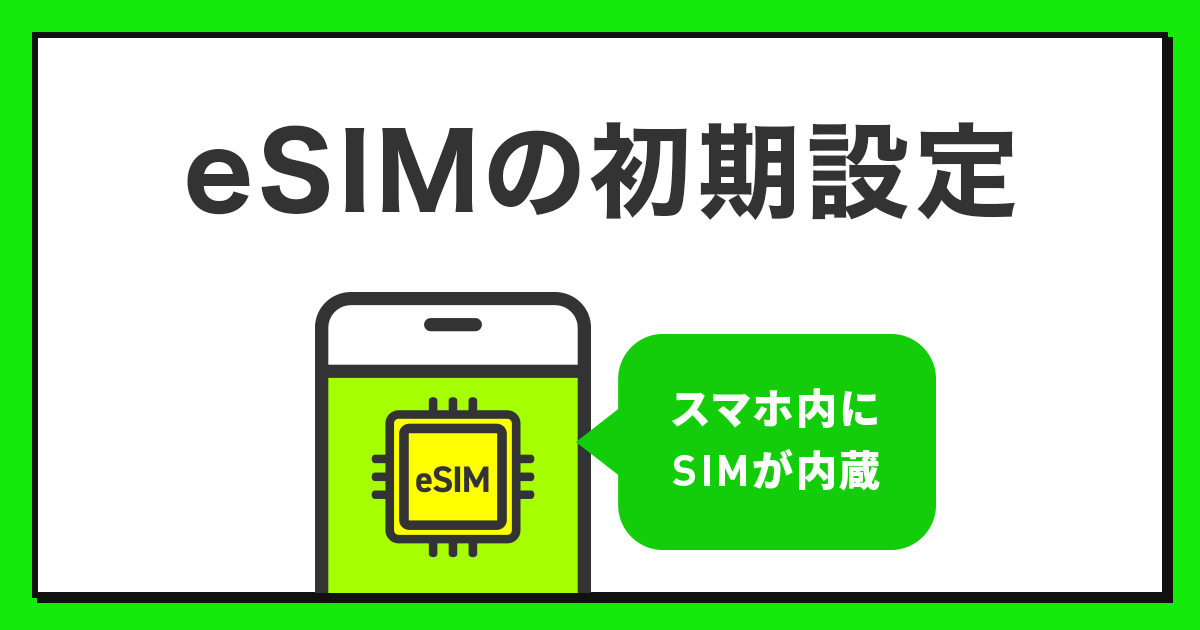
格安SIM/格安スマホ【LINEMO】公式サイト|eSIMの初期設定|手続き方法
LINEMOのeSIMを利用開始するための設定方法を説明します。eSIMプロファイルのダウンロードが必要です。お使いの端末のOSによって設定方法が異なります。
www.linemo.jpeSIM Adoption: Where Things Stand
eSIM is no longer a niche feature for early adopters. The numbers back this up clearly.
💡 Tip
Japan's Ministry of Internal Affairs and Communications has projected that 33.8% of smartphones shipped in 2024 will be eSIM-compatible. IMARC Group's Japan eSIM market report values the market at $817.3 million USD in 2025, rising to $2.886 billion USD by 2034, with a compound annual growth rate of 15.05%.
Globally, the trajectory is even steeper: eSIM-capable device shipments are projected to grow from 364 million units in 2018 to roughly 2 billion units by 2025 — approximately a 5.5x increase. eSIM is moving from a specialty feature toward a standard one.
Part of what's driving adoption is the compatibility with online activation workflows, plus the growing number of devices — like recent iPhones — that can store multiple profiles simultaneously. Whether you're switching domestic carriers, adding a secondary line, or managing data abroad, eSIM has shifted from "an unusual feature with extra setup steps" to a genuinely practical option for everyday use.

日本eSIM市場の業界展望および2034年までの予測
日本のeSIM市場規模は、2025年に8億1,730万米ドルと評価され、2026年から2034年にかけて年平均成長率15.05%で成長し、2034年には28億8,600万米ドルに達すると予測されている。
www.imarcgroup.comeSIM Pros and Cons
The Advantages
The core strength of eSIM is that you can get from sign-up to active line entirely online. No waiting for a card in the mail, no SIM ejector tool, no tray to open. That makes switching carriers or adding a secondary line noticeably faster. IIJmio's guide describes it the same way — a device-embedded format where you load the contract data to get started. If you've ever wanted to sign up over lunch and have service by evening, that scenario is genuinely achievable with eSIM.
The other major upside is that not having to physically swap SIMs simplifies ongoing management. Modern smartphones increasingly feature water resistance and slim profiles that make prying open SIM trays more inconvenient than before. With eSIM, you add or switch lines entirely through settings. That's useful whether you're adding a work line or experimenting with a temporary secondary plan. From experience, physical SIM management has a quiet annoyance to it — keeping track of which card is which, storing ones you're not using — while eSIM lets you label and organize lines within the device itself.
Dual-SIM compatibility adds another layer of practical value. Apple's documentation notes that iPhones can manage eight or more eSIM profiles, and iPhone 13 and later support dual eSIM. A common setup — main carrier for calls and texts, MVNO for data — lets you keep your primary number while controlling data costs. It also makes running personal and work lines from one phone straightforward, which is more convenient than carrying two devices.
The travel use case is particularly strong. Load a local data eSIM before departure and you step off the plane already connected — no hunting for a SIM counter at the airport, no handling tiny cards. For short trips or business travel, eliminating "the first ten minutes" of connectivity hassle is genuinely valuable. On iPhones that can store multiple eSIM profiles, you can pre-load destination-specific plans and switch on arrival without removing your domestic line.
The Downsides
The flip side is that eSIM only works on compatible devices, which is a hard constraint. On iPhone, compatibility is generally available from iPhone XR / XS onward. Older devices simply can't use it, and it's easy to apply for eSIM with a device you think is compatible only to discover it isn't. Regional variants complicate this further — the same iPhone model may not behave the same way across sales regions. Resources like J:COM MOBILE's compatible device list make clear that "newer smartphone" doesn't automatically mean "eSIM-ready."
Initial setup can also be more involved than inserting a physical card, depending on the situation. Instead of the device recognizing a card you've inserted, eSIM requires scanning a QR code, downloading a profile, and working through the activation steps in the right order. Wi-Fi is typically required or recommended throughout, which means setting up a phone that currently has no working SIM connection requires access to a separate network. LINEMO's eSIM setup guide, for example, is built entirely around having Wi-Fi available. At home this is rarely a problem, but if you're trying to switch carriers urgently while out, eSIM adds at least one extra step compared to physical SIM.
ℹ️ Note
A common point of confusion when something goes wrong: the eSIM profile (your actual contract data) and the APN configuration profile (a network settings file on iPhone for MVNO use) are two different things. QTmobile's iPhone setup guide treats APN configuration as a separate step. When eSIM setup completes but internet doesn't work, this two-stage distinction is often where the issue lives.
Deletion and re-issuance also work differently with eSIM. With a physical SIM, you can simply remove and reinsert the card. With eSIM, deleting a profile may require re-issuance from the carrier. If you accidentally delete a profile during an initial setup, a device reset, or a handset swap, you're not just inconvenienced in the moment — you may also need to go through the carrier's re-issuance process to restore service. Povo's SIM/eSIM activation documentation and others flag this explicitly. The invisible nature of eSIM profiles makes accidental deletion easier to do and harder to notice than losing a physical card.
There's also the reality that ease of use varies by carrier and plan. Some lines activate cleanly via QR code; others require an app flow; some need separate APN configuration afterward. MVNO setups on iPhone especially tend to involve APN configuration profiles, and the more lines you're trying to run simultaneously, the more this matters. eSIM is a good technology, but it doesn't deliver identical simplicity across every carrier and every plan.

【2026年最新】eSIM対応機種か一目でわかる!iPhone/Android一覧 | 格安スマホ・格安SIMならJ:COM MOBILE | J:COM
eSIM対応機種がiPhone/Androidで一目でわかる最新一覧!物理SIMとの違いや、デュアルSIMの仕組み、手持ちの端末がeSIM対応か確認する手順まで初心者向けに徹底解説。格安SIMへの乗り換えを検討中の方必見。
www.jcom.co.jpDual SIM and International Use in Practice
The clearest benefit of dual SIM is being able to run two lines with different purposes on one device. The classic setup — voice calls on a primary carrier, data on a cheaper secondary MVNO — is easy to achieve. Because eSIM lets you add a second line without using the physical SIM slot, you can keep your existing number and layer on a data-only plan without anything to physically swap. iPhone 13 and later's dual eSIM support makes this a realistic everyday configuration.
That said, "two lines loaded" doesn't automatically mean "both lines work exactly as expected." On iPhone, MVNO lines often require APN configuration profiles, which adds a layer of complexity to multi-line management. As QTmobile's APN setup documentation illustrates, an eSIM profile and an APN configuration profile serve distinct roles. Even after successfully adding a second line, getting data to route correctly through it may require an extra step. The practical recommendation is to treat your primary line as the stable anchor and think carefully about how a secondary line integrates — that approach tends to produce fewer problems.
For international travel, eSIM's advantages become even more tangible. Load a destination data eSIM before departure, and you arrive already connected. With a physical SIM, the workflow involves stopping at an airport kiosk, buying a card, swapping it in, storing your domestic SIM somewhere safe, and reversing all of that when you return. eSIM eliminates most of that friction. Keeping your domestic line active while switching data traffic to a local eSIM means you retain SMS and emergency call capability through your home number while browsing on local rates.
The catch for international use: preparation matters more with eSIM, not less. Attempting to download or activate an eSIM after arriving — when you have no connectivity — puts you in a difficult position. The better mental model is that a travel eSIM is something you load before you leave, not something you buy when you land. The convenience is real, but it requires advance planning. And given that deleting a profile requires carrier re-issuance, reorganizing profiles mid-trip is not something to do casually. The format works best when you load in advance and just switch when you arrive.

格安スマホ・格安SIMはQTモバイル(QTmobile)
格安スマホ・格安SIMはおトクに安心してはじめられるQTmobile(QTモバイル)。QTmobileは、九州電力グループ「QTnet」のブランドです。ドコモ・ au・ソフトバンクに対応。お手持ちの端末そのままでご利用いただけます。
www.qtmobile.jpFour Things to Confirm Before Using eSIM
Many people run into setup problems because they skip the pre-application checks. These aren't about eSIM being complicated — they're about avoiding unnecessary friction. There are four things to verify: device compatibility, SIM lock status, network environment, and carrier/plan support.
1) Device Compatibility
The first thing to check is whether your specific phone supports eSIM at all. On iPhone, J:COM MOBILE's compatible device list and Apple's own eSIM setup guide both point to iPhone XR / XS or later as the general threshold for eSIM support.
Confirming compatibility from product name alone is less reliable than checking three sources together:
- Does the manufacturer's official spec sheet list eSIM support in the SIM section?
- Does the carrier you want to use list your specific model in their compatible device roster?
- Does the actual settings menu on your device show an option to add an eSIM?
On iPhone, go to Settings → Mobile Service and look for the option to add a mobile plan. On Android, the path varies by manufacturer, but generally it's Settings → Network & Internet → SIM or Mobile Network → Add eSIM. On Pixel devices the flow is fairly direct; on Galaxy, Xperia, and AQUOS devices, the relevant menu may be labeled "SIM Manager," "Mobile Communication," or similar. Searching "eSIM" in the settings search bar typically gets you there fastest regardless of manufacturer.
iPhones can store eight or more eSIM profiles per Apple's documentation — for anyone who wants to hold travel, work, and domestic lines separately, confirming compatibility early in the process pays off.
2) SIM Lock Status
A device can be eSIM-compatible and still be unable to use a third-party eSIM if it's still SIM-locked to the original carrier. The question here isn't "does my phone support eSIM?" but "can my phone accept the specific line I want to add?" Used devices or handsets originally purchased through a carrier are particularly susceptible to this.
On iPhone, go to Settings → General → About to find the SIM lock status. If it shows as unlocked, you're clear to use other carriers. On Android, the display location differs by manufacturer — checking with the original carrier's documentation alongside your device's About section is the most practical approach.
Worth noting: the invisible nature of eSIM makes SIM lock problems show up later in the process than they would with a physical SIM. With a physical card, you'd immediately notice the device doesn't recognize it. With eSIM, you can complete the application and profile issuance before the lock stops you. Treat device compatibility and SIM lock as two separate checks — they're distinct problems with distinct fixes.
3) A Stable Wi-Fi Connection
eSIM setup involves downloading carrier profile data onto the device, which means having a reliable Wi-Fi connection is a genuine prerequisite — not just a recommendation. Since you may be setting up a phone that currently has no working SIM, you can't fall back on mobile data.
The key isn't that Wi-Fi is fast — it's that the connection doesn't drop or require re-authentication mid-process. Hotel or public venue Wi-Fi can prompt a login page in the middle of a QR code scan or profile download. A home broadband connection, a stable workplace network, or tethering from a device that's already connected is more reliable for this purpose.
Setup guides from ahamo, LINEMO, and others are all built around the assumption that Wi-Fi is available throughout the QR code and download steps. In practice, a few uninterrupted minutes of stable Wi-Fi is more important than raw speed.
4) Carrier and Plan eSIM Support
Easy to overlook: a carrier offering eSIM doesn't mean every plan from that carrier supports eSIM. The same carrier may offer eSIM on voice plans but only physical SIM on certain data-only plans, for example. You need to verify at the specific plan level, not just the carrier level.
Online-only plans and sub-brands tend to have clear eSIM support. MVNO setups, on the other hand, often require an additional APN configuration step after activation. Services like povo have clear activation documentation, while others may require APN configuration profile installation on iPhone as a separate step. The point to internalize is that loading an eSIM profile isn't the end of the setup — you need both the profile and the correct network settings configured correctly for the line to work.
For context, povo offers a data top-up option of 3GB for 30 days at 990 yen (~$6.50 USD) as one example (as of publication). Pricing and terms can change, so check the current details at the official page: https://povo.jp/procedure/sim-esim/
💡 Tip
A common source of post-application confusion: treating "is my device compatible?" and "does the carrier issue eSIM for this plan?" as the same question. They're two separate conditions. Checking them independently avoids most of the friction that comes up after you've already signed up.

SIM/eSIM開通のお手続き
SIM/eSIM開通のお手続きについて紹介します。
povo.jpRegional Variants and Model Differences
With eSIM, the same product name can behave differently depending on the sales region and model variant. This is a bigger blind spot than most people expect. iPhones, for example, come in Japan, North America, Hong Kong, and mainland China variants — and the SIM-related specs don't always match across them. Some mainland China variants have eSIM functionality restricted, which means "it's an iPhone 14" is not sufficient confirmation.
For used or imported devices, the spec that matters isn't the product name on the box — it's the sales model of that specific unit. Cross-referencing the manufacturer's spec page, the carrier's compatibility list, and the actual settings menu on the device gives you the most reliable confirmation. When evaluating used smartphones, checking the model number before anything else — before storage capacity, color, or condition — is the approach that avoids problems.
A phone that was a good deal purchased locally or abroad doesn't automatically translate to smooth eSIM operation in Japan. Since eSIM compatibility isn't visible the way a SIM slot is, regional model differences have direct consequences for activation — the solution is to verify by model number, not by assumption.
How to Set Up eSIM: Basic Steps for iPhone and Android
Before You Begin
eSIM setup has three main entry points: QR code scan, carrier app, and manual input. The flow is similar across all three, but each uses a different method to get the carrier profile onto your device.
- QR code: After applying, you receive a QR code that you scan to download the eSIM profile
- App-based: Carriers like ahamo, povo, and LINEMO use an app or web flow that hands off directly to the OS eSIM setup screen — generally the most guided experience
- Manual input: You enter an SM-DP+ address and an activation code — used by some corporate lines and certain international eSIM providers
One thing to be clear on before you start: downloading an eSIM profile and installing an APN configuration profile are two separate steps. The first gets your contract onto the device; the second configures where your data traffic connects. As QTmobile's iPhone APN setup guide illustrates, these are distinct operations. If your eSIM loaded successfully but internet doesn't work, this two-step structure is often what's in play.
Wi-Fi at this stage is less of a preparation item and more of a structural requirement. Apple's eSIM documentation, plus setup guides from LINEMO and ahamo, all assume internet access throughout the process. The reason is simple: you're often starting from a device with no active SIM, which means no mobile data to fall back on. In practice, setup failures are more often caused by a dropped connection than by any procedural mistake.
If the carrier requires identity verification, that process needs to be complete before profile issuance can proceed. eSIM has no "card delivery" delay, but the review and verification stage is a real gate — the settings screen may look like you're ready to activate while you're actually still waiting on the carrier's approval.
ℹ️ Note
Three things you'll need during setup: the phone you're configuring, a separate device or printed copy to display the QR code, and a stable Wi-Fi connection. Trying to scan a QR code that's open in the same phone you're configuring is one of the most common points where people get stuck.
iPhone Setup Walkthrough
On iPhone, the main path is Settings → Mobile Service → Add Mobile Plan. From there you'll choose to scan a QR code, transfer from a nearby iPhone, or enter details manually. Apple's documentation notes that eSIM-compatible iPhones can store eight or more eSIM profiles and manage them independently, which suits a setup-once, activate-as-needed approach to managing multiple lines.
With QR code, opening "Add Mobile Plan" launches the camera. Scan the QR code your carrier provided. If it reads successfully, you'll see a screen with the line name and secondary line label to configure — tap through the continue/add prompts to download the eSIM profile. Afterward, you'll be asked to configure line assignments: primary vs. secondary line, which line to use for mobile data, and which to use for iMessage and FaceTime. If this is a carrier switch, set it as the primary line. If it's a secondary data-only line, assign it only to mobile data.
For iPhone-to-iPhone transfers, put the old and new iPhones near each other, go to Add Mobile Plan on the new device, and select the transfer option from the screen. This is often the least error-prone method when the carrier supports it. For manual input, tap "Enter Details Manually" on the QR code screen and type in the address and activation code provided by your carrier. Given that any typo will stop the process, having the source information displayed on a separate device and copy-pasting where possible is the safer approach.
The most important thing to understand about iPhone setup: completing the eSIM addition is not the same as having working service. Some lines require you to switch the default data SIM after adding, or install an APN configuration profile, before data actually flows. On MVNO lines in particular, you might find Safari won't load or tethering doesn't work even though the eSIM shows as added. There's often one more configuration step between "Added" in the settings and data actually working — expecting that step helps.
Android Setup Walkthrough
The exact menu names vary by manufacturer, but the general flow on Android is Settings → Network & Internet → SIM or Mobile Network → Add eSIM. On Pixel devices this path is fairly direct. On Galaxy, Xperia, and AQUOS, equivalent options may appear under "SIM Manager," "Mobile Communications," or "SIM Card" menus. Searching "eSIM" in the settings search bar usually gets you to the right place regardless.
The three addition methods — QR code, app-based, manual entry — work the same way as on iPhone. For QR code, select "Scan QR Code" from the eSIM addition screen. For app-based flows, log into the carrier app, select your plan, and follow the prompts as the app hands off to the OS-level eSIM screen. Manual entry is usually accessed through a "Need help?" or "Enter manually" option within the addition flow — slightly less visible on first use.
After adding a line, Android typically asks you to confirm whether to enable this SIM, whether to use it for mobile data, and whether to use it for calls — each as a separate decision. In a dual-SIM setup, this is where you can configure voice on the physical SIM and data on the eSIM, or any other combination. For adding a work MVNO eSIM while keeping your existing number, the ability to route calls and data separately is exactly what makes this worthwhile.
On Android, watch for APN name selection or manual APN entry as a follow-up step after eSIM addition. Many MVNO lines require this. If the eSIM loads but data doesn't work, check in this order: does the eSIM appear in the SIM list? Is mobile data assigned to that line? Is the APN correctly selected? Working through those three questions usually identifies where the process stopped.
Downloading and Activating the eSIM Profile
The core of eSIM setup is downloading the carrier profile onto the device and activating it. This is the equivalent of inserting a physical SIM card. Whether you use QR code, app-based, or manual entry, everything converges on this step: getting the profile stored in the device and turning it on.
During download, an interrupted Wi-Fi connection will cause failure. This is why Apple, LINEMO, ahamo, and QTmobile all specify or recommend Wi-Fi throughout the process — the device you're configuring may not yet have any other way to connect. The connection doesn't need to be fast; it just needs to stay stable for a few minutes.
Once the profile is added, the device will prompt something like "Turn on," "Use this line," or "Set as default" to activate it. This is a good time to label the line — "Work," "Travel," "Data Only" — because clear labels make switching later much faster. On iPhone, where you can store multiple profiles and activate only the ones you need, this labeling habit pays off over time. It shifts the mental model from "swap the card" to "select the line."
A word on deletion: eSIM profiles are not like app sign-ins that you can delete and restore freely. Deleting a profile may require re-issuance from the carrier. LINEMO and povo's documentation both note this explicitly. The practical consequence is that during device resets or handset swaps, eSIM requires more care than physical SIM. A physical card can be removed and reinserted. An eSIM profile, once deleted, may require going back through the carrier's support process to get back. Treat it as contract data, not as a settings file.
Switching Carriers via eSIM: How It Works and What to Watch Out For
The Full Flow for MNP and Device Upgrades
Switching carriers via eSIM isn't a single step — it's a sequence. Understanding that sequence makes it much easier to identify where you are if something stalls. The order is: application → review → eSIM issuance (profile) → activation → line transfer → APN configuration.
This applies to both number porting (MNP) and device upgrades. Working through these stages in order lets you answer "which step is this stuck on?" at any point.
The application step involves selecting a plan, completing identity verification, and choosing your porting method (MNP reservation number or one-stop number porting if available). Once the carrier's review is complete, you receive eSIM profile issuance instructions — typically a QR code or app-based setup link. This isn't the SIM card itself; it's the entry point for loading the contract data onto your device. The setup steps from the previous section apply here.
"Activation" and "line transfer" look similar but mean different things. Activation prepares the new line for use. Line transfer (for MNP) actually moves your number from the old carrier to the new one. Conflating the two leads to situations like "eSIM is loaded but calls aren't coming through on the new number" or "data is on the new line but voice is still on the old one." The clearer mental model: device-side configuration completing and the carrier-side port completing are two separate events.
Device upgrades follow a similar pattern. You're not physically transplanting an eSIM from the old device to the new one. Some combinations of iPhones support Apple's eSIM transfer method, but many lines still require you to go through the carrier process. In practice, a device upgrade means re-doing the eSIM setup on the new device — not just moving hardware.
When the Old Line Goes Dark and Why It Matters
The biggest source of anxiety during MNP is when exactly the old line stops working. Generally, the old line begins the deactivation process when you execute the line transfer step — not when you submit the application, and not when the eSIM profile is issued. Knowing that boundary matters.
What often happens in practice: the old line goes out of service first, then the new line takes a few minutes to stabilize. During that transition window, it's tempting to conclude something went wrong and start changing settings — but that tends to make diagnosis harder rather than easier. During a number port, expect the old line to be unreachable around the transfer window, which also means SMS-based authentication and incoming calls may be temporarily unavailable. Planning for that gap rather than being surprised by it makes the process less stressful.
Timing also varies by carrier. Some process the switch immediately after application; others maintain the old line until the user completes a separate activation step. Some have cutoff times that push same-day applications to the next business window. The consistent principle is: the application doesn't stop the old line — the line transfer step does.
💡 Tip
On the day you port your number, avoid having Wi-Fi and mobile data routed through the same single line. Keep a PC or tablet available to access email via Wi-Fi, so you have a backup communication path during the transfer window.
Re-issuance and Accidental Deletion
eSIM recovery works differently from physical SIM recovery, and the difference matters in a few common scenarios. The most typical reasons for needing re-issuance are accidental deletion, device hardware failure, and device upgrade.
Accidental deletion is the most common. When data isn't working and the settings screen is right there, it's tempting to try deleting and re-adding the profile. As noted throughout this guide, that's treating an eSIM profile like a setting you can toggle — which it isn't. Deleting it may mean going through the carrier's re-issuance process rather than simply re-scanning a QR code.
The re-issuance experience varies significantly by carrier. Some carriers let you regenerate a new QR code through the member portal instantly; others require contacting support during business hours. Fees also differ — some carriers offer re-issuance for free, others charge. Assuming re-issuance is always free and instant can lead to an unpleasant surprise during a device upgrade.
Hardware failure creates the same problem. If your screen cracked but the phone still powers on, you may be able to manage the eSIM through the damaged device. If the phone won't power on at all, transferring an eSIM profile the way you'd transfer a physical SIM card simply isn't an option. The path forward is getting re-issuance from the carrier and setting up on the new device.
For device upgrades, the safest order is: complete activation on the new device first, confirm the line is working, then wipe the old device. Reversing that order — wiping the old device before the new one is confirmed active — is a common way to end up in a difficult recovery situation. eSIM is convenient precisely because there's no physical object to move, but that also means there's nothing to fall back on if you delete before you're ready.
Understanding APN Configuration's Role
APN configuration is a step that often gets conflated with the eSIM process itself, but they serve different purposes. An eSIM profile puts the contract data onto the device. APN configuration tells the device where to route mobile data traffic. These are distinct: getting an eSIM profile onto your phone doesn't automatically mean internet will work.
This matters most for MVNO lines. On Android, APN configuration usually means selecting from a list or entering settings manually. On iPhone, it may mean installing a separate APN configuration profile. Without the correct APN, you can have signal, see the carrier name in the status bar, and still be unable to load a webpage or use an app over mobile data. In hands-on testing with MVNOs, this APN step tends to cause more confusion than the eSIM installation itself.
On iPhone specifically, keep the distinction clean: eSIM profiles and APN configuration profiles are not the same item. They also behave differently when deleted. Deleting an eSIM profile may require carrier re-issuance. Deleting an APN configuration profile can usually be fixed by reinstalling it. That said, blindly deleting either without understanding which is which tends to make problems worse rather than better.
The clean workflow on iPhone with an MVNO line: activate the eSIM first, then install the APN configuration profile only if the carrier requires it. If there's a stale APN configuration profile from a previous carrier still on the device, it can interfere with data routing even after a successful eSIM switch. When data is unstable after a carrier change, the likely culprit is an incomplete or conflicting APN configuration — not a problem with the eSIM itself.
Common Problems and How to Fix Them
QR Code Issues
The most common early stumbling block is a QR code that won't scan properly. The fix is usually about how you display the code, not anything technical — showing the code on a separate device is often all it takes. The issue is frequently that the QR code is open in the same phone you're trying to configure, which makes it physically impossible to scan.
The most straightforward fix is displaying the QR code on a different device — open the activation email on a PC or tablet, then scan with the phone you're setting up. If no second device is available, taking a screenshot of the QR code and zooming in on that image sometimes helps with recognition. Increasing screen brightness also matters more than you'd expect — cameras have trouble reading QR codes on dim displays because the contrast isn't sufficient to detect the edges cleanly.
Printing the QR code on paper is a surprisingly reliable fallback. Without screen glare or brightness variation, older phones and cameras with slower autofocus often perform better on a physical printout. When scanning keeps failing, the instinct is often to suspect the carrier's end of things — but a significant portion of these failures come down to how the QR code is being presented, not the code itself.
If QR scanning continues to fail, check whether the carrier provides a manual activation path (SM-DP+ address and activation code). Not every carrier advertises it prominently, but having that option available means you're not blocked by QR code issues alone.
No Data or Unstable Connection After Setup
Scanning the QR code successfully but then having no internet, or seeing signal but with data that keeps dropping — this is one of the most common real-world problems with eSIM. The right approach is to work through the network configuration steps rather than assuming eSIM itself failed.
Start with Airplane Mode on, then off. This forces the device to re-authenticate with the network, and connectivity issues that appear immediately after activation often resolve at this step. If that doesn't help, a full reboot is the next step — there can be internal states where settings look correct in the UI but haven't fully propagated yet.
On iPhone with MVNO lines, check whether an outdated APN configuration profile from a previous carrier is still installed. An old APN profile can prevent data from routing correctly even with a new, valid eSIM in place. The key is that the thing to remove in this case is the old APN configuration profile — not the eSIM profile itself.
Also check data roaming settings. Even for domestic use, some carrier configurations require data roaming to be enabled. For international eSIMs, this is critical — you can have a strong signal and still have no data if roaming is switched off. In testing travel eSIMs, this toggle is often the last step that gets missed.
ℹ️ Note
When troubleshooting connectivity issues, work through this order before touching anything else: Airplane Mode on/off → reboot → review APN configuration profile → check data roaming setting. Going straight to deleting the eSIM profile skips the most fixable causes.
Quick reference for the most common questions:
- Q: The QR code won't scan.
A: Display it on a separate device, zoom in on a screenshot, increase screen brightness, or try printing it on paper.
- Q: I have signal but no internet.
A: More likely an APN configuration profile issue (outdated or missing) than an eSIM problem.
- Q: The phone shows out-of-service right after activation.
A: Try Airplane Mode on/off or a reboot — this often re-triggers network authentication.
- Q: I have an international eSIM but no data at the destination.
A: Check whether data roaming is switched on. No data is the expected result if it's still off.
SIM Lock, Roaming, and Airplane Mode
When setup steps are followed correctly and service still doesn't work, the underlying cause is often an unresolved SIM lock. Because eSIM activation happens online and appears to succeed visually, it's easy to interpret "downloaded successfully" as "working correctly" — but a carrier lock on the device hardware blocks actual use even if the profile is installed. This is particularly common when reusing a carrier-branded iPhone or Android from a previous plan.
The symptom: eSIM shows as added in settings, but the phone stays out of service, or a message along the lines of "this line is not usable" appears. When this happens, checking the lock status of the device is the right first step before touching APN settings or any other configuration. Most carriers let you check unlock status through the member portal or the device's About screen, and unlocking requires going through the carrier's process.
The airplane mode vs. roaming distinction is also worth being clear on. Airplane mode disables all wireless communication — if it's on, mobile service won't work regardless of what else is configured. It's possible to go through an entire eSIM setup with Wi-Fi enabled and forget to turn airplane mode back off, leading to a false conclusion that eSIM isn't working. At the same time, toggling airplane mode on and off can also fix authentication state issues — so "airplane mode on/off" is useful both as a diagnostic and as a fix.
For roaming: don't treat it as an international-only setting. Some domestic carrier configurations require data roaming to be enabled. The names "airplane mode" and "data roaming" can look similar in settings, but they control different things: airplane mode stops all wireless radios; data roaming permits mobile data connections. Keeping them separate avoids misdiagnosis.
Don't Delete the eSIM Profile
When connectivity isn't working, the most damaging move is deleting the eSIM profile. The settings screen makes deletion look easy, and re-adding looks simple — but in practice this is a serious pitfall. An eSIM profile is not a configuration item; it's the contract data itself. Deleting it likely triggers a re-issuance workflow, which may require going back through the carrier's support or member portal.
As noted earlier, APN configuration profiles and eSIM profiles are different things with different consequences when deleted. If anything in the settings should be examined during troubleshooting, it's the APN configuration profile — not the eSIM profile. Deleting the eSIM profile out of frustration with a connection issue doesn't fix the connection issue; it adds a recovery task on top of it.
iPhone's ability to store eight or more eSIM profiles is a convenience for managing multiple lines, not a signal that individual profiles can be treated as disposable. Deleting an active eSIM profile — especially right after a carrier switch or while traveling internationally — significantly increases recovery complexity, because the authentication methods needed for re-issuance may also be temporarily unavailable.
If you genuinely need to delete a profile as part of a carrier-directed re-issuance procedure, that's the appropriate context. Otherwise, before reaching for the delete option, work through: Airplane Mode on/off → reboot → APN configuration review → data roaming check → SIM lock verification. That sequence covers the most fixable causes without creating a new problem.
eSIM Profile, APN Configuration Profile, and vSIM: What's Actually Different
What an eSIM Profile Is
An eSIM profile is the device-stored equivalent of your SIM card — think of it as the phone's carrier credentials. It contains the authentication information tied to your phone number and contract, which is what gets the phone onto the carrier's network. This is the item that's "dangerous to delete," as described throughout this guide. It looks like a settings entry, but functionally it's the same as the physical SIM card itself.
Put another way, buying an eSIM-compatible phone doesn't automatically give you service. Even on an iPhone, Pixel, or Galaxy that supports eSIM, you need to download and activate a carrier-issued eSIM profile before anything works. When Apple says iPhones can manage eight or more eSIM profiles, that means the device can store multiple lines simultaneously — it doesn't mean APN settings or anything else is automatically handled.
Getting this terminology right removes most of the confusion from initial setup. An eSIM profile is the contract data itself — the layer that determines which network you're on. Among everything you might touch in settings during a connectivity issue, this is the item with the most weight attached to it.
What an APN Configuration Profile Is
An APN configuration profile is not carrier credential data — it's network routing settings. APN specifies where mobile data traffic connects, and on iPhone especially, having the correct APN configuration can determine whether data works at all when using MVNO lines.
This is where the confusion typically enters. If an eSIM profile is "the line itself," an APN configuration profile is "the instructions for where to send data on that line." These are entirely different. A correctly installed eSIM with an absent, outdated, or mismatched APN configuration profile produces exactly the symptom of "bars showing, carrier name visible, but no data."
APN configuration profiles are also somewhat awkward to manage on iPhone. Running multiple lines with different APN requirements isn't seamless, and switching between carriers can leave a previous carrier's APN configuration behind. For example, if you have an IIJmio APN configuration profile installed and then switch to a different MVNO via eSIM, the eSIM addition may complete successfully while data still fails because the APN configuration still points to IIJmio's network.
Physical SIM switching gives you tactile feedback that the line changed. eSIM on iPhone requires keeping eSIM profile changes and APN configuration profile changes in sync as two separate tasks. Misunderstanding that two-layer structure is what produces the "looks like it should be working but isn't" failure mode.
💡 Tip
A clean way to distinguish them: eSIM profile is "what line am I on?"; APN configuration profile is "where does this line send data?" Out-of-service entirely → check the eSIM profile. Bars showing but no internet → check the APN configuration.
vSIM Is a Different Concept Entirely
vSIM is often confused with eSIM because of the naming similarity, but they're distinct concepts. eSIM uses a profile stored in hardware on the device. vSIM refers to cloud-based or software-layer authentication and subscriber management — a fundamentally different architecture from eSIM's device-side profile model.
When a smartphone is described as "eSIM-compatible," that refers to the embedded hardware SIM model — not a vSIM service. vSIM tends to appear in discussions of IoT devices, specialized communication platforms, and cloud-based subscriber management infrastructure. It's not something you configure through a phone's "Add eSIM" screen.
Conflating eSIM and vSIM in reviews or comparison articles is common, partly because both involve not having a visible SIM card. From a reader's perspective, "no physical SIM card" can look the same across both. In practice, they're different technologies for different use cases, and treating them interchangeably breaks the explanation. The clean mental model: eSIM is what you set up in the device's settings screen; vSIM is an infrastructure-level concept that isn't directly user-configurable on a typical smartphone.
Three-Way Comparison at a Glance
Comparing across role, how it's obtained, and what happens when deleted makes the differences clear:
| eSIM Profile | APN Configuration Profile | vSIM | |
|---|---|---|---|
| Role | Carrier authentication and contract data | Mobile data routing settings | Cloud/software-layer authentication and subscriber management concept |
| How obtained | Issued by carrier, added to device via QR code, app, or manual entry | Installed following carrier or MVNO instructions | Provided at the service infrastructure level |
| If deleted | May require re-issuance from carrier | Usually fixable by reinstalling | Not equivalent to a standard device-level deletion |
Even sharing the name "profile," eSIM profiles and APN configuration profiles operate at different layers. The eSIM profile makes the line exist; the APN configuration profile makes data work on that line. vSIM is at a different layer still, and belongs in infrastructure conversations rather than smartphone setup ones.
In real-world use, the implications are practical: eSIM profiles can be stored in quantity but cost a lot to accidentally delete. APN configuration profiles can usually be reinstalled, but stale ones can silently break data routing after a line switch. vSIM is not something you'll encounter in the "Add eSIM" flow on a standard phone. Keeping these three separate eliminates most of the terminology-driven confusion that causes setup problems.
Who Should Actually Use eSIM
Profiles That Benefit Most
eSIM tends to work best for people who want to activate a new line the same day. No waiting for a card, no planning around delivery windows — you sign up and configure within the same session. When you're in the middle of a connection problem and need a backup line today, eSIM's speed advantage is real and practical.
A secondary line is another strong use case. Separating voice calls on a primary carrier from data on a cheaper secondary MVNO — while keeping both on one device and not touching any physical hardware — is exactly what eSIM is designed for. Apple's documentation notes that iPhones support eight or more eSIM profiles, making the idea of holding multiple lines "just in case" genuinely reasonable. Separating work and personal, or primary and backup, becomes a settings operation rather than a hardware one.
For frequent travelers, the benefits are clear. Load a destination eSIM before departure and you step off the plane connected. No airport SIM hunting, no tiny card handling, no storing your domestic card somewhere safe and hoping you remember where it is. On iPhones with room for multiple stored eSIM profiles, managing lines for different travel destinations in advance becomes realistic. Keeping your domestic line active while switching data traffic to local rates is an eSIM-only capability on a single device.
People who want to avoid physically handling the SIM tray also benefit. Ejecting a SIM tray once isn't particularly burdensome, but doing it repeatedly — especially on a device in a case, or a water-resistant phone — accumulates friction. Switching lines through a settings menu is meaningfully more convenient, and for anyone who uses their phone heavily for work, eliminating unnecessary physical operations reduces wear on both the hardware and the workflow.
Who Might Be Better Served by Physical SIM
Some use cases are actually better matched to physical SIM. The clearest example is someone who wants in-store support throughout the setup process. eSIM's entirely screen-based activation flow is efficient when it works, but when something stalls, the state isn't always obvious from the UI. If that ambiguity is stressful, physical SIM's visible, tangible "card in tray = line active" feedback is genuinely less confusing. Physical card setup also aligns better with assisted in-store experiences.
Users with non-compatible devices are simply excluded by the prerequisites. On iPhone, the threshold is approximately iPhone XR / XS or later. Anyone still on an older device should plan around physical SIM rather than treating eSIM as a near-term option. For used devices or secondary devices from older generations, this is a prerequisite check, not a preference.
Corporate-managed devices require caution. Company-issued iPhones and Androids often have management profiles and restrictions on SIM and configuration changes. Even if the device hardware supports eSIM, organizational policy may prevent adding personal eSIM profiles or changing line settings. The convenience that makes eSIM appealing on a personally owned device may simply not be available in a managed device context.
ℹ️ Note
Whether eSIM is the right choice comes down less to technology novelty and more to whether you can comfortably complete line setup on your own. If the speed of online-only activation appeals to you, eSIM is worth it. If the physical clarity of a card-based setup feels more manageable, that's a legitimate preference too — and it reduces post-switch troubleshooting.
Three Scenarios Where eSIM Shines
Backup connectivity during outages or emergencies. Even when a primary line is sufficient for everyday use, having a secondary line you can activate quickly provides meaningful resilience. Running a primary and backup line on a single device keeps maps, payments, and communications available when one network goes down. If any one of those needs to stay functional during a network event, an eSIM secondary line is a practical insurance policy.
International travel. The pre-loaded travel eSIM model is the cleanest version of what eSIM does well. Load before departure, switch on arrival. With physical SIM, the equivalent requires purchasing a local SIM at the airport, swapping it in, storing your domestic SIM safely, and reversing the process when you return. Keeping the domestic line active for SMS authentication and emergency calls while routing data through the local carrier isn't possible with one physical SIM slot — it is with eSIM.
Separating work and personal lines. One device with clearly separated identities for professional and personal use. iPhone 13 and later with dual eSIM support makes this achievable without any physical SIM involvement. Work calls on a work number, personal calls and messaging on a personal line — with independent billing, independent notification management, and a cleaner boundary between the two contexts.
The common thread across all three: eSIM's value isn't that it's new — it's that it handles line expansion, switching, and parallel management better than physical SIM. For fixed single-line use where the setup doesn't change, physical SIM remains perfectly adequate. The case for eSIM is strongest where flexibility is the point.
Wrapping Up
Three Key Takeaways
eSIM loads carrier contract data directly onto hardware built into the phone, enabling activation without physical SIM swapping — that's the core of what makes it different.
Before getting started, confirming device compatibility, carrier/plan support, SIM lock status, and Wi-Fi availability up front removes the most common causes of mid-process confusion.
During setup and carrier switching, keeping eSIM profiles and APN configuration profiles distinct — and treating deletion as a significant action rather than a casual one — is the shortest path to avoiding recoverable but annoying mistakes.
Setup Checklist
Work through these in order:
- Confirm your phone is eSIM-compatible
- Confirm the carrier and specific plan you want to use issues eSIM
- Check whether the device is SIM-unlocked
- Have stable Wi-Fi ready before you start
- During setup, don't delete either the eSIM profile or the APN configuration profile unless explicitly instructed to
💡 Tip
The two things that prevent most eSIM setup problems: do the compatibility checks carefully before applying, and treat deletion as a last resort rather than a first troubleshooting step.
What to Read Next
For carrier comparisons and plan selection, the "Smartphone Buying Guide for Beginners" covers the full decision framework. For use-case-based model comparisons, "Best Smartphones | Choosing by Use Case and Budget" is a good next reference.
Related Articles
iPhone 16 Pro Review: How Camera Control Changed the Way I Shoot
iPhone 16 Pro Review: How Camera Control Changed the Way I Shoot
A hands-on review of the Apple iPhone 16 Pro after two weeks of daily use. We put the new Camera Control button, A18 Pro chip performance, and battery life to the test.
Smartphone Buying Guide: How to Choose Without Regrets
Smartphone Buying Guide: How to Choose Without Regrets
Buying a smartphone isn't about picking the most expensive model. Getting the fundamentals right — OS, price range, specs, and carrier or SIM compatibility — dramatically reduces the risk of a bad purchase. Today's mid-range phones have enough performance for everyday use.
How to Choose a Smartphone: A Complete Beginner's Guide
How to Choose a Smartphone: A Complete Beginner's Guide
A practical guide for first-time smartphone buyers covering use cases, iPhone vs. Android differences, budget tiers, screen size, key features, and post-purchase setup — helping you narrow down your options in about three minutes.
How to Choose a Smartphone Camera | The Megapixel Trap, Explained
How to Choose a Smartphone Camera | The Megapixel Trap, Explained
Megapixels matter, but picking a phone based on numbers alone will likely disappoint you. I regularly shoot with 12MP, 50MP, and 200MP devices, and while higher resolution gives you more cropping room, I've had plenty of 200MP night shots come back grainy when I expected them to be crystal clear.