
Home Office Desk Gadgets Guide in Japan | Top 3 Priority Purchases by Problem & Budget
Home Office Desk Gadgets Guide in Japan | Top 3 Priority Purchases by Problem & Budget
Your work-from-home desk usability is determined more by layout than effort. If you're struggling with posture, messy cables, meeting prep hassles, or dim lighting at night, this guide organizes six essential gadget categories and clearly separates the three must-buy items from nice-to-haves. Real solutions for common WFH pain points in Japan.
Your work-from-home desk usability is determined more by layout than effort. Whether you're dealing with poor posture, messy cables, mounting meeting prep hassles, or dim lighting at night, this guide organizes six essential gadget categories in Japan and clearly separates the three must-buy items from the rest.
The author worked from a 120cm-wide desk focused on notebook PC use with frequent video calls, tracking implementation order and actual desk changes. Rather than buying expensive equipment all at once, investing in high-impact areas like monitor arms, USB-C hubs, and lighting produces faster improvements to both posture and cable management within weeks.
Beyond realistic budget plans ranging from under ¥5,000 ($35 USD) to over ¥30,000 ($210 USD), this guide also covers often-overlooked verification points like VESA compatibility, DisplayPort Alt Mode, USB Power Delivery, and desktop thickness. If you want to avoid buying something that won't fit, won't connect, or won't work after purchase, this guide is worth reading first.
Choosing WFH Desk Gadgets by Problem Rather Than Popularity
Six Problem Categories and Typical Symptoms
Selecting desk gadgets for work-from-home works better when starting from your actual current frustration rather than working backward from popular categories. The patterns are far more organized than they initially appear. The author finds it practical to first view them through six categories: posture, lighting, space-saving, connection/cables, meetings, and charging.
People with shoulder and neck pain often discover the real cause isn't their chair but low screen position. Placing a notebook PC directly on the desk naturally lowers your line of sight, rounds your spine, and pushes shoulders forward. This framing helps organize the problem clearly—if you use an external monitor, a monitor arm works well here. INTERNET Watch's work-from-home improvement articles also cover monitor arms as tools that simultaneously free up desk space and naturally align your viewing height. In practice, VESA 75×75 / 100×100mm compatibility, weight capacity, and clamp installation options that match your setup make it surprisingly easy to reduce both desk clutter and postural collapse at once.
Eye fatigue often stems from poor lighting around the work surface or screen reflection rather than the display itself. Symptoms include keyboard areas darkening at night, shadows falling on paper documents, and screens appearing to float too brightly against your surroundings. Adding lighting proves more effective here. Beyond raw brightness, considering Ra (color rendering), color temperature adjustment, and glare reduction stabilizes your working comfort. For example, OHM desk lights like certain models offer full luminous flux of 900lm, approximately 2000lx at 40cm directly below, and Ra93 specifications. These numbers place them in a significantly bright category—and in practice, simply closing the brightness gap between your work surface and screen makes eye movement far easier throughout the day.
Cramped desks often don't actually need a larger desk, but rather, monitor bases, hubs, and chargers are occupying surface real estate. Space optimization comes first here; floating items with arms, routing clamp-style USB hubs to edges, and positioning charging stands all work more efficiently than seeking a bigger desk. Clamp-style hubs like those from Sanwa Direct combine space savings with easy insertion/removal. Their representative examples meet USB 3.2 Gen1 standards at 5Gbps and accept desktop thicknesses of 12–30mm. This configuration both reclaims area and eliminates port shortage.
Cable mess stresses you in two ways: the repetitive reconnection burden and cleaning difficulty. In notebook PC environments requiring daily reconnection of power, external monitor, USB devices, and wired LAN, consolidating through a USB-C hub or docking station dramatically simplifies things. Gathering USB-A, HDMI, LAN, and SD card in one place is its strongest feature—when all cable outlets align, you also immediately see exactly where desk clutter occurs.
Online meeting difficulties aren't actually separate problems; they're a combined connection and lighting issue. If you reconnect camera, microphone, monitor, and power before every call, start with connection infrastructure. If your face appears dark, your background is overexposed, or your appearance dims after midday, prioritize lighting. In the author's experience, during a congested meeting week, connection/cable issues had the biggest impact when resolved first, while a document-heavy week saw posture/lighting improvements directly translate to better focus. Switching frequency determines your real priority order.
Charging chaos is often deprioritized but easily adds surface clutter. If you want to view your phone while charging, a stand-style wireless charger handles better than flat placement. Position alignment is easier and notification checking is simpler. iPhone-focused models offer 15W-class options, and 3-in-1 types let you consolidate smartphone, AirPods, and Apple Watch placement.
Even listing all six categories, you don't implement everything at once. Start by organizing your frustrations into just four blocks: "posture," "cables," "meetings," and "lighting," then focus on your top 1–2 blocks. Suddenly your necessary gadgets narrow sharply. This problem-first thinking also prevents overbuying and makes spec sheets less intimidating.
Productivity Gains: Data on Workspace Setup Necessity
Work-from-home productivity numbers can seem confusing at first. Industry media kyozon reports that telework-adopting companies in Japan average ¥7.59 million in employee productivity versus ¥5.17 million for non-adopters—nearly a 47% difference. However, RIETI's discussion paper suggests that individuals who started remote work during the pandemic average only about 58% productivity.
These aren't contradictory so much as measuring different units. The first shows overall enterprise trends for formalized telework, while the second captures personal perception and condition gaps during sudden remote transitions. Simple side-by-side comparison misleads; the real reading is: organized setup and operations narrow the gap, and conditions can actually reverse it.
In RIETI's context, self-employed ICT equipment and insufficient face-to-face communication emerge as challenges. In other words, remote work productivity drops less from personal ability and more often from missing connection hardware, screens, lighting, and peripherals. Here, desk gadgets shift from mere comfort upgrades to workspace reconstruction work.
For example, working solo on a notebook PC, swapping cables before each call, and reading documents under room lighting at night all disadvantage both focus and switching. Consolidating connections with a USB-C hub, raising your line of sight with a monitor arm, and adding lighting to stabilize visibility cuts daily friction substantially. Numbers might not look dramatic, but eliminating the repeated micro-interruptions of "plugging in," "searching," "correcting posture," and "squinting" carries genuine impact.
💡 Tip
Frame workspace improvements as eliminating small daily losses rather than adding luxurious equipment—this thinking clarifies priorities quickly.
The author frequently handles smartphones and peripherals. Maker messaging tends to emphasize "high function," yet desk environments really reward solving one daily inconvenience well. Connection trouble before meetings disappearing, shadows no longer falling on documents, screen position feeling natural—these quiet changes aren't dramatic but directly counter the factors that drag down remote work productivity.
Does Telework Boost or Reduce Productivity? Japan's Clearest Breakdown Including Domestic Context and Global Debate
kyozon SaaS Comparison & Resource Site
kyozon.netNarrow Down: Don't Buy Everything—Stick to Your Top 3 Items
Work-from-home gadget categories are numerous enough that once you start browsing, everything feels necessary. But buying everything at once invites failure. The author would divide problems into four blocks, then cap investment at just 3 items addressing your top 1–2 blocks.
High-priority combinations are remarkably clear. If posture hurts and your desk is cramped, a monitor arm leads. Sanwa Direct's 100-LA030 meets VESA 75×75 / 100×100mm, handles up to 10kg per arm, and costs ¥5,980 direct (at publication). This single tool improves screen position and reclaims workspace simultaneously, with visible results. It's the marquee example of high-impact gear.
If cable chaos or meeting prep hassle dominates, placing a USB-C hub or clamp-style USB hub first raises satisfaction higher. Fixed hubs create reliable port positions at your desk edge—you never hunt for the unit on each insertion/removal. Clamp-style USB hub examples start around ¥2,304, making this zone relatively budget-friendly to enter. If you also output video from your notebook PC, checking whether the USB-C side uses DisplayPort Alt Mode avoids later confusion.
If eye strain or nighttime work difficulty is severe, lighting priorities spike. Monitor lights and desk lights produce visible comfort returns against price. Examples exist around ¥5,680, and JIS AA-equivalent products reaching approximately 2000lx directly below at 40cm with Ra93 balances work-surface and screen visibility well. In the author's experience, lighting prompts "why didn't I do this sooner" more often than other categories. Yet lighting alone rarely solves poor overall room illumination—it's specifically addressing work-surface shortfalls that counts.
Charging stands and ergonomic input devices are powerful but optional for your first three purchases. Wireless charging stands shine if phone cables constantly obstruct you; ergonomic input gear matters if typing dominates. However, initially stabilizing posture, cables, or lighting first makes your whole desk foundation steadier.
Frame narrowing like this prevents drift:
- Pick one inconvenience that happens most frequently in your day
- Assign that inconvenience to "posture/cable/meeting/lighting"
- Buy 1–2 items addressing that block, not 3
- Use them, then roll remaining frustrations into your next purchase
This approach shifts you from "popular so I should buy it" to "solves my actual problem." When comparing specs, priorities naturally emerge: VESA/weight/clamp type for arms, port configs for hubs, Ra/brightness/color temp for lights. Your desk gains items yet looks more organized because clutter sources actually diminish.
Three Priority Categories to Invest In First: Screen Position, Connectivity, Lighting
Read this section as investing in three categories in descending order of felt impact. The author's experience shows that addressing screen position, connection, and lighting in that sequence tends to simultaneously raise posture, setup, and visibility. Not glamorous upgrades, but eliminating small daily stresses here is remarkably efficient.
| Category | Main Effect | Right For | Common Failure Points |
|---|---|---|---|
| Monitor Arm/Notebook PC Stand | Screen position correction, desktop space recovery | VESA support, weight capacity, clamp feasibility | No VESA holes, exceeds weight limit, can't clamp desktop |
| USB-C Hub/Docking Station | Connection consolidation, reduced insertion/removal chores | PD power delivery, video output, required port count | Power works but video doesn't, insufficient port mix |
| Desk Light/Monitor Light | Work-surface and screen visibility, reduced eye strain | Illumination, Ra value, color temperature control, glare reduction | Bright but glaring, reflection on paper or screen |
Choosing a Monitor Arm or Notebook PC Stand
Monitor arms rank highest to prioritize because they improve posture and reclaim space simultaneously if you use an external display. Even INTERNET Watch's case studies make clear that floating the monitor frees desk space noticeably. The author felt shoulder tension lighten once screen height aligned naturally with line of sight, and the vanished stand opened space for documents.
Narrow your focus to three specs. VESA first: standard arms assume 13–30 inch monitors using VESA 75×75mm or 100×100mm, and this compatibility severely narrows your options. Next, weight capacity, with 10kg per arm as a reasonable target. Sanwa Direct's 100-LA030 meets VESA 75×75 / 100×100mm with maximum 10kg per arm—straightforward specs. Direct pricing at ¥5,980 lowers entry barriers for this category. The ¥7,000–¥10,000 range across retailers holds other strong options where cost-to-benefit really shines.
Notebook PC-focused users benefit from low-profile notebook stands even without external monitors. Especially if you'll use a separate keyboard, lifting your line of sight cuts forward lean markedly. While not freeing desk space like full arms do, it fits tight desk/budget constraints or "just fix posture first" scenarios well.
Improve Your Work-From-Home Setup with Monitor Arm & Multi-Display
Slack, Trello, and More Tools Now Demand Multi-Display Convenience!【Home Office Gadgets Mini-Review #1】
internet.watch.impress.co.jpChoosing USB-C Hubs and Docking Stations
For notebook PC-centric remote work in Japan, connectivity improvements rank second. The reason is simple: each cable swap introduces tiny interruptions. When power, HDMI, USB drives, wired LAN, and headsets scatter across ports, meeting prep alone fractures focus. USB-C hubs and docks reduce those interruptions at once.
Two benchmarks matter here: DisplayPort Alt Mode understanding and video bandwidth. If 4K external display matters, products clearly supporting DP 1.4 levels read more intuitively. Performance variance runs high even among visually identical USB-C cables, so don't assume identical looks mean identical performance. Pairing this category with our USB-C cable selection guide clarifies things well.
Fixed/clamp-style hubs often get overlooked but dramatically improve usability. Clamp or magnet styles create reliable port positions at desk edges—insertion/removal suddenly feels effortless. Sanwa Direct's clamp-style USB hub examples show USB 3.2 Gen1 compliance at 5Gbps and desktop thickness support of 12–30mm. Pricing examples sit around ¥2,304, tempting because reclaiming surface area while solving port shortage gets easy. Swapping a USB drive one-handed from your natural hand position makes pre-meeting connection stress evaporate.
Docking stations layer on too much bulk without corresponding benefit. LANs and multi-screen output matter for some, but if USB-A ports and video output suffice, small hubs satisfy most people first. Start small.
Choosing Desk Lights and Monitor Lights
Lighting ranks third yet jumps to first priority for anyone working nights. Ceiling fixtures alone leave your screen bright but work surface shadowed, creating the unbalanced lighting that trips up focus. Here, color rendering plus glare reduction matter as much as brightness.
Clear benchmarks emerge: JIS AA-equivalent status, approximately 2000lx at 40cm below, 900lm full luminous flux, Ra93–95 range. Products like OHM's DS-LD95CG series demonstrating 900lm, ~2000lx at 40cm, and Ra93 represent very balanced PC-task lighting. Adjustable color temperature from 3000–5000K handles versatility well—warmer tones reduce nighttime harshness, while middle 4500K avoids making paper look unnaturally blown-out. The author finds this sweet spot steadies document appearance.
For monitor lights, non-symmetrical beam patterns—designs that avoid over-illuminating your screen—matter greatly. Brightness alone backfires if reflection hits your display. Examples start around ¥5,680, making this an accessible category for shallow-depth desks. Desk lights excel with broad mobility for paper work; monitor lights minimize workspace occupation. Frame choice this way.
Space-Saving Technique for Tight Desks
On 120cm-wide desks, free surface area rather than add items. Real clutter culprits aren't item size alone but bases, cable sag, and clearance for insertion work.
When external monitors exist, clamp-style arms free bases. Notebook-only users benefit from low stands. Clamp-style hubs escape to edges. Monitor lights sit above-desk. Every combination shares one principle: move gear toward edges and up into air rather than across the desktop. Suddenly your mouse-movement range and document-spreading space snap back.
💡 Tip
On tight desks, choosing "products that don't sit on your desk" beats "smaller products"—both appearance and workflow stabilize better.
Connection gear especially interferes with workflow. Positioning a clamp-style hub near your dominant hand's front naturally eases USB drive swaps. Lighting follows the same pattern: stand-base lamps eat area, but monitor lights on shallow desks work more smoothly.
Glossary: VESA, PD, Ra, JIS AA
VESA is the monitor rear mounting hole standard. Desk environments standardize on 75×75mm and 100×100mm—arm compatibility hinges on this. It's your first spec to check when shopping.
PD (USB Power Delivery) covers USB-C charging. Notebook charging depends critically on support status. USB PD 3.1 expanded maximum capacity to 240W per USB-IF specs. For this section, focus less on upper limits and more on stable notebook charging reality.
Ra (Average Color Rendering Index) measures how naturally light reproduces color, scoring to 100 maximum. Ra90+ counts as high color rendering, making papers, skin tones, and gadget indicators look natural. This single number explains why similar brightness levels feel different across lamps.
JIS AA classifies tabletop light brightness for detailed work. It's an upper tier representing task-focused, not ambient, lighting—giving your metric real meaning beyond mere lumens.
Comfort Gadgets That Pay Off Once Basics Are Solid: Charging, Input Devices, Cable Management
Evaluating Wireless Charging Stands (Qi2/MagSafe)
Comfort gadgets succeed when your foundation is stable. Wireless charging stands exemplify this—buying before your hub and light placement stabilizes invites a homeless charger drifting along your desk edge. Once your phone's home location solidifies, though, charging happens on placement and cables vanish from your surface—the effect proves immediate.
On specs, iPhone users targeting Qi2 or MagSafe see 15W-class as one benchmark. MagSafe 3-in-1 products from brands like Anker and Belkin typically advertise 15W maximum iPhone power. Some examples include 36W AC adapters, but inclusion varies by model and retailer—always verify before purchase.
Stand format outperforms flat placement in most work scenarios. Magnetic locking fixes position reliably, and checking notifications or watching videos while charging doesn't scatter your phone. The author finds stand format lets afternoon videos charge effortlessly and cuts pre-evening battery-check anxiety. The real value isn't charging speed but "smartphone position stays put," and that organizes your desk.
Yet this remains optional for your first-tier purchases. Unstable monitor position, connection, or lighting bury charging convenience. Defer this step until you've defined which devices sit permanently on your desk (phone, earbuds, watch). 3-in-1 docks seem attractive early but waste capacity when your device mix isn't final. Consolidate cable-charging placement first, then upgrade to dock format—this sequence avoids wasteful double-purchases.
Checking Ergonomic Mouse and Keyboard Fit
Long-term remote work, though quieter than lighting or arm impact, accumulates through input device mismatch. If daily complaints include "wrist pressed against desk," "shoulders riding up," or "forearms feeling heavy by evening," ergonomic mice or keyboards warrant consideration. Comparison sites like mybest organize comparative axes well, yet spec sheets alone can't predict fit.
For ergonomic mice, your first check is whether your palm fills the contour or fingers pinch it tight. Ergo shapes reduce wrist twist but worsen shoulder tension if oversized. Keyboards similarly—split layouts and angled designs ease wrist angles yet aggressive key-position changes temporarily slow typing. Knowing this prevents mistaking early awkwardness for bad fit.
One critical detail: initial discomfort doesn't mean incompatibility. The author's ergonomic mouse felt slow on cursor work the first day, fumbling fine clicks. Within three days, motion patterns settled and wrist surface pressure lightened noticeably. Budget one week for habituation before final judgment. Premature rejection based on day-one clumsiness wastes good gear.
Defer when it makes sense too. If desk and chair heights still need adjustment, input devices can't show their value—postural issues dominate. Once seat and screen align naturally but your wrist alone aches, you're ready. These devices excel when fit is right but fail if mismatched—sequencing them mid-setup rather than first-tier prevents that risk.

My Best – Product Recommendation Comparison Service
My Best is a recommendation comparison service. We purchase products ourselves, verify them at our facilities, and creators—industry experts and enthusiasts—introduce favorites and recommendations to support your purchasing decisions.
my-best.comDistinguishing Cable: Hide vs. Bundle vs. Secure
Cable management gear seems purely cosmetic, but it directly enables cleaning ease and fire safety. Cables tangling under your desk catch vacuum attachments, catch your feet, and accumulate dust around power strips—compound small frictions. Organized cables reduce heat-prone tangles and abrasion points.
This category clarifies best when you separate hiding, bundling, securing by role:
| Gear | Role | Best Placement | Primary Benefit |
|---|---|---|---|
| Cable Holders | Secure | Desktop edges, desk sides | Prevent power cord drop, stabilize position |
| Hook-and-loop or Ties | Bundle | Monitor rear, leg areas, excess length | Cut sag, improve cleaning, reduce clutter |
| Cable Box | Hide | Floor-mounted strip surroundings | Improve appearance, suppress dust buildup |
| Wire Tray | Consolidate | Underneath desktop | Float power strip, free floor space |
Practically, bundling three key cables and securing one prevents most mess. Notebook power, phone charging, and monitor/light supply benefit first. Later, once permanent gear grows, layer in boxes or trays without over-buying storage that sits empty.
Sanwa Direct's cable management thinking walks through establishing routes before hiding—the author found that once routing tightened, vacuum cleaners no longer stalled at the power strip area, easing cleaning friction noticeably. While input and charge gear steal headlines, eliminating daily visual chaos from cable management delivers surprisingly high satisfaction.
💡 Tip
Cable tidying works better keeping frequently-used lines visible while fixing the rest in place than hiding everything—over-concealment collapses every time you need a swap.
Qi2, in recent press coverage (2023), bundled next-gen Qi specification features like magnetic position provision (MPP), enabling location alignment and handling ease. Current discussion remains news-based; for precise specifications, refer to WPC (Wireless Power Consortium) official specifications or certification links when detailed citing is needed. MagSafe is Apple's magnetic wireless charging implementation—iPhone rear magnets grip aligned chargers, improving usability. Apple's support pages note that proper high-output power adapters can achieve higher output under conditions, though per-product support varies—always verify specifics.
PC Desk Cable Tidying: 4 Recommended Cable Management Accessories
Sanwa Direct 2026 Edition
direct.sanwa.co.jpBudget-Based Configurations: Under ¥5,000 (~$35) / ¥10,000–30,000 (~$70–210) / Over ¥30,000 (~$210+)
Under ¥5,000: Minimal Set
This band addresses small daily chores rather than dramatic workspace transformation. The anchoring piece is a Sanwa Direct-style clamp-style USB hub around ¥2,304. Representative specs show 5Gbps support and examples claiming 5V/3A charging. Positioning it at your desk edge moves port swaps from hunting your notebook's sides to smooth hand-friendly access. Conference-prep HDMI and USB receiver swaps become straightforward.
Adding cable holders or clips rounds this out, keeping count low. Focus on fixing power, phone charging, frequently-used USB-C cables to drop-safe positions. Solving mess wholesale beats aggressive tidying early—instead, establish "my lines always sit here" familiarity.
Effects aren't flashy but accumulate through high-swap-frequency work. Notebook + external SSD + USB drives + meeting headsets benefit the most. Once your edge-mounted hub stabilizes port location, setup hesitation vanishes. Under ¥5,000 targets port position locking and cable drop prevention, not posture or lighting overhauls.
¥10,000–30,000: Intermediate Set
This band yields the most noticeable improvement. The three-point core—monitor arm + USB-C hub + desk light—simultaneously addresses posture, connection, and visibility, producing additive effects beyond single items.
Monitor arms stock ~¥7,000–10,000 with many options; Sanwa Direct's 100-LA030 at direct ¥5,980 hits accessible pricing. VESA 75×75 / 100×100mm support with 10kg per-arm capacity gives clear specs. Vanishing monitor bases alone visually expand your desktop, and raised screen position reduces forward neck strain noticeably.
USB-C hubs here can stay compact. Comparison platforms like my-best show notebook hubs prioritize portability, and smaller dimensions translate to easier desk handling. You're consolidating power, video, and USB peripherals into one endpoint. Meeting call setup jumps from scattered cable hunting to one-plug simplicity.
Lighting in the ¥5,000–10,000 range hits satisfaction sweet spots. JIS AA-standard products reaching ~2000lx at 40cm with Ra93 balance work-surface and screen visibility, especially at night. Shadow elimination from hand areas drops eye strain noticeably—the author found evening fatigue eased simply closing the brightness gap between screen and workspace.
This bundle around ¥20,000 marks the turning point where conference connections unify, shoulders relax, and night clarity improves simultaneously. Cost-to-transformation ratio peaks here.
💡 Tip
Around ¥20,000, prioritization splits: external monitor users anchor on the monitor arm first; notebook-only users anchor on USB-C hub + lighting combinations. Both reach same impact tier, just different entry points.
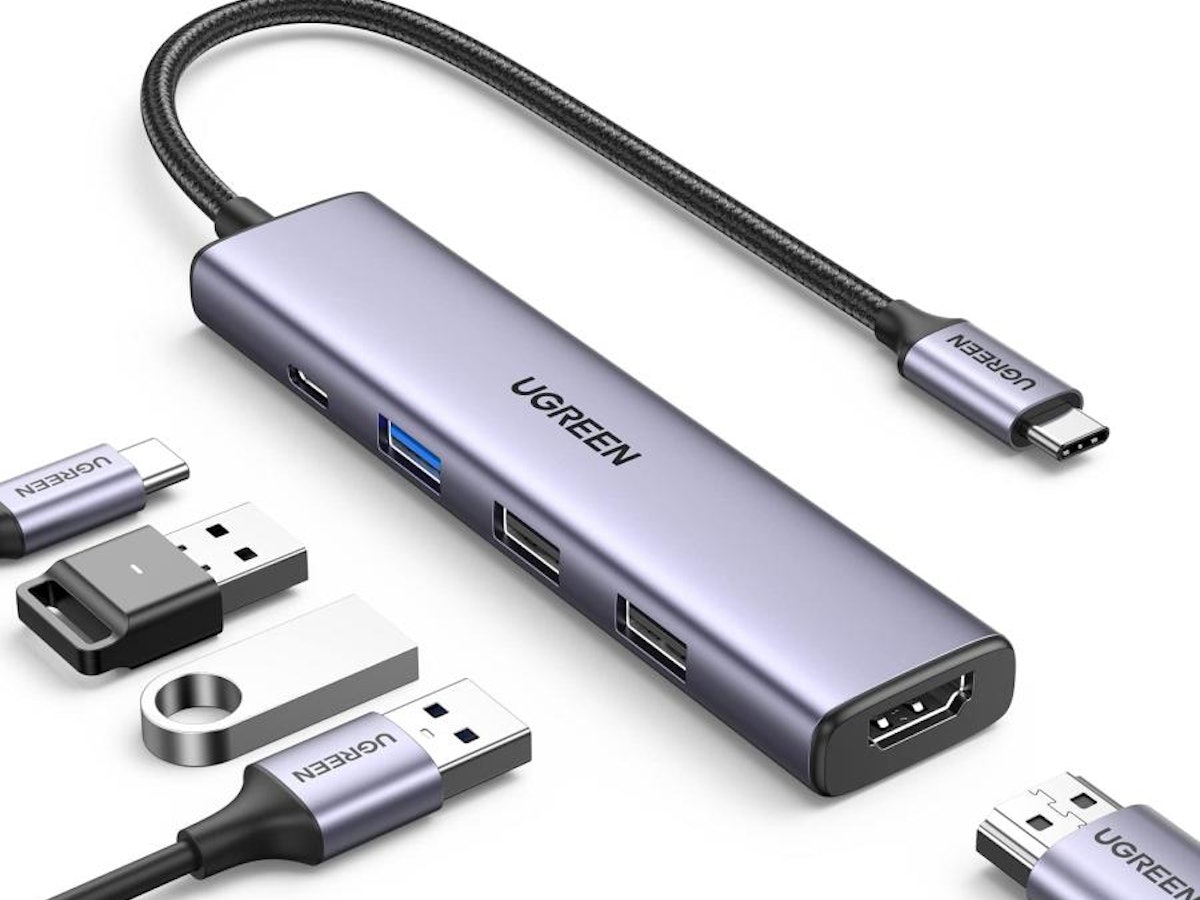
Top-Ranking USB Type-C Hubs【March 2026 Update】
Conveniently expand USB Type-C port capacity on PCs and smartphones. USB-C hubs suit notebooks and tablets with limited endpoints, easing connection of peripherals. Port types, port counts, sizes, and shapes vary widely across products, making selection...
my-best.comOver ¥30,000: Full Setup Plus Expansion
This tier adds charging consolidation and input load reduction atop intermediate foundations. The profile: monitor arm + USB-C hub + desk light, then layer 3-in-1 wireless charging and ergonomic input gear.
3-in-1 wireless chargers—MagSafe-aligned iPhone 15W models especially—consolidate smartphone, earbud, and Apple Watch staging. Desktop worth emerges less from charge speed than from smartphone location staying fixed, reducing surface scatter. Big Camera features sometimes mention 36W AC bundling, but inclusion varies by model/channel—confirm before purchase.
Input devices here matter once posture stabilizes. Vertical mice and split keyboards succeed where foundations align; failure occurs with misfit. Though high-comfort when right, they fail when wrong, so sequencing later prevents that waste.
Expansion optionally includes sit-stand desks. For example, FLEXISPOT E8 appears around ¥66,000 in some retailer listings. This tier supports standing work or height re-optimization once surface setup solidifies—think of "expanding comfort" rather than completing all at once. The author prefers gradual comfort layering over rushing completeness.
Budget-to-Benefit Quick Reference
| Budget Band | Typical Config | Retail Range | Expected Payoff | Watch Out For |
|---|---|---|---|---|
| Under ¥5,000 | Clamp hub + cable holders/clips | Clamp hub ~¥2,304 class | Swap-motion reduction, cable drop prevention, port edge-positioning | Desktop thickness, power spec, port mix |
| ¥10,000–30,000 | Monitor arm + USB-C hub + desk light | Arms ~¥7,000–10,000 band, lights ~¥5,000–10,000 band | Posture improvement, connection unity, nighttime visibility | VESA 75×75 / 100×100mm, PD presence, Ra value, glare control |
| ¥30,000+ | Mid-tier + 3-in-1 charger + ergonomic input | 3-in-1 charger 15W MagSafe examples noted, FLEXISPOT E8 examples ~¥66,000 | Charging consolidation, long-input comfort, future expansion ready | MagSafe/Qi2 labeling, power inclusion, input sizing, desk + base compatibility |
Initial growth peaks in the ¥15,000–25,000 range—most improvement per yen. Upper tiers add convenience, yet lacking stable foundations, benefits stay invisible, so sequencing drives satisfaction more than raw specs.
Avoiding Failure: Shopping Checklist
Monitor/Stand Checklist
Monitor arm choice hinges on compatibility before price. The most common snag: no VESA holes on your monitor. VESA standardizes on 75×75mm or 100×100mm—either your monitor fits or your purchase stalls pre-installation. The author hit this and needed a last-minute VESA adapter. The financial sting hurt less than missing same-day setup.
Use this form to lock in compatibility:
- Monitor rear has VESA 75×75mm OR 100×100mm holes
- Monitor weight sits within your chosen arm's weight limit
Sanwa Direct's 100-LA030 demonstrates clear comparison axes: VESA 75×75 / 100×100mm support, max 10kg per arm, clamp/grommet compatible. Working backward from your monitor specs rather than hunting "top-rated arms" avoids dead-ends.
Connectivity Checklist
USB-C hubs fail most often when port mismatch hits. Four specs matter: USB standard class, PD power routing, video output type, host-side video support. Misalignment yields charging-works-but-video-fails or speedy SSD-but-slow-USB-device scenarios.
Lock in these axes:
- USB data tier (5Gbps / 10Gbps / 20Gbps) is defined
- Notebook PD charging wattage requirement identified
- HDMI or DisplayPort video output needed (or both)
- Desired resolution/refresh rate matches output specs
- Notebook USB
Related Articles
Anker Prime 27650mAh 250W Review: Testing the 140W Output and 665g Weight
Anker Prime 27650mAh 250W Review: Testing the 140W Output and 665g Weight
Can the Anker Prime Power Bank (27650mAh, 250W) actually charge a laptop on the go? We break down the 140W output, 99.54Wh capacity, ~665g weight, and 24,990 yen (~$167 USD) price tag with real-world data to help you decide.
Anker Nano Power Bank 30W Review | Testing the Built-In Cable in Real Life
Anker Nano Power Bank 30W Review | Testing the Built-In Cable in Real Life
A hands-on review of the Anker Nano Power Bank (30W, Built-In USB-C Cable). We break down whether the 10,000mAh capacity, 30W output, built-in USB-C cable, and 215g weight actually hold up in daily use — with comparisons against the Anker Power Bank 30W, Zolo, and the 45W retractable-cable model.
Anker Nano Power Bank 30W Review: Built-In Cable Meets 10,000mAh
Anker Nano Power Bank 30W Review: Built-In Cable Meets 10,000mAh
A practical review of the Anker Nano Power Bank (30W, Built-In USB-C Cable). We cover real-world performance across 10,000mAh capacity, ~215g weight, the built-in USB-C cable experience, 30W charging, no pass-through support, and how it stacks up against the competition — so you can decide if it's right for you.
How to Choose a USB-C Cable: Charging, Data Transfer, and Video Output Explained
How to Choose a USB-C Cable: Charging, Data Transfer, and Video Output Explained
USB-C cables all look the same, but what's inside is a completely different story. You can charge a laptop fine but photo transfers crawl, or you plug into a monitor and get nothing — most of these headaches disappear once you realize that higher wattage does NOT mean faster data transfer.